How to Install Homepage Dashboard with Docker
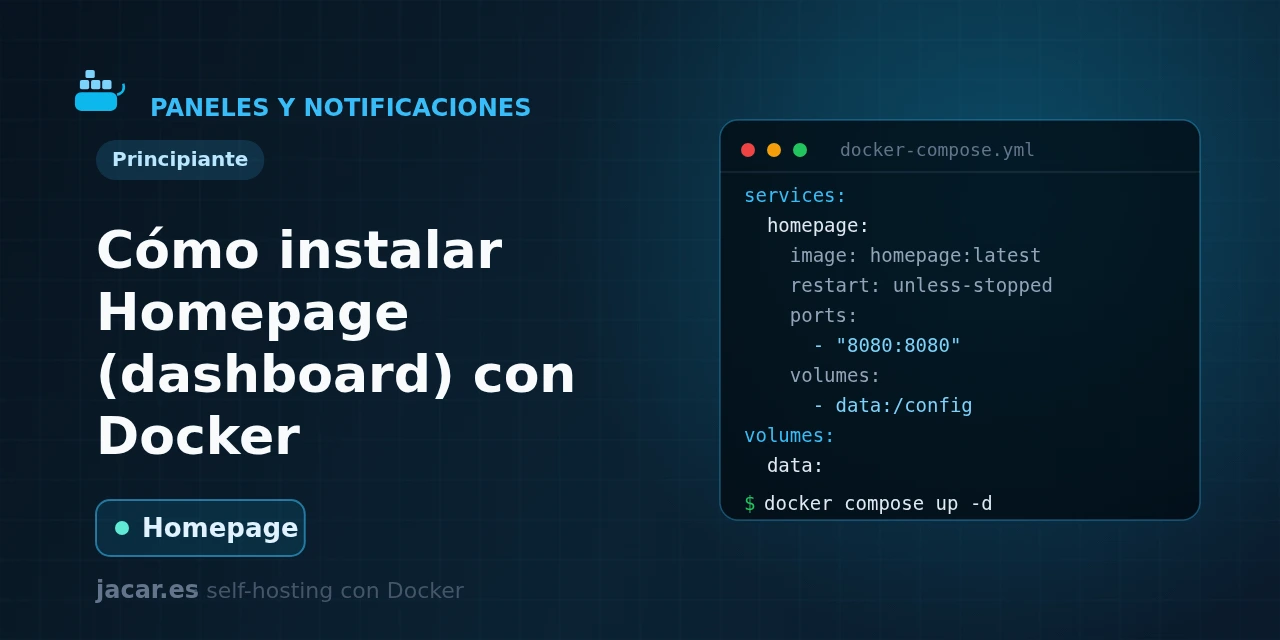
Table of contents
- Key takeaways
- What is Homepage and what is it for?
- What does the docker-compose.yml for Homepage look like?
- How is Homepage configured with YAML files?
- How do you discover services with Docker labels?
- How do you customise the look and background?
- Frequently asked questions
- Is Homepage the same as a browser's start page?
- Do I need to mount the Docker socket to use Homepage?
- Homepage or Homarr: which should I pick?
- Conclusion
- Sources
Homepage is a self-hosted, open-source service dashboard for your homelab. It turns the tangle of services into a single clean, fast, tidy front page, with links, live status and a widget for each application.
In this guide you bring it up with a single docker-compose.yml, understand its YAML-file configuration, leave it listening on port 3000 and get it to discover your containers automatically by reading their labels. Note: we mean the Homepage service dashboard (gethomepage), not a browser’s start page. The same explanation is available in Spanish.
Key takeaways
- Homepage is an open-source application dashboard, written in Next.js and React, with more than 31,500 stars on GitHub and a GPL-3.0 license.
- It is fully static: it is generated at start-up, mounts no database and has a minimal memory footprint, so it flies even on a Raspberry Pi.
- It listens on port 3000 and ships integrations for more than 100 services, with widgets that show live data from each application.
- It is configured with YAML files inside
/app/config:settings.yaml,services.yaml,widgets.yaml,bookmarks.yamlanddocker.yaml. - Always pin a specific version such as
ghcr.io/gethomepage/homepage:v1.13.2(released June 2026); using the:latesttag exposes you to changes without warning.
What is Homepage and what is it for?
Homepage is a service dashboard meant to be the first tab you open every morning. On a single screen you gather links to every application you run at home or on your server (private cloud, download manager, monitor, reverse proxy). Next to each link, a small widget shows its status and live metrics. Instead of remembering ports and IPs, you get a front page organised into groups.
Its defining trait is that it is fully proxied and static: the calls to your services’ APIs are made by the Homepage server, never by the browser, so your keys never reach the client. Being built with Next.js and React, it compiles at start-up and serves light HTML; it needs no database and no heavy process behind it. That is why it performs beautifully on modest hardware and boots in seconds.
Against alternatives like Homarr, which you configure by dragging and dropping in the browser, Homepage bets on configuration as code. Everything lives in versionable YAML files, which suits anyone already managing their infrastructure with Docker Compose. If you prefer a more classic page of shortcuts, Heimdall is another valid option; Homepage stands out when you want live-data widgets and automatic container discovery.
What does the docker-compose.yml for Homepage look like?
Homepage needs two mounts: a folder for its YAML configuration and, optionally but highly recommended, the Docker socket read-only to read the state of your containers. Here is a complete, copy-paste docker-compose.yml:
services:
  homepage:
    image: ghcr.io/gethomepage/homepage:v1.13.2
    container_name: homepage
    restart: unless-stopped
    ports:
      - "127.0.0.1:3000:3000"
    volumes:
      - ./config:/app/config
      - /var/run/docker.sock:/var/run/docker.sock:ro
    environment:
      HOMEPAGE_ALLOWED_HOSTS: "127.0.0.1:3000,panel.mydomain.com"
      PUID: "1000"
      PGID: "1000"
Start the stack and check the status:
mkdir -p config
docker compose up -d
docker compose ps
docker compose logs -f homepage
Open http://127.0.0.1:3000 and you will see the dashboard with its sample configuration. Three details are worth pausing on. First, HOMEPAGE_ALLOWED_HOSTS is mandatory since version 1.0. It is a comma-separated list of the host names (with a port if needed) from which the panel may be served, a defence against Host header attacks.
If you get a host-not-allowed error, that is where you add your domain. Second, the socket is mounted :ro (read-only), the minimum for Homepage to read state; even so, granting socket access implies trust, and further down you will see a safer alternative. And third, publishing the port as 127.0.0.1:3000:3000 keeps it reachable only from the server itself. To expose it, do so behind a reverse proxy like Traefik with HTTPS: that software centralises HTTPS and forwards each domain to the right container.
How is Homepage configured with YAML files?
All configuration lives in the folder you mounted at /app/config. On first start-up, Homepage creates the sample files there, which you then edit with your favourite editor. The five you will use most are:
| File | What it is for |
|---|---|
settings.yaml |
Title, theme, colours, column layout and background. |
services.yaml |
The groups and service cards, with their widget. |
widgets.yaml |
Header widgets: clock, system resources, search, greeting. |
bookmarks.yaml |
Static links organised by category. |
docker.yaml |
The connection to Docker to read state and discover services. |
A minimal services.yaml groups your applications and gives each an icon and a link. For example:
- Media:
    - Jellyfin:
        icon: jellyfin.png
        href: http://192.168.1.10:8096
        description: Media server
- Management:
    - Portainer:
        icon: portainer.png
        href: http://192.168.1.10:9000
        description: Container panel
Every change in these files is hot-reloaded: you save the YAML and the panel updates without restarting the container. If you get the indentation wrong (remember: spaces, never tabs), Homepage will flag it in its logs, which you can follow with docker compose logs -f homepage.
How do you discover services with Docker labels?
Here is the part that makes Homepage special. Instead of listing each service by hand in services.yaml, you can let it discover containers automatically from the labels you attach to them. First you declare the connection in docker.yaml:
my-docker:
  socket: /var/run/docker.sock
Then, to each container you want on the panel, you add labels using the dot notation that begins with homepage:
    labels:
      homepage.group: Media
      homepage.name: Jellyfin
      homepage.icon: jellyfin.png
      homepage.href: http://192.168.1.10:8096
      homepage.description: Media server
On start-up, Homepage reads those labels over the socket and places each service in its group, without you touching services.yaml. You can even enable a live widget with homepage.widget.* labels. The benefit is huge: the panel and your services live in the same docker-compose.yml, so adding a new application is just a matter of labelling it.
Keep one security warning in mind: mounting the Docker socket directly grants a lot of power and forces the container to run as root. The recommended option for production is to interpose a docker-socket-proxy, a container that exposes only the slice of the API Homepage needs (reading containers), over TCP and read-only. That way Homepage never touches the real socket.
How do you customise the look and background?
The visual side is controlled from settings.yaml. There you set the panel title, the language, whether it starts in light or dark mode, how many columns each group has and, above all, the background. You can set a colour, a gradient or an image, and adjust its blur and opacity so the cards read well on top:
title: My homelab
theme: dark
background:
  image: /images/background.jpg
  blur: sm
  opacity: 50
layout:
  Media:
    style: row
    columns: 3
Background images are served from an images subfolder inside your config folder. For finer tweaks there are two escape hatches: custom.css to inject your own styles and custom.js for bespoke behaviour. With that, and the hundred-plus service icons Homepage recognises by name, you will have a front page to your taste in minutes.
Frequently asked questions
Is Homepage the same as a browser’s start page?
No, and it is a common mix-up because of the name. Homepage (from gethomepage) is a self-hosted service dashboard that shows and monitors your server’s applications; it has nothing to do with the page your browser opens at start-up. You can, however, set your browser to open the Homepage panel as its start page, which is exactly what a start-page dashboard is for.
Do I need to mount the Docker socket to use Homepage?
It is not mandatory: without the socket, Homepage works fine by listing your services by hand in services.yaml. The socket is only needed for two things: showing each container’s status and statistics, and discovering services automatically by label. If you mount it, do so read-only (:ro) and, in production, through a docker-socket-proxy so you never expose the real socket.
Homepage or Homarr: which should I pick?
It depends on how you prefer to configure. Homarr is edited from the browser by dragging and dropping, handy if you would rather not touch files. Homepage follows the configuration as code philosophy in YAML, ideal if you already version your infrastructure and want automatic discovery via Docker labels. Both are lightweight; choose Homepage if you like everything to live in your docker-compose.yml.
Conclusion
With a single docker-compose.yml, a config folder and the Docker socket read-only, Homepage gives you a fast, static front page for your whole homelab on port 3000. You edit it with versionable YAML files, discover your containers automatically by label and customise it down to the background from settings.yaml. Remember to pin the image version, declare HOMEPAGE_ALLOWED_HOSTS and, when you put it on the Internet, protect it behind a reverse proxy. If you prefer a browser-editable alternative, compare it with Homarr or the classic Heimdall; if you want configuration as code, Homepage is hard to beat.