How to Install Homarr with Docker
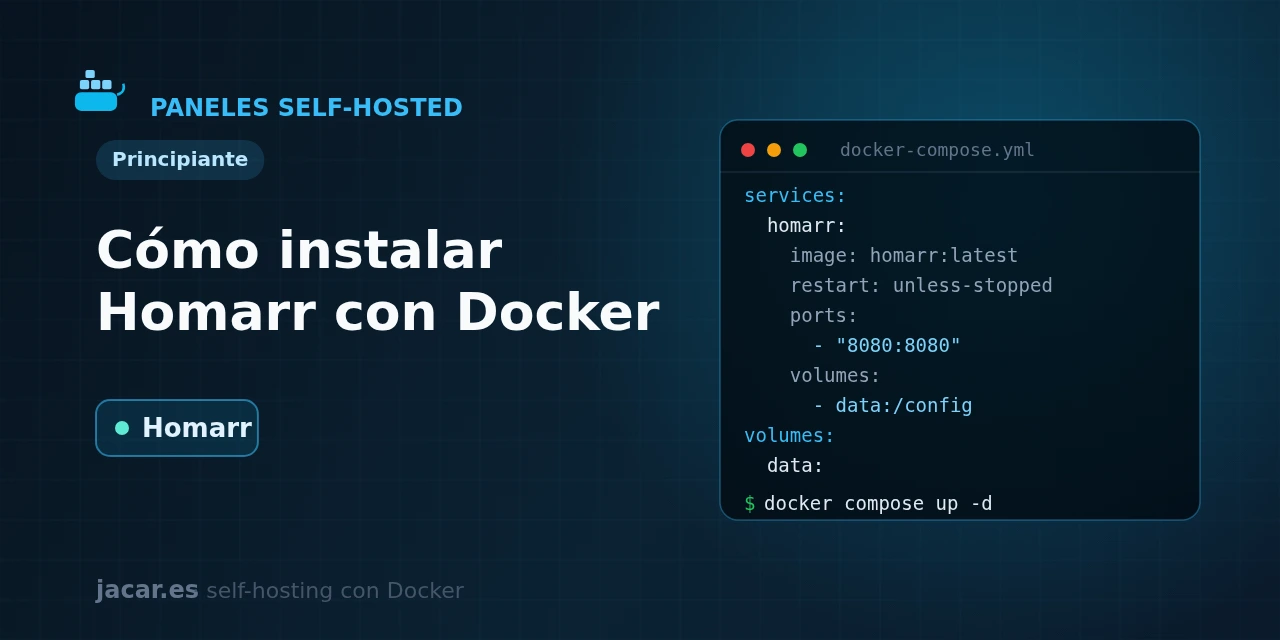
Table of contents
- Key takeaways
- What is Homarr and what is it for?
- What does the docker-compose.yml for Homarr look like?
- How does the drag-and-drop editor work?
- What integrations and widgets does it offer?
- Homarr or Homepage: which should you choose?
- Frequently asked questions
- Does Homarr need an external database?
- What happens if I lose the SECRET_ENCRYPTION_KEY?
- Is mounting the Docker socket mandatory?
- Conclusion
- Sources
Homarr brings all your self-hosted services together on a single home page that you build with the mouse, without touching a configuration file. In this guide you bring it up with a single docker-compose.yml, enter through port 7575, generate the mandatory encryption key and learn to place cards and widgets with its drag-and-drop editor. By the end you will know when Homarr suits you and when a file-based panel like Homepage is better. The same explanation is available in Spanish.
Key takeaways
- Homarr is a service dashboard for the homelab, with more than 40 integrations and over 20,000 built-in icons, configured entirely from the browser, with no YAML to edit.
- Version 1.0 is a ground-up rewrite: the old
ajnart/homarrrepository (more than 7,200 stars) is archived and development now lives athomarr-labs/homarr. Migrating from the old v0.15 means rebuilding yourdocker-compose.yml. - The UI listens on port 7575 and keeps its state in an embedded SQLite database, inside the
/appdatavolume; you do not need a separate database server. - Before starting it is mandatory to set
SECRET_ENCRYPTION_KEY, a 64-character hex string generated byopenssl rand -hex 32; without it the container stops. - Always pin a specific version such as
ghcr.io/homarr-labs/homarr:v1.70.0; using the:latesttag exposes you to behaviour changes between releases without warning.
What is Homarr and what is it for?
Homarr is an open-source application that acts as the home page of your homelab: a single page from which you open, monitor and control every service you run on Docker. Instead of remembering ports and IPs, you place a card for each application (Jellyfin, Nextcloud, your router, Portainer) and group them into categories. Its big difference from other panels is that all configuration is done from the browser, dragging and dropping, without editing a single text file.
The idea to internalise is that Homarr is a stateful panel: it stores your layout, your users and the integration credentials in its own SQLite database, not in YAML files. That is why it ships built-in authentication (users, groups and external providers such as OIDC or LDAP) and encrypts sensitive data with the SECRET_ENCRYPTION_KEY you generate. It is a model closer to a full application than to a simple canvas of links.
It is worth knowing that the current version is a new project. Version 1.0 was a complete rewrite that dropped the original ajnart/homarr code (now archived) and was reborn under the homarr-labs organisation. If you come from the old 0.15 version, updating the image is not enough: the configuration and storage change, so treat it as a fresh install. As a visual management panel it fits well alongside Portainer, which handles the container life cycle while Homarr gives you the home page.
What does the docker-compose.yml for Homarr look like?
Homarr needs two things to deploy: a persistent volume where its database and configuration live, and the mandatory encryption key. If you also want it to show your container status, mount the Docker socket read-only. First generate the key:
openssl rand -hex 32Copy that 64-character string. Here is a complete docker-compose.yml, with the version pinned, the named volume, the port published only on the machine itself and the socket mounted read-only:
services:
  homarr:
    image: ghcr.io/homarr-labs/homarr:v1.70.0
    container_name: homarr
    restart: unless-stopped
    volumes:
      - homarr_appdata:/appdata
      - /var/run/docker.sock:/var/run/docker.sock:ro
    ports:
      - "127.0.0.1:7575:7575"
    environment:
      SECRET_ENCRYPTION_KEY: "paste_your_64_character_key_here"
    healthcheck:
      test: ["CMD", "wget", "--spider", "-q", "http://127.0.0.1:7575"]
      interval: 30s
      timeout: 5s
      retries: 3

volumes:
  homarr_appdata:
A few details are worth pausing on. The named volume homarr_appdata is mounted at /appdata, the path where Homarr creates the SQLite database (/appdata/db/db.sqlite) and stores your layout. Without that volume you would lose all configuration when recreating the container: a stateful panel always needs persistent storage.
The Homarr image ships no health check of its own, so the one in the example is a basic liveness probe: it checks that port 7575 responds. And by publishing it as 127.0.0.1:7575:7575 you keep it reachable only from the server itself, because any management panel should sit behind a proxy or a VPN, never facing the Internet directly.
Start the stack and check the status:
docker compose up -d
docker compose ps
docker compose logs -f homarr
Open http://127.0.0.1:7575 in the browser. The first time, Homarr will ask you to create the administrator account; from then on you will always log in with that user.
How does the drag-and-drop editor work?
This is the trait that defines Homarr. From the panel itself you enable edit mode and the interface becomes a canvas. You click to add an element, drag it to its place and stretch its edges to give it the size you want. Every change is saved to the database instantly, with no reload and no files to edit.
The elements you place fall into three types:
- Apps: cards with the link to a service, its icon and, optionally, a status indicator that checks whether it responds.
- Widgets: dynamic blocks such as a clock, the weather, a calendar, notes or the system status.
- Categories and dividers: to group and order everything into collapsible sections.
Homarr supports more than one board, each with its own permissions, so you can have a public one with links and a private one with the administration tools. Because icons are a recurring headache in these panels, Homarr includes a library of more than 20,000 icons and automatically detects the most suitable one from the application name. Compared with a panel like Dashy, where the layout is also touched through the interface but is backed by a conf.yml file, Homarr has no such file: the source of truth is its database.
What integrations and widgets does it offer?
Beyond the links, the point of Homarr is its integrations: authenticated connections with other services that turn a card into a live panel. When you link Homarr to an application’s API, it starts showing real, real-time data inside the dashboard itself.
Among the more than forty available integrations there are categories useful for a homelab:
- Containers: by mounting the Docker socket, Homarr lists your containers, shows their status and CPU/RAM, and lets you start, stop or restart them from the table itself.
- Downloads and media: clients such as qBittorrent or Transmission, and managers such as Sonarr, Radarr or Jellyfin, with live progress and queues.
- Networking and system: Pi-hole or AdGuard Home with their statistics, and status widgets for the server itself.
This is where the encryption key makes sense: the tokens and passwords of those integrations are stored encrypted in the database with SECRET_ENCRYPTION_KEY. So if you lose that key, Homarr will not be able to decrypt any credential and every integration will stop working; keep it as safe as a password. To publish the panel securely with HTTPS and its own domain, put it behind a reverse proxy like Traefik.
Homarr or Homepage: which should you choose?
They are the two opposite ways to build a panel, and the choice depends on how you like to work. Homarr is a full application, with a database and authentication, configured through the interface; Homepage is a stateless panel defined by writing YAML files and keeps nothing between restarts beyond those files.
| Criterion | Homarr | Homepage |
|---|---|---|
| Configuration | Drag and drop in the browser | YAML files edited by hand |
| Storage | SQLite database | Configuration files only |
| Authentication | Built in (users, OIDC, LDAP) | None; delegated to a proxy |
| Multi-user and boards | Yes, with permissions | Not natively |
| Resource usage | Higher (app with a database) | Very light |
In practice, choose Homarr if you want to do everything with the mouse, share it with more than one person and avoid wrestling with YAML syntax. Choose Homepage if you prefer to version your configuration in Git, want the smallest possible footprint and do not mind editing text. Neither is better in the abstract: they are different philosophies for the same job.
Frequently asked questions
Does Homarr need an external database?
No. Unlike other stateful panels, Homarr v1 includes an embedded SQLite database that lives inside the /appdata volume, at /appdata/db/db.sqlite. Mounting that persistent volume is enough to keep your layout, your users and the integrations across restarts. Only if you have a large installation and want to separate the database can you point Homarr to an external MySQL or PostgreSQL through environment variables, but that is not usual in a homelab.
What happens if I lose the SECRET_ENCRYPTION_KEY?
Losing it breaks every integration. Homarr uses that key to encrypt the tokens and passwords of connected services in the database. Without it, it cannot decrypt them: they would stop working and you would have to enter each credential again. The key is not stored inside the container: you define it yourself in the docker-compose.yml, so keep it in your password manager together with backups of the /appdata volume.
Is mounting the Docker socket mandatory?
Not for the basic panel. Homarr works perfectly well as a home page of links and widgets without socket access. You only need it for the container integration, which shows your Docker status and lets you manage containers from the browser. Because mounting /var/run/docker.sock grants a lot of power, do it read-only (:ro) or, better still, through a socket proxy that limits the allowed operations.
Conclusion
With a single docker-compose.yml, a persistent volume and a 64-character encryption key, Homarr gives you a homelab home page that you build by dragging cards on port 7575. It brings more than forty integrations that show live data. Remember to pin the image version, keep the SECRET_ENCRYPTION_KEY safe and always publish it behind a reverse proxy, never directly on the Internet. If you prefer to version your configuration in plain text, look at Homepage; if you want to do everything with the mouse, Homarr is your panel.