How to harden npm against supply chain attacks with allowScripts and min-release-age
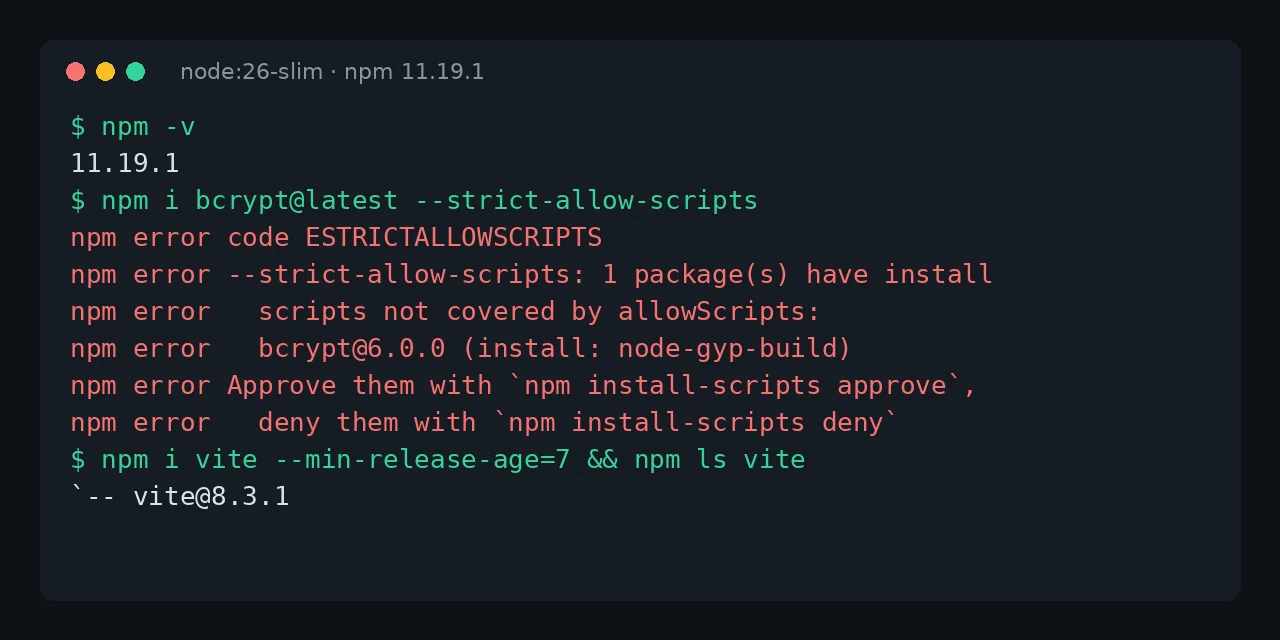
Table of contents
- Key takeaways
- What ChainDrop did and why these two options stop it
- How to approve install scripts with allowScripts
- How to make CI fail on an unreviewed script
- How to wait a few days before installing with min-release-age
- What else to turn on
- Frequently asked questions
- Which npm version do I need for allowScripts and min-release-age?
- Does allowScripts replace --ignore-scripts?
- How many days should I set in min-release-age?
- Conclusion
- Sources
npm 11.19 ships two defences that cover both ways the ChainDrop worm got in during August 2026: allowScripts makes you approve each dependency’s install scripts, and min-release-age ignores versions published less than N days ago. I tested them on 7 October 2026 on the node:26-slim image, which ships npm 11.19.1, with real packages from the registry. Below is how to turn them on, what they write to your project and what happens in CI when an unreviewed script shows up. There is also a Spanish version.
Key takeaways
- ChainDrop compromised more than 400 npm packages, according to Microsoft. It ran in a
preinstallhook and spread by publishing new patch versions with the malware inside. allowScriptsis apackage.jsonfield. npm warns about each dependency with unapproved install scripts, and withstrict-allow-scriptsthe install fails withESTRICTALLOWSCRIPTS.npm approve-scripts esbuildadded{"esbuild@0.28.2": true}topackage.json: the approval is pinned to that version, so a new release asks for review again.- With
allowScripts: {"bcrypt": false}, bcrypt 6.0.0 installed without running its script and kept working, because it loads prebuilt binaries. - With
min-release-age=7,npm i viteinstalled 8.3.1, from 24 September, instead of 8.3.3, published the day before.
What ChainDrop did and why these two options stop it
On 4 August 2026, Microsoft’s security team published its ChainDrop analysis[1], a worm that hit more than 400 npm packages from unrelated publishers. It stole npm, GitHub, AWS, Kubernetes and Vault credentials, and replicated itself. Microsoft describes it like this: "After obtaining an npm publishing token, it enumerates packages available to the compromised identity, downloads their latest tarballs, inserts the malware and setup loader, adds a preinstall hook, increments the patch version, and republishes the modified packages."
That sentence holds the two conditions the attack needs:
- An install script has to run. Without the
preinstallhook, the malicious code is downloaded but does not run duringnpm install. - You have to install the freshly published version. A new patch release falls inside any
^1.2.3range on the nextnpm installor as soon as Renovate proposes it.
allowScripts targets the first and min-release-age the second. Neither replaces the lockfile or npm ci, which are still the foundation: if that is not settled yet, start by comparing Dependabot and Renovate to control when updates come in.
How to approve install scripts with allowScripts
Install a dependency with scripts and npm warns you. This is the warning npm i esbuild gave on npm 11.19.1:
npm warn install-scripts 1 package has install scripts not yet
  covered by allowScripts:
npm warn install-scripts   esbuild@0.28.2 (postinstall: node install.js)
npm warn install-scripts Run `npm install-scripts ls` to review,
  or `npm install-scripts approve <pkg>` to allow.
The warning does not block: the script ran anyway. To review them all, npm install-scripts ls lists the pending packages with the exact command each would run. If the script is legitimate, approve it:
npm approve-scripts esbuild
node -p "JSON.stringify(require('./package.json').allowScripts)"
The second line printed {"esbuild@0.28.2":true}. The approval is stored with the version because allow-scripts-pin defaults to true: when esbuild publishes 0.28.3, npm will warn again. That is exactly the ChainDrop case, a new patch release of a package you had already approved.
To deny a script, write false in the field. npm deny-scripts only works on installed packages; before installing, edit package.json:
{
  "allowScripts": {
    "esbuild@0.28.2": true,
    "bcrypt": false
  }
}
With that policy, npm i bcrypt@6.0.0 installed the package without running its install script and require('bcrypt').hashSync was still a function, because bcrypt 6 ships prebuilt binaries and the script only looks for them. Not every native package works like that: if one has to compile at install time, denying it leaves it broken.
How to make CI fail on an unreviewed script
In CI you want an error, not a warning. Add strict-allow-scripts=true to the project’s .npmrc or pass it on the command line. Installing bcrypt without covering it in the policy stopped npm with this error:
npm error code ESTRICTALLOWSCRIPTS
npm error --strict-allow-scripts: 1 package(s) have install
  scripts not covered by allowScripts:
npm error   bcrypt@6.0.0 (install: node-gyp-build)
Dependencies denied with false are skipped silently and do not break strict mode. The only way around the policy is --dangerously-allow-all-scripts, which the documentation calls a migration escape hatch and explicitly discourages. --ignore-scripts still takes precedence over all of the above.
How to wait a few days before installing with min-release-age
min-release-age tells npm to build the tree only from versions published more than N days ago. Put it in .npmrc:
min-release-age=7
min-release-age-exclude[]=@myorg/*
strict-allow-scripts=true
The second line exempts your organisation’s packages, which you want to use as soon as you publish them. I tested it with Vite, which had published 8.3.2 on 1 October and 8.3.3 on 6 October. Without the option, npm i vite installed 8.3.3; with --min-release-age=7 it installed 8.3.1, from 24 September.
The wait is a detection window: it gives the registry and publishers time to spot and pull a compromised version before it reaches your tree. The price is that a legitimate security fix also takes a week to reach you, unless you install it by hand with an exact version.
What else to turn on
Both options fit with measures that already existed:
npm ciin CI: installs exactly what the lockfile says and fails if it does not matchpackage.json- Granular publish tokens or OIDC publishing: limit what a stolen token can do, which is how ChainDrop jumped from one publisher to the next
npm audit signatures: checks registry signatures and provenance for packages that publish it- Reviewing dependency PRs: with SLSA as a framework if you want to formalise the chain
Frequently asked questions
Which npm version do I need for allowScripts and min-release-age?
Both are in npm 11.19, the one shipped by the official Node 24 and Node 26 images in October 2026. npm 12 includes them too. Check yours with npm -v and npm config ls -l | grep -E "allow-scripts|min-release-age".
Does allowScripts replace –ignore-scripts?
It improves on it. --ignore-scripts turns off every script, including the ones you need; allowScripts lets you approve them one by one and block the rest.
How many days should I set in min-release-age?
Seven is a reasonable starting point and is the documentation’s example. Fewer than three days leaves little room for a malicious package to be caught; more than 14 delays fixes too much.
Conclusion
ChainDrop needed two things: its preinstall had to run and you had to install a freshly published patch release. npm 11.19 lets you deny it both with two lines in .npmrc and one field in package.json, and in my test both did what they promise.
Next, run npm install-scripts ls in your project, approve what you recognise, deny the rest and turn on strict-allow-scripts and min-release-age=7 in CI.
Sources: [1] ChainDrop supply chain compromise, Microsoft Security Blog[1], [2] npm config: allow-scripts, strict-allow-scripts and min-release-age[2], [3] npm approve-scripts[3], [4] npm 11.19.0 release notes[4], [5] npm audit signatures[5].
Sources
Source code
Access all the source code for this post on GitHub.
View on GitHub