How to Install Stirling-PDF with Docker
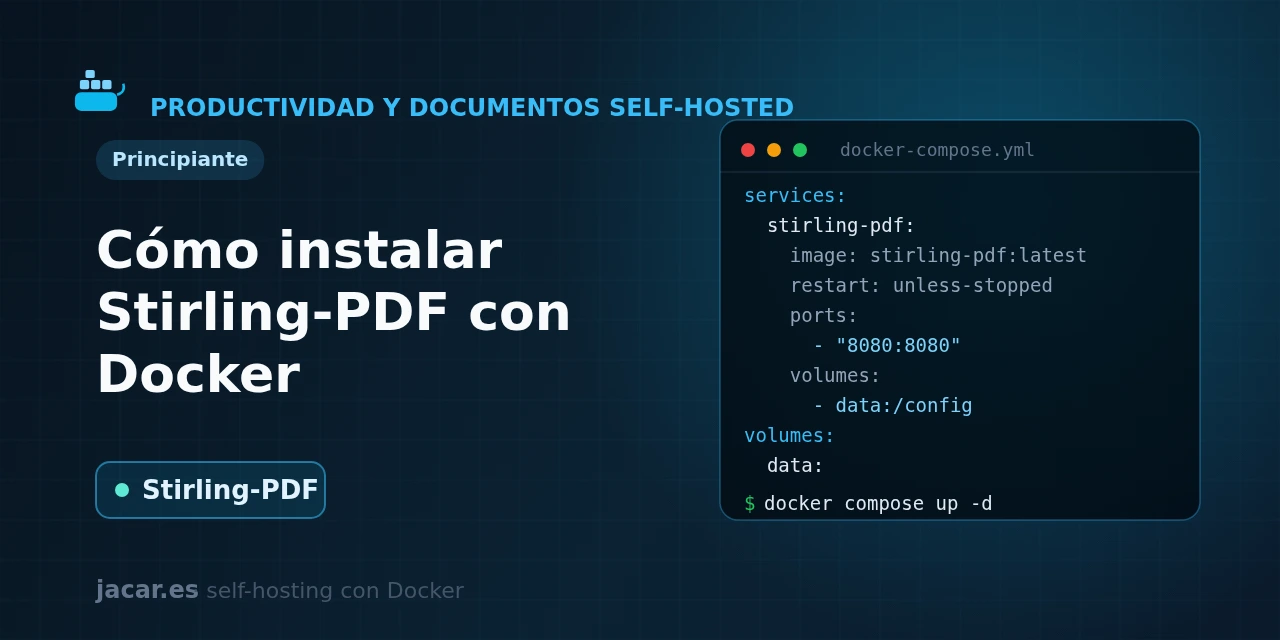
Table of contents
- Key takeaways
- What is Stirling-PDF?
- What tools does it offer: merge, split, OCR and sign?
- The Stirling-PDF docker-compose.yml
- Why does local processing improve privacy?
- How do you publish it protected behind authentication?
- Frequently asked questions
- Does Stirling-PDF need a database?
- Why should I not use the image's latest tag?
- Are my documents stored on the server?
- Conclusion
- Sources
Stirling-PDF is a web-based suite of PDF tools that you can self-host with Docker in a single container, without relying on websites that upload your documents to someone else’s servers. In this guide you bring up the application with a single docker-compose.yml file and see what you can do with its more than fifty tools. You also learn why local processing protects your privacy and how to lock it down behind a login or SSO. The same explanation is available in Spanish.
Key takeaways
- Stirling-PDF is an open-source application that bundles more than 50 tools to manipulate PDFs: merge, split, compress, convert, sign, redact and OCR.
- It runs as a single container listening on port 8080; it needs no external database to get started.
- All processing happens on your server: files are processed and discarded, never stored or sent to third parties.
- There are three image variants:
latest(standard),latest-fat(with extra fonts and converters) andlatest-ultra-lite(core only, ideal for a Raspberry Pi). - The latest stable version is 2.14.2 (July 8, 2026); it is best to pin that tag and not use
:latestblindly.
What is Stirling-PDF?
Stirling-PDF is an open-source web application that groups in one place almost everything you have ever searched for on sites like "merge PDF" or "compress PDF". Instead of uploading sensitive documents to an unknown service, you host the tool yourself on your server and work with your files without them leaving your network. The repository describes itself as "the #1 PDF Application on GitHub", and that popularity shows in the pace of new features.
Under the hood it is a Java service on Spring Boot (a framework for building Java applications packaged as a single service) with a TypeScript frontend, packaged into a single Docker image. It needs no external database to boot: it keeps its configuration in a volume and processes each document on the fly. That makes it one of the easiest services in this Docker self-hosting series, because a single service definition is enough to get it running.
What tools does it offer: merge, split, OCR and sign?
The big advantage of Stirling-PDF is that it replaces dozens of scattered websites with a single interface. Its more than fifty operations are grouped into five families:
- Organize: merge two or more PDFs into one, split by pages or bookmarks, reorder, rotate and delete pages.
- Convert: go from PDF to image and back, to and from Office formats, or combine images into a PDF.
- Security: add or remove a password, manage permissions, sign digitally, redact (black out) text and add watermarks.
- Optimize and edit: compress to reduce size, edit metadata, compare two documents and repair damaged files.
- OCR: recognize the text of scanned documents so you can search and copy it, using Tesseract (the open-source optical character recognition engine behind the feature) with whichever languages you install.
It also includes a "pipelines" system to chain more than one operation and automate them, useful if you process batches of documents with the same treatment. The full, up-to-date list lives in the official documentation, because each version tends to add new tools.
The Stirling-PDF docker-compose.yml
Create a folder for the project and save this docker-compose.yml inside it. Pin the tag to a specific version (here 2.14.2) so you control when you update, and mount the volumes so the configuration and the OCR data survive a restart:
services:
  stirling-pdf:
    image: stirlingtools/stirling-pdf:2.14.2
    container_name: stirling-pdf
    restart: unless-stopped
    ports:
      - "8080:8080"
    volumes:
      - ./data/tessdata:/usr/share/tessdata
      - ./data/configs:/configs
      - ./data/logs:/logs
      - ./data/pipeline:/pipeline
    environment:
      DISABLE_ADDITIONAL_FEATURES: "false"
      SECURITY_ENABLELOGIN: "false"
      SYSTEM_DEFAULTLOCALE: "en-GB"
    healthcheck:
      test: ["CMD-SHELL", "curl -f http://localhost:8080/api/v1/info/status | grep -q 'UP'"]
      interval: 30s
      timeout: 10s
      retries: 5
restart: unless-stopped makes Docker bring the container back up after a host reboot, and the healthcheck block polls the application’s own /api/v1/info/status endpoint every 30 seconds, marking it healthy only once it answers UP. Start the container and check that status:
docker compose up -d
docker compose ps
When the status shows as healthy, open http://localhost:8080 in the browser and you will see the main screen with all the tools organized by category. The SYSTEM_DEFAULTLOCALE variable sets the interface language. The image only ships the English OCR pack: to recognize Spanish text, also download the Tesseract language file into the folder you mounted as tessdata, without deleting the English one, then restart the container:
mkdir -p ./data/tessdata
curl -Lo ./data/tessdata/eng.traineddata https://github.com/tesseract-ocr/tessdata_fast/raw/main/eng.traineddata
curl -Lo ./data/tessdata/spa.traineddata https://github.com/tesseract-ocr/tessdata_fast/raw/main/spa.traineddata
docker compose restart stirling-pdf
The configuration data and the OCR packs are stored in the ./data bind mount. If you want to understand the difference between named volumes and bind mounts well, review the guide on Docker volumes and bind mounts.
Keep in mind that the standard image takes just over 1 GB on disk, and it is best to reserve about 2 GB of RAM to work with large documents. If your server is tight on resources, change the tag to 2.14.2-ultra-lite for the lightweight variant; if you need the best Office conversions, use 2.14.2-fat.
Why does local processing improve privacy?
The main reason to self-host Stirling-PDF is to avoid handing private documents (contracts, payslips, deeds) to a free website whose data policy you do not know. Here the flow is different: the file is uploaded to your own container, processed in memory and on temporary disk, and the result is returned to you. The tool keeps no copies and sends nothing outside.
This fits the philosophy of this series: taking back control of your data. If, on top of that, you want Stirling-PDF not to record usage statistics, set SYSTEM_ENABLEANALYTICS to false in the environment block. To start from scratch you need Docker installed; if that is your case, first follow the guide to install Docker on Ubuntu 24.04.
How do you publish it protected behind authentication?
Serving Stirling-PDF openly inside your local network is fine for tests. Exposing it to the Internet unprotected is a bad idea: anyone with the URL could use your server to process their files. There are two protection layers you can combine.
The first is the application’s own login. Change SECURITY_ENABLELOGIN to true and recreate the container; Stirling-PDF will create an initial administrator user (by default admin with password stirling) that you must change as soon as you log in. From there you can create more users and control who has access.
The second, more robust for an exposed service, is to place it behind a reverse proxy with single sign-on. With Authentik as an SSO provider in front of the container, you force authentication before anyone even reaches the Stirling-PDF interface. You also reuse the same users as in the rest of your infrastructure. It is the recommended pattern when the service faces the Internet.
Frequently asked questions
Does Stirling-PDF need a database?
Not to get started. The standard image stores its configuration and users in H2 (a lightweight database that runs embedded inside the Java process itself, with no separate server) inside /configs, whether or not you enable SECURITY_ENABLELOGIN. Only with an Enterprise license can you point the application at your own external PostgreSQL (relational database system). For the home or team use this guide covers, H2 is more than enough and you do not need to run a separate database container.
Why should I not use the image’s latest tag?
Because :latest changes without warning, and a major update could alter the configuration or behaviour during a simple restart. By pinning stirlingtools/stirling-pdf:2.14.2 you decide when you update: you read the release notes first, back up your ./data folder and only then bump the tag. Version 2.14.2, released on July 8, 2026, is a stability patch on top of 2.14.0. That release did bring bigger changes, such as hardware token signing (USB key or smart card) in the desktop app.
Are my documents stored on the server?
No. Stirling-PDF processes each file and returns the result without keeping permanent copies of your documents. That is why it is a private alternative to online PDF sites: the data never leaves your server. The ./data volume only stores the configuration, the logs and the OCR language packs, not your PDFs.
Conclusion
With a single docker-compose.yml you have a complete, private PDF Swiss Army knife: more than fifty tools to merge, split, convert, sign and OCR, all processed on your own server. The logical next step is to pin a specific version, mount the configuration and OCR volumes, and decide how to protect it. For home use the built-in login is enough; if you take it to the Internet, put it behind Authentik. From there, stop uploading your documents to other people’s websites and do it all at home.
Sources
Source code
Access all the source code for this post on GitHub.
View on GitHub