How to install OpenClaw with Docker and a local model
Table of contents
- Key takeaways
- What OpenClaw is and what changed in version 2.0
- Which Docker image to pick
- What the deployment looks like
- Installing OpenClaw with Docker Compose
- Configuring the local model with onboarding
- First conversation and a tool call
- Connecting Ollama instead of llama-server
- Opening the Control UI with the token
- Hardening OpenClaw in Docker
- Do not publish port 18789 on every interface
- Treat the token like the root password
- Review every skill and plugin before installing it
- Give the agent only the tools it needs
- Connecting Telegram, WhatsApp or Discord
- Upgrading without losing state
- Frequently asked questions
- Can I use OpenClaw without paying for an API?
- Does the OpenClaw image run on arm64?
- Is it safe to expose OpenClaw to the internet?
- Conclusion
- Sources
OpenClaw is an open-source AI assistant that runs on your machine as a process called the gateway: it stores sessions, calls the model and runs tools such as the shell or the file system. This guide installs the stable 2026.9.4 release with Docker Compose, connects it to a local model served by llama-server so it works without a cloud API, and hardens it, because the repository’s compose file publishes the gateway on every interface. I ran everything below on 14 September 2026 on a linux/arm64 machine with 18 cores and 121 GB of memory, no GPU.
Key takeaways
- The stable release on 14 September 2026 is 2026.9.4, published on 11 September. OpenClaw 2.0 is v2026.8.1 from 31 August, and
2026.9.1-beta.1is a misnumbered beta that predates that stable release. - The
ghcr.io/openclaw/openclaw:2026.9.4image ships for amd64 and arm64, weighs 1.12 GB compressed and takes 4.43 GB on disk. Todaylatestandslimpoint at the same digest. - The official
docker-compose.ymlpublishes port 18789 on every interface, and UFW rules do not stop it. Publish on127.0.0.1and come in through a tunnel or a VPN. - The gateway token is administrator access: once I pasted it into the browser, the device was paired without approval and with the
operator.adminscope. - With a 4B model on CPU, the first agent turn was cut off twice at 300 s. Raising
timeoutSecondsand turning on Tool Search took the prompt from about 24,000 to 11,899 tokens, and the turn finished with a tool call. openclaw security auditflagged a small model withweb_fetchand no sandbox as critical. Five settings brought it to 0 critical findings and 0 warnings.
What OpenClaw is and what changed in version 2.0
OpenClaw is a personal AI agent that runs on your own hardware. The gateway is a Node.js process that listens on port 18789, serves the Control UI (the web interface), stores sessions in SQLite and connects channels such as Telegram, WhatsApp or Discord. It is MIT-licensed under the OpenClaw Foundation, and the repository had 389,686 stars on the day I wrote this.
2.0 is the nickname of v2026.8.1, which GitHub dates 31 August 2026. Its release notes page sums it up as 16,977 pull requests, 698 direct commits and 987 contributors. Hannes Rudolph’s announcement post on 30 August gave 933 contributors; I use the documentation figure, since that page is the reference for the release. What you notice first when installing is the rebuilt web interface, a shorter onboarding and sessions and transcripts moving to SQLite.
Since 1 September five more releases have shipped, from 2026.8.2 to 2026.9.4 on 11 September, which GitHub marks as Latest. Watch the tag list: 2026.9.1-beta.1 was published on 28 August and, according to the documentation itself, "corresponds to 2026.8.1-beta.4; it is not newer than stable 2026.8.1". Sort tags by number and that beta looks newer than everything from August, which it is not.
Which Docker image to pick
Pin ghcr.io/openclaw/openclaw:2026.9.4. The GitHub registry is the primary one, and Docker Hub carries a mirror at openclaw/openclaw. I inspected the manifest with docker buildx imagetools inspect and it lists linux/amd64 and linux/arm64 variants, so the same tag works on an x86 server, an ARM server or an Apple Silicon Mac.
| Tag | What it is | When to use it |
|---|---|---|
2026.9.4 |
Pinned, immutable stable release | Any install you want to reproduce |
latest and slim |
Today the same digest as 2026.9.4; rebuilt weekly |
Throwaway tests |
2026.9.4-browser |
Adds Chromium; 1.60 GB compressed on amd64 | When the agent uses the gateway’s browser |
extended-stable |
Slow channel; currently points at 2026.6.35 | When you want fewer changes a month |
2026.9.4-arm64 and 2026.9.4-amd64 |
A single architecture, no multi-platform index | Registries or tools that cannot read indexes |
The slim tag is not smaller. 2026.9.4, 2026.9.4-slim, latest and slim all returned the same digest, sha256:cc596b84…. The documentation also announces dated tags such as 2026.8.1-r20260820 after each weekly rebuild, but its own example does not exist on GHCR and I found none among the 288 tags on the Docker Hub mirror. The image is built on node:24-bookworm-slim, ships Node 24.19.0 and runs as the node user, uid 1000.
What the deployment looks like

The deployment is three services in a single compose file. The llama service runs llama-server with the model and publishes no port. The gateway is the only one that publishes, and it does so on 127.0.0.1. The command-line client shares the gateway’s network and only exists while each command runs.
You need Docker Engine with Compose v2 and about 8 GB of disk for the two images and the model. At rest, docker stats showed 465 MiB for the gateway across three consecutive readings, and llama-server used between 5.1 and 6.1 GiB with a 65,536-token context. I use llama-server rather than Ollama because it loads the GGUF file directly, with no import step, and it accepts an API key. The llama.cpp install guide covers the server and its options.
Installing OpenClaw with Docker Compose
The install is five steps:
- Create the directory and the
.envfile with two secrets. - Download the GGUF model and check its checksum.
- Write
compose.yaml. - Install the llama.cpp provider and run onboarding without the wizard.
- Start the gateway and check that it answers.
Both secrets come from openssl and never leave .env. The gateway token is the key to the Control UI, and the llama-server key protects the model:
mkdir -p ~/openclaw/{config,workspace,auth-secrets,models}
cd ~/openclaw
umask 077
echo "OPENCLAW_GATEWAY_TOKEN=$(openssl rand -hex 32)" > .env
echo "LLAMA_SERVER_API_KEY=$(openssl rand -hex 24)" >> .env
The image runs as uid 1000. If your user has a different uid, change the owner of config, workspace and auth-secrets with sudo chown -R 1000:1000, or the gateway will fail with EACCES when it writes its state.
The model is Qwen3.5 4B in Q4_K_M, the one the OpenClaw documentation recommends for CPU with a floor of 8 GiB of memory. It is 2,740,937,888 bytes, and its SHA-256 checksum has to match the one Hugging Face publishes:
HF=https://huggingface.co/unsloth/Qwen3.5-4B-GGUF/resolve/main
curl -L -o models/Qwen3.5-4B-Q4_K_M.gguf "$HF/Qwen3.5-4B-Q4_K_M.gguf"
sha256sum models/Qwen3.5-4B-Q4_K_M.gguf
The checksum I got, matching the published one, is 00fe7986ff5f6b463e62455821146049db6f9313603938a70800d1fb69ef11a4.
compose.yaml comes in three parts. The first is two YAML anchors with the environment and the volumes the gateway and the client share:
x-oc-env: &oc-env
  HOME: /home/node
  OPENCLAW_HOME: /home/node
  OPENCLAW_STATE_DIR: /home/node/.openclaw
  OPENCLAW_CONFIG_PATH: /home/node/.openclaw/openclaw.json
  OPENCLAW_WORKSPACE_DIR: /home/node/.openclaw/workspace
  OPENCLAW_GATEWAY_PORT: "18789"
  OPENCLAW_GATEWAY_TOKEN: ${OPENCLAW_GATEWAY_TOKEN:?}
  LLAMA_SERVER_API_KEY: ${LLAMA_SERVER_API_KEY:?}

x-oc-vols: &oc-vols
  - ./config:/home/node/.openclaw
  - ./workspace:/home/node/.openclaw/workspace
  - ./auth-secrets:/home/node/.config/openclaw
The state paths are pinned inside the container for the same reason the official compose file pins them: so that no host path leaks in from .env. The second part is the model service:
services:
  llama:
    image: ghcr.io/ggml-org/llama.cpp:server
    environment:
      LLAMA_API_KEY: ${LLAMA_SERVER_API_KEY:?}
    command: >-
      --model /models/Qwen3.5-4B-Q4_K_M.gguf --alias qwen3.5-4b
      --host 0.0.0.0 --port 8080 --ctx-size 65536 --jinja
    volumes:
      - ./models:/models:ro
    restart: unless-stopped
Since it has no ports, only containers in the project can reach it, by the name llama. LLAMA_API_KEY turns on authentication. Without it, llama-server (build b10969) warns at startup that CORS accepts any origin with no key set and that "this can be a security risk (cross-origin attacks)". With the key in place, /v1/models returned 401 without the header and 200 with it.
The third part is the gateway and the command-line client:
  openclaw-gateway:
    image: ghcr.io/openclaw/openclaw:2026.9.4
    environment: *oc-env
    volumes: *oc-vols
    command: node dist/index.js gateway --bind lan --port 18789
    ports:
      - "127.0.0.1:${OPENCLAW_PORT:-18789}:18789"
    cap_drop: [NET_RAW, NET_ADMIN]
    security_opt: ["no-new-privileges:true"]
    init: true
    restart: unless-stopped
    depends_on: [llama]

  openclaw-cli:
    image: ghcr.io/openclaw/openclaw:2026.9.4
    network_mode: "service:openclaw-gateway"
    environment: *oc-env
    volumes: *oc-vols
    cap_drop: [NET_RAW, NET_ADMIN]
    security_opt: ["no-new-privileges:true"]
    entrypoint: ["node", "dist/index.js"]
    profiles: [cli]
The gateway starts with --bind lan because inside the container it has to accept the connection arriving through the published port; with loopback it would never see it. The protection lives on the host, in the 127.0.0.1: in front of the port. openclaw-cli uses network_mode: service:openclaw-gateway, so it reaches the gateway on its own 127.0.0.1, and the cli profile keeps docker compose up from starting it.
Configuring the local model with onboarding
Interactive onboarding asks for a provider, a token and channels, but in Docker it is cleaner to pass everything as flags with --non-interactive. These commands run in a throwaway gateway container before the gateway starts:
docker compose up -d llama
OC="docker compose run -T --rm --no-deps --entrypoint node openclaw-gateway"
$OC dist/index.js plugins install @openclaw/llama-cpp-provider@2026.9.4
$OC dist/index.js onboard --non-interactive --accept-risk --skip-health \
  --mode local --auth-choice llama-cpp-existing-server \
  --custom-base-url http://llama:8080/v1 --custom-model-id qwen3.5-4b \
  --secret-input-mode ref --gateway-auth token \
  --gateway-token-ref-env OPENCLAW_GATEWAY_TOKEN \
  --skip-channels --no-install-daemon
The llama.cpp provider is not in the image and installs from npm, unlike the Ollama provider, which is among the 14 plugins the gateway loads at startup. Pin the package version, because without it the audit warns with plugins.installs_unpinned_npm_specs. Onboarding replied Default llama.cpp model: qwen3.5-4b, registered the model with a 65,536-token context and stored the token as a reference to the environment variable, not in plain text inside openclaw.json.
Five settings remain before starting. The first two are what the official setup.sh script applies in Docker, and the last three come from what broke in my first test, described in the next section:
$OC dist/index.js config set --batch-json '[
 {"path":"gateway.bind","value":"lan"},
 {"path":"gateway.controlUi.allowedOrigins",
  "value":["http://127.0.0.1:18789","http://localhost:18789"]},
 {"path":"models.providers.llama-cpp.timeoutSeconds","value":1800},
 {"path":"agents.defaults.timeoutSeconds","value":1800},
 {"path":"tools.toolSearch","value":{"mode":"tools"}}
]'
docker compose up -d openclaw-gateway
curl -s http://127.0.0.1:18789/healthz
docker compose port openclaw-gateway 18789
On the test machine I published on 19489 with OPENCLAW_PORT=19489 in .env, to avoid clashing with other services, and this was the output:
{"ok":true,"status":"live"}
127.0.0.1:19489
First conversation and a tool call
My first agent turn, in which I asked it to create a file with the configuration onboarding leaves behind, never produced a reply. OpenClaw sent llama-server 35,649 characters of instructions and 35,341 characters of schemas for 36 tools: about 24,000 tokens, going by the progress the server logged. On a CPU shared with other processes, the model emitted not one token before the gateway cut the request off at 300 s. It retried once, was cut off again and returned this error:
The model did not produce a response before the model idle timeout.
Please try again, or increase `models.providers.<id>.timeoutSeconds`
for slow local or self-hosted providers.
The fix is two settings. The first, timeoutSeconds on the provider, gives a slow model room. The second, tools.toolSearch in tools mode, replaces the full schemas with three search tools (tool_search, tool_describe and tool_call) and keeps the core coding tools visible.
The documentation says Ollama, LM Studio and servers managed by OpenClaw turn Tool Search on by themselves. An external llama-server is not on that list, and in my test it did not turn on.
With both changes, the turn dropped to 11 tools and 5,719 characters of schemas, and the prompt fell to 11,899 tokens. This is the command, with the same message:
docker compose run -T --rm openclaw-cli agent --agent main \
  --timeout 1800 --message "Crea en tu workspace un fichero llamado \
hola.txt con el texto 'hola desde OpenClaw' y dime cuantos bytes ocupa."
This time it finished with He creado el archivo hola.txt con el texto "hola desde OpenClaw". El archivo ocupa 19 bytes., Spanish for "I created hola.txt with the text ‘hola desde OpenClaw’; the file takes 19 bytes". The turn log shows successfulToolNames: ["write"], and workspace/hola.txt exists at 19 bytes. One detail worth knowing: the model did not measure the size with another tool, it counted characters. It got it right, but it did not check.
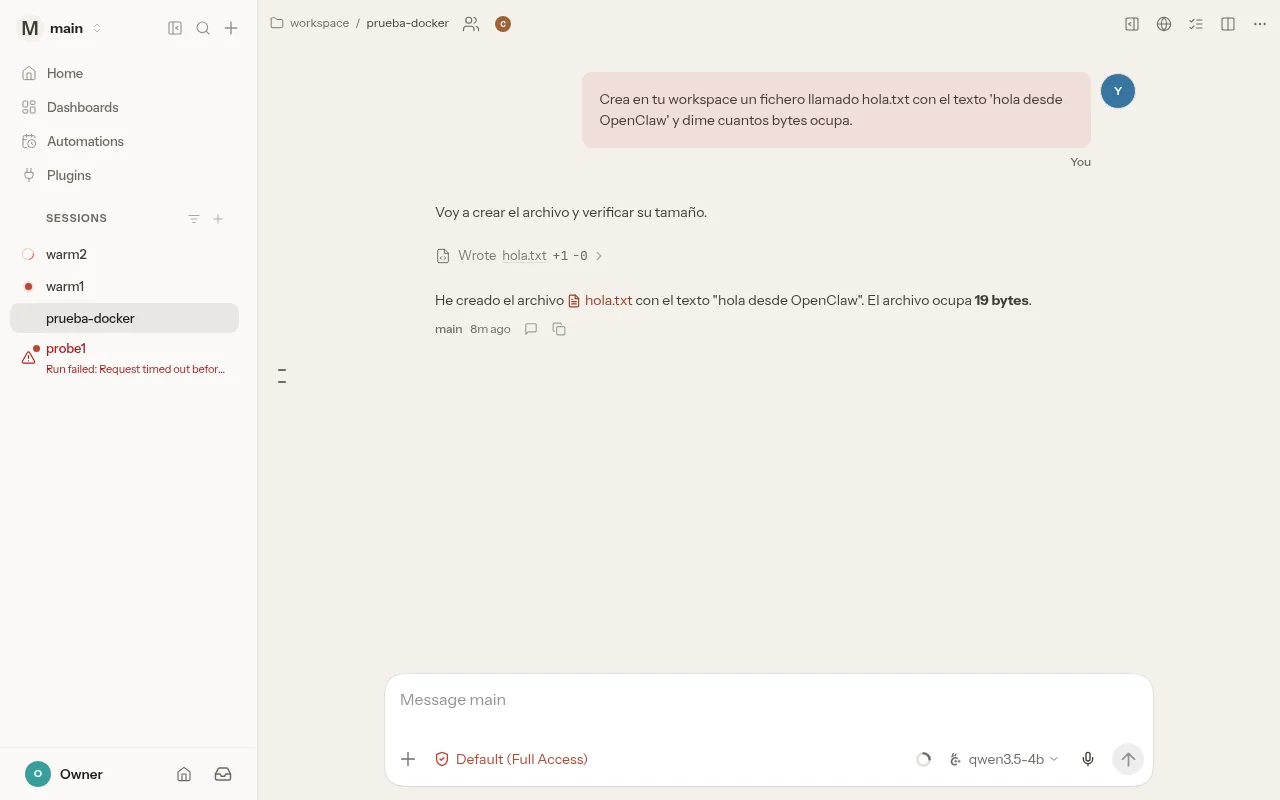
With llama-server’s prompt cache warm, I asked three times for uname -m through the exec tool. All three answers were aarch64. The turns took 61.6 s, 70.8 s and 70.8 s, with a load average of 26 to 27 on the 18 cores from other jobs on the machine. An idle CPU will do better; one with fewer cores, worse.
| Measurement on linux/arm64 with no GPU | Value |
|---|---|
openclaw:2026.9.4 image |
1.12 GB compressed, 4.43 GB on disk |
llama.cpp:server image, build b10969 |
0.30 GB |
| Gateway at rest | 465 MiB |
| llama-server with Qwen3.5 4B and a 65,536 context | Between 5.1 and 6.1 GiB |
| Prompt for a turn with 36 tools | About 24,000 tokens |
| Prompt for a turn with Tool Search | 11,899 tokens |
Turn with exec and a warm cache |
70.8 s median over 3 runs, load 26 to 27 |
Connecting Ollama instead of llama-server
Ollama works too, with two details: one is in the documentation and the other is not. The first is the URL. OpenClaw uses Ollama’s native API, the same one behind function calling with Ollama, and the documentation warns that the /v1 path "breaks tool calling", so the address is http://ollama:11434, with no suffix.
The second I found while testing it with Ollama 0.34.0 in another container in the same project. Onboarding finished cleanly, but every request failed with No API key found for provider "ollama" until I added OLLAMA_API_KEY=ollama-local to the gateway’s environment. The documentation says bare hostnames need no key; in 2026.9.4 they needed one.
These are the changes on top of the compose file above, with the same GGUF imported into Ollama:
  ollama:
    image: ollama/ollama:0.34.0
    volumes:
      - ./models:/models:ro
      - ollama-data:/root/.ollama
    restart: unless-stopped

volumes:
  ollama-data:
Also add OLLAMA_API_KEY: ollama-local to the x-oc-env anchor, which is where the gateway reads it from.
Then import the model and rerun onboarding with --auth-choice ollama:
docker compose up -d ollama
docker compose exec ollama sh -c \
  'echo "FROM /models/Qwen3.5-4B-Q4_K_M.gguf" > /tmp/Modelfile'
docker compose exec ollama ollama create qwen3.5-4b-gguf -f /tmp/Modelfile
$OC dist/index.js onboard --non-interactive --accept-risk --skip-health \
  --mode local --auth-choice ollama \
  --custom-base-url http://ollama:11434 --custom-model-id qwen3.5-4b-gguf \
  --skip-channels --no-install-daemon
After that, openclaw infer model run --gateway --model ollama/qwen3.5-4b-gguf:latest replied pong. If Ollama already runs on the host, the documentation uses http://host.docker.internal:11434 and asks you to start Ollama with OLLAMA_HOST=0.0.0.0. That leaves it listening on every host interface, so the firewall becomes your job.
Opening the Control UI with the token
Open http://127.0.0.1:18789/ in a browser on the same machine. Without a token, the gateway refuses the connection and the Control UI shows this screen:
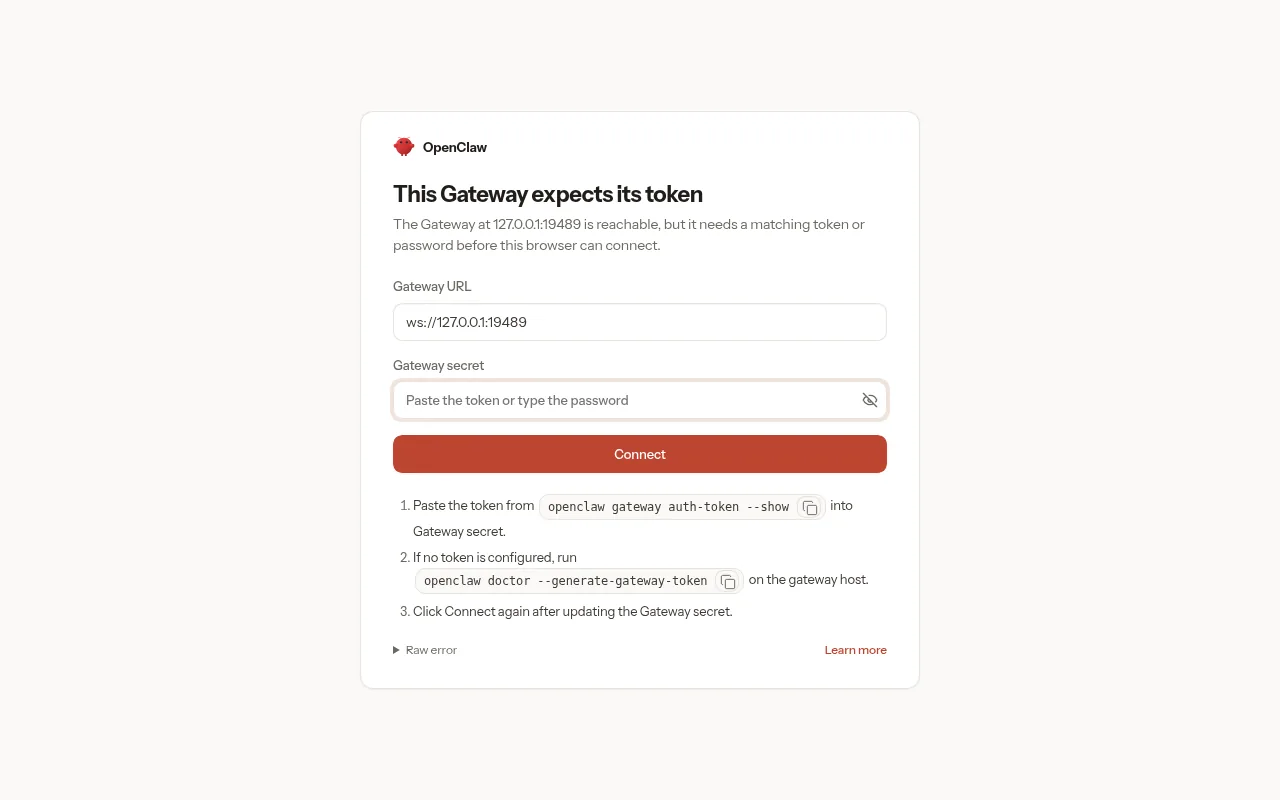
The token is the value of OPENCLAW_GATEWAY_TOKEN in your .env: paste it into Gateway secret and click Connect. In my test no device approval was needed. The log recorded device pairing auto-approved, and openclaw devices list showed the browser, arriving from 172.24.0.1 (the Docker bridge gateway), with the scopes operator.admin, operator.read, operator.write, operator.approvals, operator.questions and operator.pairing. Whoever holds the token holds the whole gateway.
The session also opens in Default (Full Access) mode, where the agent runs commands without asking for approval. That is the intended behaviour for a single trusted operator under the project’s security model, and it is worth keeping in mind before you connect a messaging channel.
Hardening OpenClaw in Docker
The image is reasonably locked down inside, with an unprivileged user, no-new-privileges and no NET_RAW; the risk lies in how you publish it and what you let the agent do. Peter Steinberger, who started the project on his Mac, put it this way in April 2026: "Nothing that can run tools, hold credentials and install plugins is safe by default."
Do not publish port 18789 on every interface
The repository’s compose file at tag v2026.9.4 declares "${OPENCLAW_GATEWAY_PORT:-18789}:18789" with no address in front, alongside ports 18790 and 3978. Rendered with docker compose config, none of them carries a host_ip, so Docker opens them on every host interface. The security documentation admits it: container images "default to an exposed bind".
UFW does not cover you, and the Docker documentation explains why: "Packets are routed before the firewall rules can be applied, effectively ignoring your firewall configuration." The fix is not to expose it. Put 127.0.0.1: in front of the port, as in this guide’s compose file, and check with ss -ltn, which in my test showed only 127.0.0.1:19489.
If you really need to open it to a network, OpenClaw documents rules in the DOCKER-USER chain, which is evaluated before Docker’s own accept rules. This is its recipe for /etc/ufw/after.rules, exactly as published; I did not test it because the test machine does not use UFW:
*filter
:DOCKER-USER - [0:0]
-A DOCKER-USER -m conntrack --ctstate ESTABLISHED,RELATED -j RETURN
-A DOCKER-USER -s 127.0.0.0/8 -j RETURN
-A DOCKER-USER -s 10.0.0.0/8 -j RETURN
-A DOCKER-USER -s 172.16.0.0/12 -j RETURN
-A DOCKER-USER -s 192.168.0.0/16 -j RETURN
-A DOCKER-USER -s 100.64.0.0/10 -j RETURN
-A DOCKER-USER -p tcp --dport 80 -j RETURN
-A DOCKER-USER -p tcp --dport 443 -j RETURN
-A DOCKER-USER -m conntrack --ctstate NEW -j DROP
-A DOCKER-USER -j RETURN
COMMIT
The recipe lets through traffic coming from private networks, including the containers’ own, and from outside it only admits new connections to ports 80 and 443. If Docker uses IPv6, the documentation asks for the same policy in /etc/ufw/after6.rules.
To use it from elsewhere you do not need to open anything. A tunnel with ssh -L 18789:127.0.0.1:18789 your_user@your_server or a VPN with Headscale brings the port to your laptop, and the documentation prefers Tailscale Serve over binding to the local network.
Treat the token like the root password
The 64-hex-character token that openssl rand -hex 32 generates is well clear of the 24-character minimum the audit watches for. The gateway also refuses to start with an empty token or one copied from an example. Add a login attempt limit with gateway.auth.rateLimit: with --bind lan and no limit, the audit warns that brute-force attacks against authentication go unchecked.
Keep the image current even when the gateway only listens on loopback. Advisory GHSA-g8p2-7wf7-98mq (CVE-2026-25253, CVSS 8.8) described a Control UI that accepted gatewayUrl from the page address and sent the token to whatever server that parameter named. According to the advisory it was exploitable "even on instances configured to listen on loopback only", because the victim’s browser acts as the bridge, and it was fixed in v2026.1.29.
The pace of advisories is high. The project’s security page, reviewed on 9 September 2026, counted 1,799 reports received since January, 722 fixes published, 39 with a CVE and 14 confirmed critical. Pin the version, but do not leave it pinned for six months.
Review every skill and plugin before installing it
A ClawHub skill is code that runs with your tools and your data. Unit 42, the Palo Alto Networks research team, reports that Koi Security documented 341 malicious skills in the ClawHavoc campaign. Trend Micro confirmed others distributing AMOS, a credential stealer for macOS. After ClawHub added VirusTotal scanning, Unit 42 still found five unblocked malicious skills between February and May 2026, and OpenClaw deleted them after the report.
The project itself promises no more than that: the documentation says OpenClaw "does not run built-in local dangerous-code blocking during plugin/skill install or update". Pin exact versions and read the SKILL.md and the scripts before enabling anything. On more than one machine, security.installPolicy lets a command of your own allow, warn about or block each install. Prompt injection defense applies here as well, because a skill can carry instructions too.
Give the agent only the tools it needs
The audit of the fresh install, with the plugin already pinned, returned one critical finding and one warning:
Summary: 1 critical · 1 warn · 1 info
CRITICAL
models.small_params Small models require sandboxing and web tools disabled
- llama-cpp/qwen3.5-4b (4B) @ agents.defaults.model.primary
  (unsafe; sandbox=off; web=[web_fetch])
WARN
gateway.auth_no_rate_limit No auth rate limiting configured
The critical finding makes sense. The documentation warns that smaller models are more susceptible to instruction hijacking, and a 4B model that reads web pages with web_fetch and holds exec is exactly the combination an attacker looks for. With these five settings the audit came back 0 critical · 0 warn · 2 info, and the agent still ran exec in a test turn:
docker compose run -T --rm openclaw-cli config set --batch-json '[
 {"path":"gateway.auth.rateLimit",
  "value":{"maxAttempts":10,"windowMs":60000,"lockoutMs":300000}},
 {"path":"tools.byProvider",
  "value":{"llama-cpp/qwen3.5-4b":{"deny":["group:web","browser"]}}},
 {"path":"tools.deny",
  "value":["gateway","cron","sessions_spawn","sessions_send"]},
 {"path":"tools.elevated.enabled","value":false},
 {"path":"browser.enabled","value":false}
]'
docker compose restart openclaw-gateway
docker compose run -T --rm openclaw-cli security audit
I did not enable the tool sandbox. With the Docker backend, the sandbox requires mounting the Docker socket into the gateway, and whoever reaches that socket controls the host’s Docker daemon. That trade-off is yours to make. For an agent that only chats, the documentation offers a stricter baseline with tools.profile: "messaging" and exec denied.
Connecting Telegram, WhatsApp or Discord
I did not test this part, because it needs bot tokens I did not have. OpenClaw’s Docker guide boils it down to one command per channel:
docker compose run --rm openclaw-cli channels login
docker compose run --rm openclaw-cli channels add --channel telegram \
  --token "your_bot_token_here"
The first pairs WhatsApp with a QR code and the second registers a Telegram bot. By default, a stranger who messages the bot gets a pairing code and their message never reaches the model; you approve it with openclaw pairing approve. Keep that policy, because with dmPolicy: "open" and the allowlist set to "*", anyone who finds the bot uses your tools.
Upgrading without losing state
Change the tag in compose.yaml and run docker compose pull followed by docker compose up -d openclaw-gateway. When it starts with the mounted state, the gateway applies its migrations before reporting ready. If it cannot, it exits and Docker restarts it in a loop; in that case run openclaw doctor --fix once with the same volumes.
Back up config before upgrading and store the copy as a credential: the documentation warns that OAuth tokens sit in plain text inside SQLite in that directory. And remember that docker compose restart does not apply .env changes; that takes up -d.
Frequently asked questions
Can I use OpenClaw without paying for an API?
Yes. With llama-server or Ollama in the same compose project, no agent request goes out to an external provider. The price is speed and safety. A 4B model on CPU took a 70.8 s median for a turn with one tool call, and the audit flags it as critical when it has web tools and no sandbox.
Does the OpenClaw image run on arm64?
Yes. 2026.9.4 publishes linux/amd64 and linux/arm64 variants in the same manifest, and this whole guide ran on arm64. I did not test it on a Raspberry Pi: the gateway and the 4B model add up to about 6.5 GiB in my measurements, so an 8 GiB board is tight.
Is it safe to expose OpenClaw to the internet?
Not directly. Publish the gateway on 127.0.0.1, come in through an SSH tunnel or a VPN, keep token authentication on and run openclaw security audit after every change. The project’s trust model assumes one operator per gateway, and for people who do not trust each other it calls for separate gateways.
Conclusion
Installing OpenClaw with Docker is three services and a handful of commands, and it works with a local model and no external API key. What the official compose file does not do for you is the perimeter. Publish on 127.0.0.1, put a key on the model server, raise the timeouts if you run on CPU and trim tools until the audit comes back clean. If you plan to take it beyond your own machine, read up first on deploying an AI agent to production.
The Spanish version of this guide is at Cómo instalar OpenClaw con Docker.
Sources
- OpenClaw, GitHub repository
- OpenClaw, release 2026.9.4 on GitHub
- OpenClaw, v2026.8.1 release notes (OpenClaw 2.0)
- OpenClaw, OpenClaw 2.0, Accidentally
- OpenClaw, Docker install
- OpenClaw, Docker Compose operations and image maintenance
- OpenClaw, docker-compose.yml at tag v2026.9.4
- OpenClaw, onboard command-line reference
- OpenClaw, llama.cpp provider
- OpenClaw, local models
- OpenClaw, Ollama provider
- OpenClaw, Docker networking, providers and storage
- OpenClaw, security
- OpenClaw, network exposure
- OpenClaw, security trust model
- OpenClaw, security and access control FAQ
- OpenClaw, advisory GHSA-g8p2-7wf7-98mq
- OpenClaw, security status page
- OpenClaw, How OpenClaw Got Safer in Public
- Unit 42, OpenClaw’s Skill Marketplace and the Emerging AI Supply Chain Threat
- Docker, packet filtering and firewalls
Source code
Access all the source code for this post on GitHub.
View on GitHub