How to Install Traefik with Docker Compose

Table of contents
- Key takeaways
- What does Traefik do as a reverse proxy?
- Prerequisites
- Prepare the directory structure
- Configure Traefik (traefik.yml)
- Generate dashboard credentials
- Create the Docker network and docker-compose.yml
- Start Traefik
- Frequently asked questions
- Are Traefik and Nginx Proxy Manager the same thing?
- Can I use Traefik without Let's Encrypt?
- Why is Traefik's dashboard reachable without asking for a password?
- Conclusion
- Sources
Updated: 2026-07-17
Installing Traefik with Docker Compose comes down to three steps: writing Traefik’s static configuration (Traefik is a reverse proxy that automatically discovers Docker containers through labels and renews TLS certificates without manual work), generating credentials to protect its dashboard, and starting the container with Docker Compose (a tool that defines and starts several containers from a single YAML file). In about 20 minutes the proxy is live, with HTTPS handled automatically by Let’s Encrypt.
Key takeaways
- Traefik discovers Docker services automatically: no restart is needed when you add a new container, just label it.
- SSL certificate management with Let’s Encrypt is fully automatic: request, renewal, and storage without manual work.
- Traefik’s dashboard ships with no authentication of its own; protect it with basic auth before exposing it to the internet.
- Traffic between Traefik and the containers travels over a dedicated Docker network, separate from the rest of the system.
- Routers and entrypoints are defined through labels, so adding a new service to the stack never requires touching Traefik’s central configuration.
What does Traefik do as a reverse proxy?
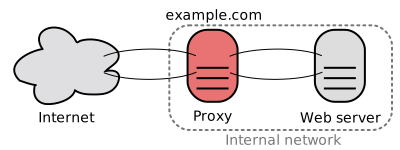
A reverse proxy receives external requests and forwards them to the right container. Traefik builds that on three pieces: entrypoints (the ports it listens on, usually 80 for HTTP and 443 for HTTPS), routers (the rules that decide, based on the request’s domain or path, which service gets it) and labels (metadata attached to each container in docker-compose.yml that tells Traefik how to route it, without touching the central configuration). On top of that it adds:
- Automatic discovery: reads Docker labels in real time and updates its routing table without restarts.
- Automatic TLS: negotiates certificates with Let’s Encrypt through the HTTP-01 or DNS-01 challenge.
- Middleware: redirects, basic auth, rate limiting, and security headers configurable per label.
- Web dashboard: a visual interface for inspecting active routers, services, and certificates.
Prerequisites
- Docker installed on Ubuntu 20.04.
- Docker Compose installed on Ubuntu 20.04 (the
docker composeplugin, not the legacydocker-composebinary). - A domain with DNS records pointing at the server’s IP.
Prepare the directory structure
Create the working directory, the acme.json file where Traefik will store its certificates, and the static configuration file:
mkdir -p docker/traefik/traefik-data
touch docker/traefik/traefik-data/acme.json
chmod 600 docker/traefik/traefik-data/acme.json
nano docker/traefik/traefik-data/traefik.yml
The 600 permission on acme.json is mandatory: Traefik refuses to start with the file if other users have read access to it.
Configure Traefik (traefik.yml)
Inside traefik.yml we write the static configuration: the entrypoints, the Docker provider, and the certificate resolver. Change the email address so Let’s Encrypt can send expiry warnings:
api:
  dashboard: true

entryPoints:
  web:
    address: ":80"
  websecure:
    address: ":443"

providers:
  docker:
    endpoint: "unix:///var/run/docker.sock"
    exposedByDefault: false

certificatesResolvers:
  myresolver:
    acme:
      email: your@email.com
      storage: acme.json
      httpChallenge:
        entryPoint: web
With exposedByDefault: false, Traefik only routes to containers that explicitly carry the traefik.enable=true label. This prevents accidentally exposing internal services that should never reach the internet.
Generate dashboard credentials
Traefik’s dashboard ships with no authentication of its own, so it needs to be protected with basic auth (a username and password the browser sends on every HTTP request). Generate the password hash with htpasswd:
sudo apt-get install apache2-utils
echo $(htpasswd -nb USER PASSWORD) | sed -e s/\$/\$\$/g
Doubling the $ sign ($$) is required because Docker Compose treats a lone $ as the start of an environment variable inside the YAML file; without the escape, the hash gets corrupted and authentication fails.
Create the Docker network and docker-compose.yml
Create the dedicated Docker network that carries traffic between Traefik and the backend containers; any service you want to expose has to join this same network. For more on how Docker networking works, see the guide on Docker networking: bridge, host, and custom networks.
docker network create traefik-proxy
cd docker/traefik
nano docker-compose.yml
Contents of docker-compose.yml. Replace USER:HASH, traefik.example.com, and the email with your own values:
services:
  traefik:
    image: traefik:v3.3
    container_name: traefik
    restart: unless-stopped
    security_opt:
      - no-new-privileges:true
    networks:
      - traefik-proxy
    ports:
      - 80:80
      - 443:443
    volumes:
      - /etc/localtime:/etc/localtime:ro
      - /var/run/docker.sock:/var/run/docker.sock:ro
      - ./traefik-data/traefik.yml:/traefik.yml:ro
      - ./traefik-data/acme.json:/acme.json
    labels:
      - "traefik.enable=true"
      - "traefik.http.routers.traefik.entrypoints=web"
      - "traefik.http.routers.traefik.rule=Host(`traefik.example.com`)"
      - "traefik.http.middlewares.traefik-auth.basicauth.users=USER:HASH"
      - "traefik.http.middlewares.traefik-https-redirect.redirectscheme.scheme=https"
      - "traefik.http.routers.traefik.middlewares=traefik-https-redirect"
      - "traefik.http.routers.traefik-secure.entrypoints=websecure"
      - "traefik.http.routers.traefik-secure.rule=Host(`traefik.example.com`)"
      - "traefik.http.routers.traefik-secure.middlewares=traefik-auth"
      - "traefik.http.routers.traefik-secure.tls=true"
      - "traefik.http.routers.traefik-secure.tls.certresolver=myresolver"
      - "traefik.http.routers.traefik-secure.service=api@internal"

networks:
  traefik-proxy:
    external: true
A version note: since Traefik v3, Docker Compose’s version key is no longer needed (the modern CLI ignores it), and the certificate resolver name (myresolver) must match exactly between traefik.yml and the router’s tls.certresolver label.

Start Traefik
Start the container in detached mode (it runs in the background, without occupying the terminal):
docker compose up -d
Open the dashboard in your browser:
https://traefik.example.com/
The dashboard shows active routers, services, and certificates. To add a new service to the stack, just add the right traefik.* labels to its container: Traefik detects it automatically, with no restarts. If you would rather manage containers from a web interface than the command line, the guide on how to install Portainer with Docker Compose covers that alternative.
Frequently asked questions
Are Traefik and Nginx Proxy Manager the same thing?
No. Both are reverse proxies, but Nginx Proxy Manager is managed from a web interface with forms, while Traefik is configured through labels in docker-compose.yml itself and picks up changes without any restart.
Can I use Traefik without Let’s Encrypt?
Yes. The certificatesResolvers block is optional: if you leave it out, Traefik still routes plain HTTP traffic normally, but you will need to manage your own certificates or serve only over port 80.
Why is Traefik’s dashboard reachable without asking for a password?
Because authentication depends on the basicauth label of the traefik-auth middleware: if that label is missing, or the secure router does not apply it in middlewares, the dashboard is served with no credentials at all.
Conclusion
Traefik removes the operational friction of running a reverse proxy on Docker: it discovers new containers by label, renews TLS certificates without manual work, and exposes a dashboard for inspecting active routers and services. The key to a secure setup is protecting the dashboard with basic auth and never applying the traefik.enable=true label to a container that should not reach the internet. The Spanish version of this guide is available at Cómo instalar Traefik con Docker Compose.