How to Install MariaDB with Docker
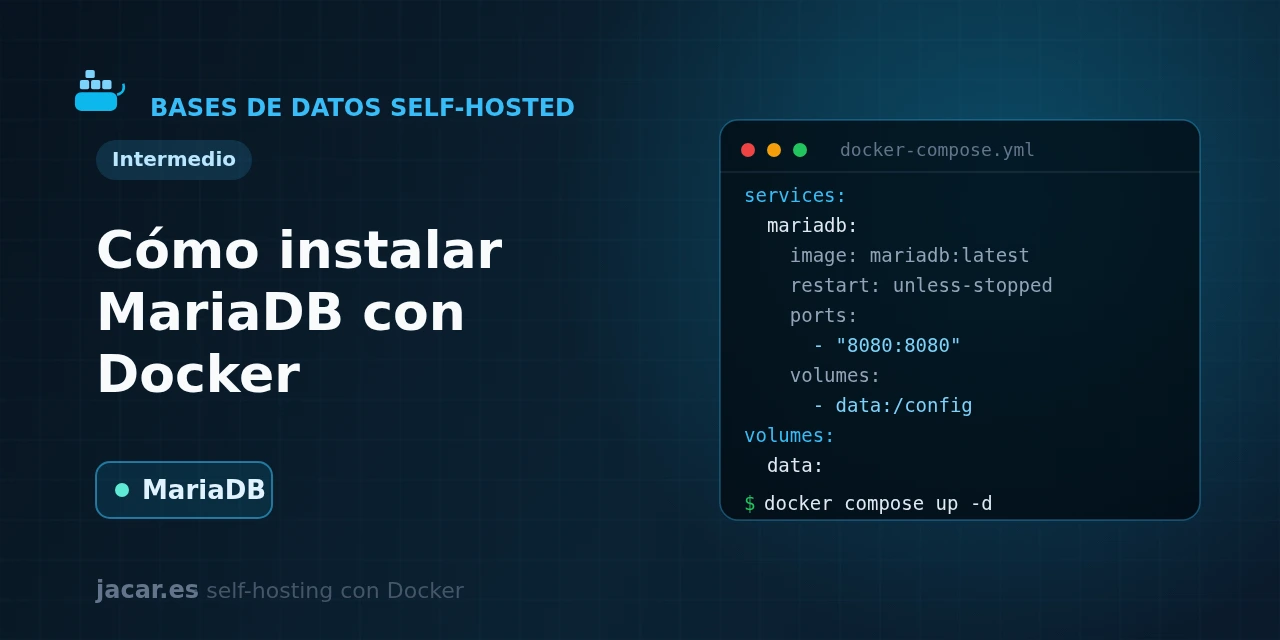
Table of contents
- Key takeaways
- How does MariaDB differ from MySQL in Docker?
- What does the MariaDB docker-compose.yml with a persistent volume look like?
- What environment variables does it need and how is the initial user created?
- How do you connect an application (Nextcloud, WordPress) to MariaDB?
- How do you back up with mariadb-dump?
- Frequently asked questions
- Can I migrate from MySQL to MariaDB without problems?
- Why should I not use the latest tag?
- How do I restore a backup into a new container?
- Conclusion
- Sources
MariaDB is the database that powers well-known applications such as WordPress and Nextcloud, and with Docker you have it ready in under a minute. In this guide you bring up MariaDB with a single docker-compose.yml file and keep the data in a persistent volume. You then set the root password and the initial user with environment variables, connect an application and schedule backups with mariadb-dump. The same explanation is available in Spanish.
Key takeaways
- MariaDB is an open-source relational database management system, a fork of MySQL created in 2009 and compatible with it except in the features and data types where the two projects have diverged.
- The recommended setup is a single container using the official
mariadbimage, whose data lives in a volume mounted at/var/lib/mysql. - The server listens on port 3306 and its initial configuration is controlled with environment variables such as
MARIADB_ROOT_PASSWORD,MARIADB_DATABASE,MARIADB_USERandMARIADB_PASSWORD. - Pin a specific LTS version such as
mariadb:11.8instead of:latest; LTS versions get three years of fixes (11.4 from 2024, 11.8 from 2025 and 12.3, the newest from 2026). - Backups are done with the
mariadb-dumptool (the formermysqldump), which exports the database to an SQL file that you can later restore.
How does MariaDB differ from MySQL in Docker?
MariaDB is a fork of MySQL born in 2009, when Michael "Monty" Widenius, one of the original creators of MySQL, split it off after the company was bought by Oracle. He named it after his daughter Maria, and today it is maintained by the MariaDB Foundation, a non-profit that guarantees the project stays free. For years it was a drop-in replacement for MySQL: same commands, same connectors and protocol-level compatibility.
In Docker the practical differences are few but important. The official image is called mariadb instead of mysql, and its environment variables use the MARIADB_ prefix (although for compatibility it still accepts the old MYSQL_ ones). MariaDB tends to ship new features earlier and offers its own storage engines such as Aria, in addition to the usual InnoDB.
As the official documentation puts it, MariaDB is "one of the most popular database servers in the world", and in the container ecosystem it is the default choice for projects like Nextcloud or WordPress. If you prefer a database with a different approach, also see how to install PostgreSQL with Docker.
What does the MariaDB docker-compose.yml with a persistent volume look like?
You need a machine with Docker and the Compose plugin installed; if you do not have them yet, start by installing Docker on Ubuntu 24.04. Create a folder for the project and save this docker-compose.yml inside it. Change the example passwords to your own strong values before starting:
services:
  db:
    image: mariadb:11.8
    restart: unless-stopped
    environment:
      MARIADB_ROOT_PASSWORD: change_this_root_password
      MARIADB_DATABASE: myapp
      MARIADB_USER: myapp
      MARIADB_PASSWORD: change_this_user_password
      MARIADB_MYSQL_LOCALHOST_USER: 1
    volumes:
      - db_data:/var/lib/mysql
    healthcheck:
      test: ["CMD", "healthcheck.sh", "--connect", "--innodb_initialized"]
      interval: 10s
      timeout: 5s
      retries: 5

volumes:
  db_data:
Notice a few details in the file. The named volume db_data is mounted at /var/lib/mysql, where MariaDB stores all its tables; as long as that volume exists, your data survives even if you delete and recreate the container. The restart: unless-stopped option makes the database come back on its own after a server reboot.
The healthcheck uses the healthcheck.sh script shipped in the image. It only marks the container as healthy once MariaDB accepts connections and has finished initialising InnoDB, so applications wait until the database is ready.
With the file ready, start the stack in the background and check its status:
docker compose up -d
docker compose ps
docker compose logs -f db
The first time, MariaDB creates its internal structure, applies the environment variables and prepares the myapp database and the myapp user. When docker compose ps shows the container as healthy, the server is ready to accept connections on port 3306.
What environment variables does it need and how is the initial user created?
The image requires you to set the root password in one of four ways: MARIADB_ROOT_PASSWORD (the usual one), MARIADB_ROOT_PASSWORD_HASH, MARIADB_RANDOM_ROOT_PASSWORD (generates a random one and prints it in the log) or MARIADB_ALLOW_EMPTY_ROOT_PASSWORD (discouraged except for tests). If you provide none, the container refuses to start as a security measure.
From there, three optional variables prepare the environment on the first boot. MARIADB_DATABASE creates an empty database, and MARIADB_USER together with MARIADB_PASSWORD create an unprivileged user with full permissions only over that database. This is the recommended pattern: each application connects with its own user, not with root.
To avoid writing passwords in plain text inside the docker-compose.yml, append the _FILE suffix to any of these variables and point to a file; that way you can read secrets from /run/secrets. Keep an important nuance in mind: these variables only take effect the first time, when the volume is empty. If you change the password in the file afterwards, it will not update on its own; you will have to change it from inside the database.
How do you connect an application (Nextcloud, WordPress) to MariaDB?
The right way to connect another container to MariaDB is through the internal Docker Compose network, without publishing port 3306 on the host. Compose creates a default network where each service is reachable by its name, so the application connects to the host db (the service name) on port 3306. This is a typical fragment for a WordPress that reuses the previous database:
  wordpress:
    image: wordpress:6.8-php8.3-apache
    restart: unless-stopped
    depends_on:
      db:
        condition: service_healthy
    environment:
      WORDPRESS_DB_HOST: db:3306
      WORDPRESS_DB_NAME: myapp
      WORDPRESS_DB_USER: myapp
      WORDPRESS_DB_PASSWORD: change_this_user_password
    ports:
      - "8080:80"
With depends_on and the service_healthy condition, WordPress does not start until MariaDB passes its healthcheck, which avoids the classic "connection refused" error on the first deployment. Nextcloud is configured the same way, changing the variable names to MYSQL_HOST, MYSQL_DATABASE, MYSQL_USER and MYSQL_PASSWORD. The general rule: do not expose port 3306 to the Internet; keep the database on the internal network only and expose just the application to the web, behind a proxy like Traefik if needed.
How do you back up with mariadb-dump?
The standard tool to back up MariaDB is mariadb-dump, the former mysqldump renamed. On traditional package installs the name mysqldump still works as a compatibility symlink, but the official Docker image dropped it from MariaDB 11.0 onward: inside the container only the mariadb-dump binary exists. It exports one or more databases to an SQL file containing the instructions needed to rebuild them. Run it from the container and redirect the output to a file on the host:
docker compose exec db mariadb-dump -u root -p'change_this_root_password' myapp > myapp-backup.sqlTo back up all databases at once, replace the name myapp with the --all-databases option. It is worth automating this command with a scheduled task (cron) and keeping the copies off the server. Restoring is the reverse process: you pipe the SQL file back into the mariadb client.
docker compose exec -T db mariadb -u root -p'change_this_root_password' myapp < myapp-backup.sqlThe -T flag disables the allocation of a pseudo-terminal, which is essential when you redirect a file into the container. For large or busy databases, consider mariadb-backup, the hot physical backup tool that does not lock InnoDB tables.
Frequently asked questions
Can I migrate from MySQL to MariaDB without problems?
Yes, except in the features and data types where the two projects have diverged, because MariaDB started as a drop-in replacement for MySQL and shares the protocol, commands and dump format. You can export your MySQL database with mysqldump and import it into a MariaDB container without changes. Even so, in the most recent versions both projects have diverged in some features and data types. For a production migration, test first in a throwaway container and check the official documentation.
Why should I not use the latest tag?
Because :latest can drag you into a major version jump without warning during a simple docker compose pull, and a version change in a database may require migrations. By pinning a specific LTS tag such as mariadb:11.8 you decide when you upgrade and which tested version your data runs on. LTS versions get three years of security fixes, plenty of time to plan the upgrade.
How do I restore a backup into a new container?
Bring up a MariaDB container with the same environment variables, wait until it is healthy and pipe the SQL file into the mariadb client with docker compose exec -T db mariadb -u root -p'password' myapp < myapp-backup.sql. Because the dump includes the instructions to create the tables and the data, the database ends up identical to the original. Afterwards, check the row count of a key table to confirm the restore was complete.
Conclusion
With a single docker-compose.yml you have a working MariaDB database, with the data isolated in a volume you control and a reproducible initial configuration through environment variables. The logical next step is to connect a real application (WordPress, Nextcloud or whichever you need), close port 3306 to the Internet and schedule regular backups with mariadb-dump. From there, MariaDB becomes the reliable data layer to support the rest of your self-hosted infrastructure.
Sources: [1] MariaDB official image on Docker Hub[1], [2] MariaDB Knowledge Base: container environment variables[2], [3] MariaDB.org: MariaDB Server 12.3 LTS released[3], [4] Official image repository on GitHub (MariaDB/mariadb-docker)[4].
Sources
Source code
Access all the source code for this post on GitHub.
View on GitHub