
How to install OpenBao with Docker and Raft storage

Table of contents
- Key takeaways
- What OpenBao is and how it relates to HashiCorp Vault
- Prerequisites
- Step 1: write the configuration with Raft storage
- Step 2: start the container with Docker Compose
- Step 3: initialise and unseal OpenBao
- Step 4: store your first secret in KV v2
- Step 5: give an application access with AppRole
- What to do with the root token when you finish
- How to back up with Raft snapshots
- Restoring on a new server needs the original keys
- What happens to the file backend in OpenBao 2.7
- Migrate from file to Raft with bao operator migrate
- How to avoid unsealing by hand after every restart
- Frequently asked questions
- Can I move from HashiCorp Vault to OpenBao without losing data?
- How much memory does OpenBao need in Docker?
- Does OpenBao replace a password manager like Vaultwarden?
- Conclusion
- Sources
OpenBao is the fork of HashiCorp Vault that keeps the MPL 2.0 licence, and with Docker it runs as one container with Raft storage on a volume. This guide brings up OpenBao 2.6.2 with Docker Compose, initialises it, stores a secret, gives an application access with AppRole and takes backups with Raft snapshots. It also migrates an install that uses the file backend, which OpenBao 2.7 no longer starts. I tested all of it on 16 September 2026 on an 18-core arm64 machine with Docker Engine 29.5.2, and I describe the errors I hit along the way.
Key takeaways
- The
openbao/openbao:2.6.2image is 75.2 MB compressed for arm64, and the idle container used 39.7 MiB of memory according todocker stats. - Mount the Raft volume at
/openbao/file. On a new path such as/openbao/datathe server fails withpermission denied, because the image runs as the unprivilegedopenbaouser. - The
--memory-swappiness=0option the documentation recommends is discarded on cgroup v2 hosts. Settingmemswap_limitequal tomem_limitdoes bring the container’s swap down to 0. - OpenBao 2.7.0 removes the
filebackend: the 9 September 2026 beta stops withunknown storage type file. Migrate first withbao operator migrate. - A Raft snapshot is only usable with the original unseal keys. Restoring it on another server takes
-force, a restart and the source server’s keys.
What OpenBao is and how it relates to HashiCorp Vault
OpenBao is a secrets manager with Vault’s API, released under MPL 2.0 and governed by the Linux Foundation. It was born when HashiCorp changed Vault’s licence. On 10 August 2023, Armon Dadgar announced it like this on the HashiCorp blog[1]:
"HashiCorp is changing its source code license from Mozilla Public License v2.0 (MPL 2.0) to the Business Source License (BSL, also known as BUSL) v1.1 on all future releases of HashiCorp products."
The licence files in the Vault repository[2] mark the boundary release by release. Tags 1.14.0, 1.14.1, 1.14.2 and 1.14.8 carry MPL 2.0. Version 1.15.0, from 26 September 2023, already carries BUSL 1.1, and the 1.14 branch switched from 1.14.9, dated 30 January 2024. The current version of the file names IBM as licensor and converts each release to MPL 2.0 four years after it is published.
OpenBao forked from the MPL-licensed 1.14 branch. According to the OpenBao news page[3], the project started in October 2023 inside LF Edge. The stable 2.0.0 came out in July 2024, and in June 2025 the project moved to the OpenSSF. Its home page sums it up: "an open source, community-driven secrets manager and fork of Vault managed by the Linux Foundation’s OpenSSF."
If you are looking for a Vault to hold your services’ secrets on your own server, the practical differences are in the table below. The shared concepts (secrets engines, policies, auditing) are covered in the article on HashiCorp Vault for secrets management.
| Point | OpenBao 2.6.2 | Vault |
|---|---|---|
| Licence | MPL 2.0 | BUSL 1.1 since 1.15.0 |
| Binary and address variable | bao and BAO_ADDR; accepts VAULT_ADDR |
vault and VAULT_ADDR |
| Prefix of new tokens | s. |
hvs. |
| Namespaces | Included since 2.3.1 (June 2025) | Enterprise licence only |
| Token header in the HTTP API | X-Vault-Token or Authorization: Bearer |
The same |
The Vault figures come from its licence, the Vault namespaces documentation[4], its API reference and the OpenBao migration guide. The OpenBao image also ships a vault link pointing to bao, so scripts that call vault keep working inside the container.
Prerequisites
The install takes one container and two volumes. You need:
- Docker Engine with the Compose plugin (tested with Docker 29.5.2 and Compose v2.40.3)
- 512 MiB of free memory for the container
- A place off the server to keep the unseal keys, split between different people or locations
If your passwords live in a .env file today, read the article on environment variables and secrets in Docker Compose first. It explains what Compose secrets solve and what they lack: rotation, auditing and expiry, which is exactly what OpenBao adds.
Step 1: write the configuration with Raft storage
OpenBao reads its configuration from /openbao/config inside the container. Create an openbao/ directory with a config/ subdirectory and save this as config/openbao.hcl:
ui = true

storage "raft" {
  path    = "/openbao/file"
  node_id = "bao-1"
}

listener "tcp" {
  address     = "0.0.0.0:8200"
  tls_disable = true
}

audit "file" "to-file" {
  options {
    file_path = "/openbao/logs/audit.log"
  }
}

api_addr     = "http://127.0.0.1:8200"
cluster_addr = "http://127.0.0.1:8201"
The storage "raft" block turns on integrated storage: OpenBao writes its encrypted data to its own disk and replicates it with the Raft consensus algorithm once you add nodes. The Raft backend documentation[5] requires cluster_addr even with a single node. The audit block declares a file audit log, and it has to live here: if you try to create it with bao audit enable, OpenBao answers cannot enable audit device via API; use declarative, config-based audit device management instead.
The tls_disable = true line is only acceptable because the next step limits the port to 127.0.0.1. To serve OpenBao to other machines, replace it with tls_cert_file and tls_key_file. I tested that with a self-signed certificate and BAO_CACERT pointing to it: HTTPS requests answered 200 and a plaintext HTTP request got a 400.
Step 2: start the container with Docker Compose
The Compose file pins the version, mounts the configuration read-only and keeps data and audit logs in named volumes. Save it as compose.yaml next to config/:
services:
  openbao:
    image: openbao/openbao:2.6.2
    command: server
    ports:
      - "127.0.0.1:8200:8200"
    environment:
      BAO_ADDR: "http://127.0.0.1:8200"
    volumes:
      - ./config:/openbao/config:ro
      - bao-data:/openbao/file
      - bao-logs:/openbao/logs
    mem_limit: 512m
    memswap_limit: 512m
    healthcheck:
      test: ["CMD", "wget", "-q", "--spider",
             "http://127.0.0.1:8200/v1/sys/health"]
      interval: 30s
      timeout: 5s
      retries: 3
    restart: unless-stopped

volumes:
  bao-data:
  bao-logs:
Every line has a reason, and I found three of them by failing:
command: server: without this line the image startsserver -dev, a development server that keeps everything in memory and loses it on stop.bao-data:/openbao/file: my first attempt mounted the volume at/openbao/dataand the server looped onfailed to open bolt file: open /openbao/data/vault.db: permission denied. The image runs as theopenbaouser (UID 100), and Docker only copies that ownership into a new volume when the path already exists in the image, as/openbao/filedoes.bao-logs:/openbao/logs: 2.6.2 declares that path as an anonymous volume, but 2.7.0 removes everyVOLUMEinstruction from the image, so without a named volume you would lose the audit log when the container is recreated.mem_limitandmemswap_limit: the OpenBao install guide[6] asks for--memory-swappiness=0so secrets never land in swap. On this host, with cgroup v2, Docker repliedMemory swappiness discardedandmemory.swap.maxstayed atmax; with both limits equal it went to 0.BAO_ADDR: without it,baotargetshttps://127.0.0.1:8200and fails withserver gave HTTP response to HTTPS client.healthcheck:/v1/sys/healthreturns 501 when uninitialised, 503 when sealed and 200 when serving, so the container shows asunhealthyif nobody has unsealed it. After a restart it was flagged that way at 90 s. The article on healthchecks and restart policies in Compose shows how to make other services wait for that state.
Start the service and check the log:
docker compose up -d
docker compose logs openbao | grep -v chown
The chown: /openbao/config: Read-only file system lines the grep filters out are harmless: the entry script tries to change the owner of the configuration and cannot, because you mounted it read-only. What matters is Storage: raft (HA available) and security barrier not initialized. For why a named volume rather than a host directory, see Docker volumes and bind mounts.
Step 3: initialise and unseal OpenBao
At startup OpenBao is sealed: its data is encrypted and it cannot read it until it rebuilds the root key from three of the five unseal keys, using Shamir’s scheme. Initialisation generates those keys and the root token, and it happens only once:
docker compose exec openbao bao operator init
The output lists five keys and a token. Here are the values replaced by placeholders, along with the notice 2.6.2 prints (it still says Vault):
Unseal Key 1: unseal_key_1
Unseal Key 2: unseal_key_2
Unseal Key 3: unseal_key_3
Unseal Key 4: unseal_key_4
Unseal Key 5: unseal_key_5

Initial Root Token: initial_root_token

Vault initialized with 5 key shares and a key threshold of 3.
...
Vault does not store the generated root key. Without at least 3 keys
to reconstruct the root key, Vault will remain permanently sealed!
Copy the keys off the server now, because OpenBao never shows them again. Then unseal with three of them and check the status:
docker compose exec openbao bao operator unseal
docker compose exec openbao bao operator unseal
docker compose exec openbao bao operator unseal
docker compose exec openbao bao status
Each unseal prompts with Unseal Key (will be hidden):, so the key stays out of your shell history. If you try to pipe it in, it fails with file descriptor 0 is not a terminal. After the third key, bao status shows Sealed false, Storage Type raft and HA Mode active and exits with code 0; while sealed it exits with code 2, which is handy for monitoring scripts.
For the next steps you need the root token in a variable, without typing it on the command line:
read -rs BAO_TOKEN && export BAO_TOKEN
Step 4: store your first secret in KV v2
The KV v2 engine stores key and value pairs with version history, and it is the natural place for your services’ credentials. Enable it at the secret/ path and write a secret; -e BAO_TOKEN passes the variable from your terminal into the container:
docker compose exec -e BAO_TOKEN openbao \
  bao secrets enable -path=secret kv-v2
read -rs DB_PASSWORD
printf '%s' "$DB_PASSWORD" | docker compose exec -T -e BAO_TOKEN openbao \
  bao kv put -mount=secret app/db user=app password=-
docker compose exec -e BAO_TOKEN openbao \
  bao kv get -mount=secret app/db
With password=-, bao reads the value from standard input, so the password stays out of your history too.
On one of my installs, the kv put run right after enabling the engine failed with Upgrading from non-versioned to versioned data. This backend will be unavailable for a brief period and will resume service shortly. Wait a second and run it again: the second attempt worked.
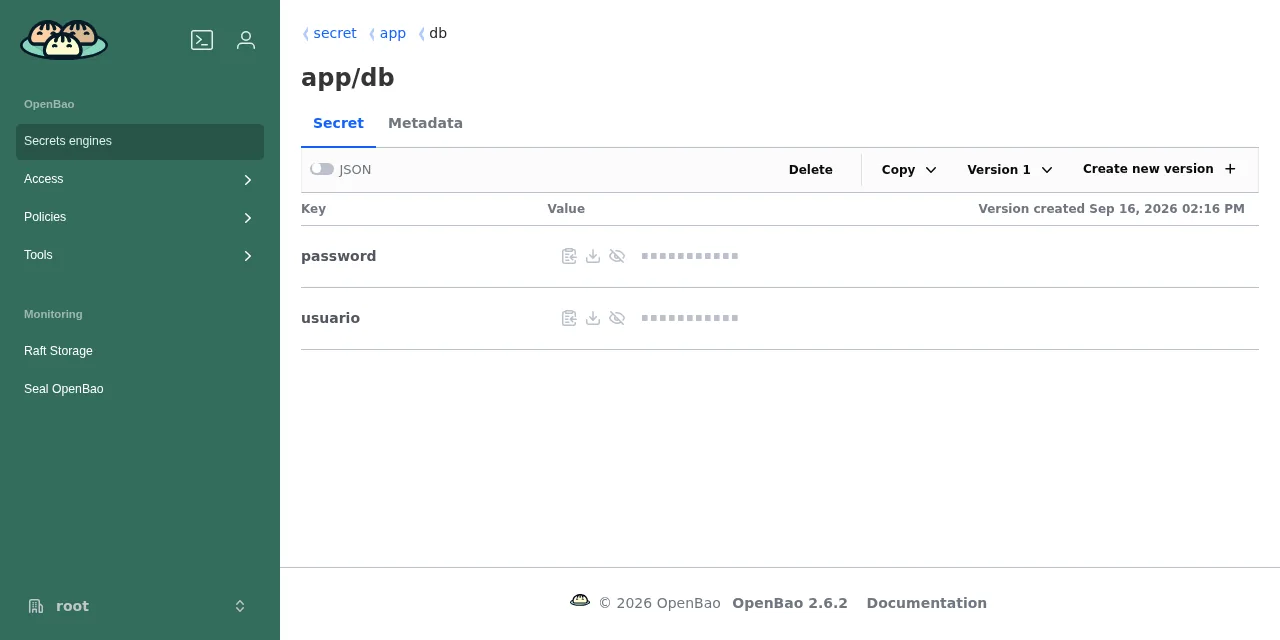
With ui = true, the web UI is at http://127.0.0.1:8200/ui/. There you can browse to the secret, which shows its values masked until you click the eye icon:
Step 5: give an application access with AppRole
AppRole is the authentication method meant for machines: the application presents a role_id and a secret_id and gets back a token with the role’s policies. Start with a policy that only allows reading the application’s path, in app-read.hcl:
path "secret/data/app/*" {
  capabilities = ["read"]
}
In KV v2 the read path carries a data/ segment, even though on the command line you write secret/app/db. Load the policy, enable AppRole, create the role and write its two identifiers to files:
B="docker compose exec -T -e BAO_TOKEN openbao bao"
$B policy write app-read - < app-read.hcl
$B auth enable approle
$B write auth/approle/role/my-app token_policies=app-read \
  token_ttl=1h token_max_ttl=4h secret_id_ttl=24h
$B read -field=role_id auth/approle/role/my-app/role-id > role_id
$B write -f -field=secret_id \
  auth/approle/role/my-app/secret-id > secret_id
With -field, both files hold the 36-character identifier with no trailing newline. The token the application gets lasts 1 hour, renewable up to 4, and after that it has to log in again. Because the secret_id expires after 24 hours, your deployment process must hand over a new one before then; with secret_id_ttl=0 it never expires, and then you have to guard it like a password.
The application receives both files as Compose secrets, which appear under /run/secrets/. Save this service as app.yaml:
services:
  app:
    image: alpine:3
    command: sh -c "apk add -q curl jq && /read-secret.sh"
    volumes:
      - ./read-secret.sh:/read-secret.sh:ro
    secrets:
      - role_id
      - secret_id
    depends_on:
      openbao:
        condition: service_healthy

secrets:
  role_id:
    file: ./role_id
  secret_id:
    file: ./secret_id
The read-secret.sh script logs in through the HTTP API and reads the password. It is the same exchange your application would perform with its client library:
#!/bin/sh
set -eu
BAO=http://openbao:8200
LOGIN=$(jq -n --rawfile r /run/secrets/role_id \
  --rawfile s /run/secrets/secret_id '{role_id: $r, secret_id: $s}')
TOKEN=$(curl -sf -X POST -d "$LOGIN" "$BAO/v1/auth/approle/login" \
  | jq -r .auth.client_token)
curl -sf -H "X-Vault-Token: $TOKEN" "$BAO/v1/secret/data/app/db" \
  | jq -r .data.data.password
With docker compose -f compose.yaml -f app.yaml run --rm app, the script printed the test password. With that same token, reading secret/data/other/thing returned 403 and so did writing to secret/data/app/db, which is exactly what the policy asks for.
What to do with the root token when you finish
The root token never expires and can do anything, so it should not stay in circulation. Before revoking it, set up another way to regenerate it: in 2.6.2, bao operator generate-root uses the authenticated sys/generate-root-token endpoints, and the old unauthenticated ones are disabled by default since 2.5.3. I checked: after revoking the only root token, bao operator generate-root -init answered 403 permission denied.
The way out is a rescue identity with a policy that covers only that path. Save it as root-rescue.hcl:
path "sys/generate-root-token/*" {
  capabilities = ["create", "read", "update", "delete", "sudo"]
}
Load it and assign it to a user of the userpass method, using the B variable from the previous step:
$B policy write root-rescue - < root-rescue.hcl
$B auth enable userpass
read -rs RESCUE_PASSWORD
printf '%s' "$RESCUE_PASSWORD" | $B write auth/userpass/users/rescue \
  token_policies=root-rescue password=-
I first tried an orphan token with that policy: with it and three unseal keys I generated a new root token (-init, three calls with -nonce, and -decode with the one-time password). The problem is that such a token expires after 768 hours, the default maximum, and the userpass user does not: after bao login -method=userpass, its session could also start generate-root -init. Once you have it, revoke the root token with bao token revoke -self.
How to back up with Raft snapshots
A Raft snapshot is a consistent copy of all the data, taken while the server is running. Save it inside the container and copy it out with docker compose cp:
docker compose exec -e BAO_TOKEN openbao \
  bao operator raft snapshot save /tmp/bao.snap
docker compose cp openbao:/tmp/bao.snap ./bao-$(date +%F).snap
docker compose exec openbao rm /tmp/bao.snap
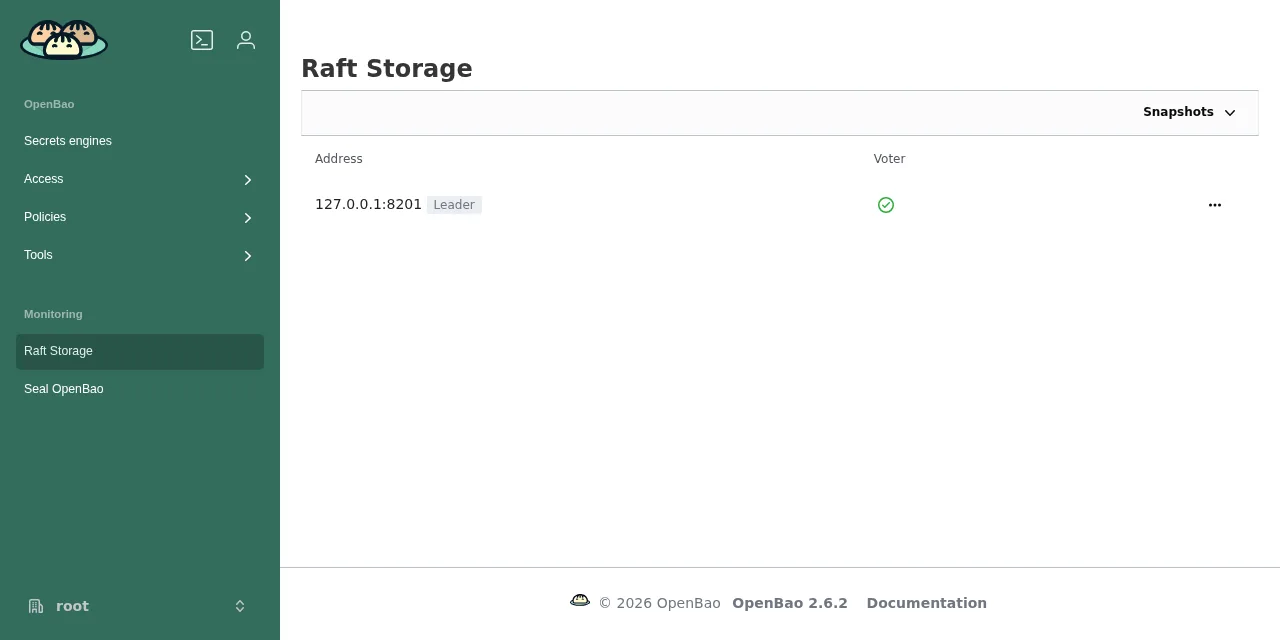
In my tests the file weighed between 25 KB and 30 KB: a tar.gz with meta.json, state.bin, SHA256SUMS and SHA256SUMS.sealed. The data in state.bin stays encrypted with OpenBao’s key, so you can ship it to external storage with restic without exposing the secrets. The web UI offers the same menu on its Raft page:
To restore, feed the file through standard input. With docker compose cp the file keeps your UID, the openbao user cannot read it, and the command fails with Error opening policy file: open /tmp/copia.snap: permission denied (yes, it says policy even though it is a snapshot):
docker compose exec -T -e BAO_TOKEN openbao sh -c \
  'cat > /tmp/r.snap &&
   bao operator raft snapshot restore /tmp/r.snap' \
  < bao-2026-09-16.snap
Version 2.6.2 prints Error properly closing policy file: close /tmp/r.snap: file already closed, but it exits with code 0 and the deleted secret came back. The 2.7.0 release notes fix it (GH-3939), and the beta no longer printed that message.
Restoring on a new server needs the original keys
Restoring onto another install, with other keys, is what a real disaster looks like, and it fails without -force:
* could not verify hash file, possibly the snapshot is using a
different set of unseal keys; use the snapshot-force API to bypass
this check
With -force, the new server sealed itself and rejected its own key with cipher: message authentication failed. I had to restart the container: bao status then showed Total Shares 5 and Threshold 3, those of the original server, and it unsealed with three of its keys. The original root token worked again and the new server’s token was gone. The conclusion is plain: a snapshot without its unseal keys is useless, and the keys must not travel with it.
What happens to the file backend in OpenBao 2.7
The 2.6.0 release notes announce "Deprecate file storage backend for removal in v2.7.0", and 2.6.2 repeats it at startup with the file physical backend is deprecated; use bao operator migrate to move to a supported storage backend by v2.7.0. The filesystem backend documentation[7] already advised against it: "the Filesystem storage backend is not recommended for production installations as it is not transactional and lacks system-level file locking."
To check it, I created an install with storage "file", wrote 500 secrets to it and started the 2.7.0-beta20260909 image on the same volume. The container exited with code 1 and a single error line:
unknown storage type file
Migrate from file to Raft with bao operator migrate
The migration copies keys as they are, without decrypting them, so the migrated server uses the same unseal keys and the same root token. Run it with OpenBao stopped and with 2.6.2, which still reads file. Create migrate.hcl:
storage_source "file" {
  path = "/source"
}

storage_destination "raft" {
  path    = "/openbao/file"
  node_id = "bao-1"
}

cluster_addr = "http://127.0.0.1:8201"
Then stop the service, create an empty volume for Raft and run the migration with both volumes mounted. Replace openbao_data_file with the real name docker volume ls shows you:
docker compose stop openbao
docker volume create openbao_data_raft
docker run --rm \
  -v openbao_data_file:/source \
  -v openbao_data_raft:/openbao/file \
  -v "$PWD/migrate.hcl:/migrate.hcl:ro" \
  openbao/openbao:2.6.2 operator migrate -config=/migrate.hcl
The source volume has to be mounted writable: operator migrate leaves a lock file in it, and with :ro it failed with error setting migration lock: open /source/core/_migration.temp: read-only file system. The destination has to be empty and uninitialised.
I ran it three times on fresh volumes, and all three ended with Success! All of the keys have been migrated. after copying 1,029 keys: the 500 secrets plus OpenBao’s internal structure. The copy itself took a median of 5.9 s (between 3.6 s and 6.5 s), and before that Raft waited a median of 7.9 s to elect a leader. The machine had a load average of 19 on 18 cores during those runs, so an otherwise idle server should be faster.
Finally, change compose.yaml so the service mounts openbao_data_raft (declared with external: true), and the configuration so it uses the storage "raft" block from step 1. At startup, unseal with your usual keys. In my test, bao kv list returned the 500 secrets, and the same volume later started unchanged on the 2.7.0 beta.
How to avoid unsealing by hand after every restart
A server with Shamir unsealing comes back sealed after every restart, and your applications get 503 until someone enters three keys. There are three ways out:
- Accept it: the
healthcheckfrom step 2 marks the containerunhealthyand works as your alarm. - KMS plugins: since 2.6.0, auto-unseal with an external KMS ships as a plugin, and the 2.7.0 beta already drops the AWS, GCP, Azure, Alibaba Cloud, OCI and PKCS#11 ones from the binary. I have not tested this because there is no cloud KMS in this lab.
- Static seal: OpenBao reads a 32-byte AES key from a file or an environment variable.
I tested the static seal by adding this block to the configuration, with the key created by openssl rand -out unseal.key 32:
seal "static" {
  current_key_id = "lab-20260916"
  current_key    = "file:///certs/unseal.key"
}
With this seal, bao operator init returned five recovery keys (threshold 3) instead of unseal keys, and after docker compose restart the server came back unsealed. The static seal documentation[8] recommends it only when another source of trust already exists in the environment. That makes sense: if the key lives on the same disk as the volume, whoever copies the disk takes both.
Frequently asked questions
Can I move from HashiCorp Vault to OpenBao without losing data?
The OpenBao migration guide[9] describes an in-place migration tested from Vault 1.14.1 Community Edition to OpenBao 2.2.0, with Raft and Shamir unsealing. It also warns that it does not work from Vault 1.15.0 or later. I have not tested it in this lab.
How much memory does OpenBao need in Docker?
In this test, with KV v2, AppRole and auditing active, docker stats showed between 39.5 MiB and 39.7 MiB across three consecutive readings. The cgroup peak was 164 MiB, which includes the page cache of the 185 MB bao binary. The 512 MiB limit from step 2 leaves plenty of headroom for a small install.
Does OpenBao replace a password manager like Vaultwarden?
No. OpenBao stores the secrets your services read and hands them out over an API with policies and auditing. For the passwords people use in the browser, the right tool is a manager such as Vaultwarden.
Conclusion
Installing OpenBao with Docker takes a configuration file, a compose.yaml and three keys to unseal. The details that cost time are the volume owner, swap on cgroup v2 and the root token. If you still run an install with storage "file", migrate to Raft with 2.6.2 before upgrading to 2.7.0, which will not even start it.
Keep snapshots and unseal keys in separate places, because neither piece works without the other. The Spanish version of this guide is at Cómo instalar OpenBao con Docker y almacenamiento Raft.
Sources:
- OpenBao, 2.6.x release notes[10]
- OpenBao, 2.7.x release notes[11]
- OpenBao, installation[6]
- OpenBao, Raft backend[5]
- OpenBao, operator migrate command[12]
- OpenBao, operator raft command[13]
- OpenBao, declarative audit devices[14]
- openbao/openbao on Docker Hub[15]
- OpenBao repository[16]
- HashiCorp adopts the Business Source License[1]
- Vault licence[2]
- OpenBao joins the OpenSSF[17]
Sources
- HashiCorp blog
- Vault repository
- OpenBao news page
- Vault namespaces documentation
- Raft backend documentation
- OpenBao install guide
- filesystem backend documentation
- static seal documentation
- OpenBao migration guide
- OpenBao, 2.6.x release notes
- OpenBao, 2.7.x release notes
- OpenBao, operator migrate command
- OpenBao, operator raft command
- OpenBao, declarative audit devices
- openbao/openbao on Docker Hub
- OpenBao repository
- OpenBao joins the OpenSSF
Source code
Access all the source code for this post on GitHub.
View on GitHub