How to install Talos Linux in your homelab, from Docker to Proxmox
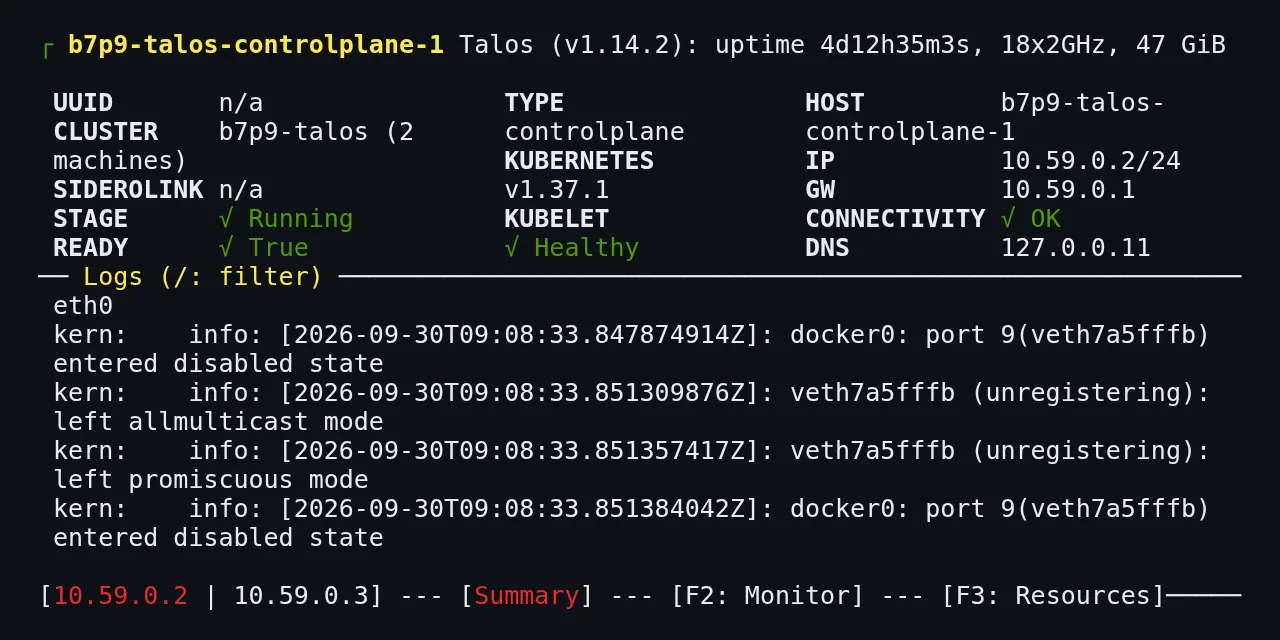
Table of contents
- Key takeaways
- What Talos Linux is and how it differs from a Linux box with SSH
- What you need before you start
- How to create a Talos cluster in Docker with talosctl
- What it actually created
- How to connect kubectl and deploy a first application
- Why kubectl warns when you apply the manifest
- How to debug a node with no SSH and no shell
- How to change a running node's configuration
- How to upgrade Kubernetes with talosctl upgrade-k8s
- What happens with talosctl upgrade inside Docker
- What changes on real hardware or Proxmox
- How to build the image with the Image Factory
- Which settings the Proxmox virtual machine needs
- How to generate and validate the configuration
- How to apply the configuration and bootstrap
- Docker or Proxmox: which path to start with
- Frequently asked questions
- Can I run workloads on the Talos control plane?
- Does Talos Linux work on arm64?
- How do I delete the Docker cluster?
- Conclusion
- Sources
Talos Linux is an immutable operating system that exists only to run Kubernetes and is administered entirely through an API, with no SSH and no shell. This guide creates a first cluster with talosctl cluster create docker, deploys a workload, changes a running node’s configuration and upgrades Kubernetes from 1.37.0 to 1.37.1, all on Talos v1.14.2, released on 29 September 2026. I ran it on 30 September 2026 on an arm64 Linux machine. The second half explains what changes on real hardware or on Proxmox virtual machines, and separates what I tested from what I only document. If you are still choosing between Talos, k3s and k0s, start with the k3s, k0s and Talos comparison. There is also a Spanish version of this guide.
Key takeaways
talosctl cluster create dockerbrings up one control plane node and one worker in containers, bootstraps etcd and writes bothtalosconfigandkubeconfig.- The
ghcr.io/siderolabs/talos:v1.14.2image ships no shell:docker execwithshfails withexecutable file not found in $PATH. You debug withtalosctl logs,dmesg,servicesanddashboard. - Talos 1.14 splits the configuration into small documents: a freshly generated
controlplane.yamlholds 28 and aworker.yamlholds 14. Old patches onmachine.installno longer validate. talosctl upgrade-k8smoved the cluster from 1.37.0 to 1.37.1 without an outage: 196 requests to the application during the operation, none failed.talosctl upgradedoes not work in Docker. On real hardware the OS upgrades from an Image Factory installer image with an A/B scheme that rolls back if the new boot fails.
What Talos Linux is and how it differs from a Linux box with SSH
Talos Linux is a Linux distribution cut down to what Kubernetes needs, written almost entirely in Go by Sidero Labs. It has no package manager, no GNU utilities and no SSH access. All administration goes through a gRPC API secured with mutual TLS, and the client for that API is talosctl.
The practical consequence is that you do not install Kubernetes on Talos: Talos already ships it and starts it. You do not configure the system by editing files on disk either. You write a YAML document, the machine configuration, and hand it to the node. If you come from k3s, the shift feels like going from administering a server to administering an appliance, as the guide to installing k3s in a homelab shows from the other side.
What you need before you start
The Docker part only needs a Linux host with Docker and two binaries on your PATH. I tested it on an 18-core arm64 Linux virtual machine (OrbStack on Apple silicon) with Docker Engine 29.5.2, shared with other jobs. You need:
- Docker 18.03 or later, according to the Talos documentation for Docker
talosctlmatching the Talos image version you will run, here v1.14.2kubectlto talk to the cluster, here v1.37.1- About 2 GiB of free memory per node, the default limit for each container
Download both binaries from their official releases. The Linux arm64 talosctl binary weighs 110.9 MB:
BASE=https://github.com/siderolabs/talos/releases/download
curl -sL -o talosctl "$BASE/v1.14.2/talosctl-linux-arm64"
curl -sL -o kubectl https://dl.k8s.io/release/v1.37.1/bin/linux/arm64/kubectl
chmod +x talosctl kubectl
sudo mv talosctl kubectl /usr/local/bin/
talosctl version --client --short
On an x86 machine, replace arm64 with amd64 in both URLs. The last command should answer Talos v1.14.2.
How to create a Talos cluster in Docker with talosctl
One command creates the network, the containers, the keys and the etcd cluster. By default it writes to ~/.talos/config and ~/.kube/config; I exported two variables so the files landed in the working directory and did not overwrite other configurations:
export TALOSCONFIG=$PWD/talosconfig KUBECONFIG=$PWD/kubeconfig
talosctl cluster create docker --name b7p9-talos \
  --state $PWD/state --talosconfig-destination $PWD/talosconfig \
  --subnet 10.59.0.0/24 --workers 1 \
  --kubernetes-version 1.37.0 \
  --exposed-ports 26980:30080/tcp --host-ip 127.0.0.1
The name uses my lab’s b7p9 prefix. Without --name, the cluster is called talos-default and uses the 10.5.0.0/24 network. I asked for Kubernetes 1.37.0, one release below the default, so I could test the upgrade later. --exposed-ports publishes the control plane’s port 30080 on host port 26980, and --host-ip 127.0.0.1 keeps every published port on the loopback interface.
The output walks through the health checks and ends with the cluster summary. This is an excerpt, without the DISK column:
bootstrapping cluster
waiting for etcd to be healthy: OK
waiting for apid to be ready: OK
waiting for kubelet to be healthy: OK
waiting for all k8s nodes to report ready: OK
waiting for coredns to report ready: OK
waiting for all k8s nodes to report schedulable: OK

NAME                         TYPE           IP          CPU    RAM
/b7p9-talos-controlplane-1   controlplane   10.59.0.2   2.00   2.1 GB
/b7p9-talos-worker-1         worker         10.59.0.3   2.00   2.1 GB
The RAM column is each container’s limit, not its usage. The bootstrapping cluster step is the one you run by hand with talosctl bootstrap on real hardware, as shown further down.
What it actually created
Each node is a privileged container from the ghcr.io/siderolabs/talos:v1.14.2 image, which takes 316 MB on disk. The Talos API (port 50000) and the Kubernetes API (6443) are published on random host ports, which talosctl records in the two configuration files. Mine were 127.0.0.1:41833 and 127.0.0.1:46855, so you cannot pick them with this provisioner.
Before querying the nodes, tell talosctl which IPs to target. Then services lists the processes Talos manages on the control plane:
talosctl config nodes 10.59.0.2 10.59.0.3
talosctl -n 10.59.0.2 services
The answer lists seven services in state Running with health OK: apid, containerd, cri, etcd, kubelet, machined and trustd. There is no sshd, no cron and no systemd. machined is Talos’s central service: it starts the others and applies the configuration it receives through the API.
How to connect kubectl and deploy a first application
The kubeconfig already points at the cluster, so kubectl works with no extra steps:
$ kubectl get nodes
NAME                        STATUS   ROLES           VERSION
b7p9-talos-controlplane-1   Ready    control-plane   v1.37.0
b7p9-talos-worker-1         Ready    <none>          v1.37.0
I trimmed columns so it fits. The full KERNEL-VERSION column reveals something worth knowing: in Docker the nodes run on the host kernel (7.0.14-orbstack in my case), not on the Linux 6.18.54 that Talos 1.14.2 ships. That is why this mode is for learning the API and testing manifests, not for evaluating the operating system.
For the first workload, save this two-replica nginx Deployment as hola.yaml:
apiVersion: apps/v1
kind: Deployment
metadata:
  name: hola
spec:
  replicas: 2
  selector:
    matchLabels: {app: hola}
  template:
    metadata:
      labels: {app: hola}
    spec:
      containers:
        - name: web
          image: mirror.gcr.io/library/nginx:1.29-alpine
          ports: [{containerPort: 80}]
Append to the same file, separated by ---, a NodePort Service on port 30080, the one you published when creating the cluster:
apiVersion: v1
kind: Service
metadata:
  name: hola
spec:
  type: NodePort
  selector: {app: hola}
  ports:
    - port: 80
      targetPort: 80
      nodePort: 30080
Apply the file and wait for the rollout. Then request the page through the host port:
kubectl apply -f hola.yaml
kubectl rollout status deploy/hola --timeout=180s
curl -s -o /dev/null -w '%{http_code}\n' http://127.0.0.1:26980/
The answer was 200, and both replicas were scheduled on the worker. The control plane has the NoSchedule taint, so it accepts no workloads unless you allow it in the configuration.
Why kubectl warns when you apply the manifest
Talos enables Pod Security Admission with the baseline profile enforced and the restricted profile in warn mode. The apply above returned Warning: would violate PodSecurity "restricted:latest" because the pod declares neither runAsNonRoot nor seccompProfile, but it created the pods. A privileged pod, on the other hand, is rejected:
$ kubectl run priv --image=mirror.gcr.io/library/busybox:1.37 \
    --privileged --restart=Never -- sleep 5
Error from server (Forbidden): pods "priv" is forbidden:
violates PodSecurity "baseline:latest": privileged (container
"priv" must not set securityContext.privileged=true)
I split the message across lines for readability. If a storage or network operator needs privileges, label its namespace with pod-security.kubernetes.io/enforce: privileged, as the Pod Security Admission documentation[1] describes, instead of relaxing the setting for the whole cluster.
How to debug a node with no SSH and no shell
Without SSH, every diagnostic tool is a talosctl command against the node’s API. I first checked that the back door does not exist: ssh to the node’s port 22 returned Connection refused, and docker exec b7p9-talos-controlplane-1 sh failed with exec: "sh": executable file not found in $PATH. The image ships neither sh nor ls.
These are the commands that replace the terminal, all tested in the lab:
talosctl -n 10.59.0.3 logs kubelet --tail 5
talosctl -n 10.59.0.2 dmesg
talosctl -n 10.59.0.3 containers --namespace cri
talosctl -n 10.59.0.2 ls /var/log
talosctl -n 10.59.0.2 read /proc/loadavg
talosctl -n 10.59.0.2 etcd members
talosctl -n 10.59.0.2 health
talosctl dashboard
What each one does:
logs <service>: the log of a system service; with--namespace criit reads a Kubernetes container’s logdmesg: the kernel ring buffer; in Docker it shows the host’s, with itsvethinterfacescontainers --namespace cri: the pods and containers containerd sees, with image and statelsandread: list directories and read files on the node, read-onlyetcd members: the etcd members, with their peer and client URLshealth: the same battery of checkscluster createrandashboard: a text UI with node status, live logs and monitoring tabs
The dashboard is the closest thing to sitting in front of the machine. It shows the Talos and Kubernetes versions, the boot stage, connectivity and kernel logs, with one tab per node in the bottom bar. This article’s featured image is that panel, captured on the lab’s control plane.
If none of that is enough, there is talosctl debug. It starts a debug container on the node from the image or .tar archive you pass it, and its help text uses an Alpine image with /bin/sh as the example. I did not need it in this test.
How to change a running node’s configuration
You change a node’s configuration with a patch, and Talos decides whether the change needs a reboot. Since 1.14 the configuration is no longer a single v1alpha1 document: it is split into small documents with their own kind, and the old fields are deprecated. Node labels, for example, moved from .machine.nodeLabels to the KubeNodeConfig document.
My first attempt used the old field name inside the new document, and --dry-run stopped it before touching anything:
$ talosctl -n 10.59.0.3 patch mc --patch @label-patch.yaml --dry-run
error decoding document v1alpha1/KubeNodeConfig/ (line 1): unknown
keys found during decoding:
nodeLabels:
    jacar.es/rol: laboratorio
The correct field is called labels, according to the KubeNodeConfig reference. This is the patch that worked, saved as label-patch.yaml:
apiVersion: v1alpha1
kind: KubeNodeConfig
labels:
  jacar.es/rol: laboratorio
With --dry-run, Talos prints the diff and announces Applied configuration without a reboot (skipped in dry-run). Without it, the change is applied and the node’s configuration version goes from 1 to 2. I trimmed the AGE column from the kubectl output:
$ talosctl -n 10.59.0.3 patch mc --patch @label-patch.yaml
patched MachineConfigs.config.talos.dev/v1alpha1 at the node 10.59.0.3
Applied configuration without a reboot
$ kubectl get nodes -L jacar.es/rol
NAME                        STATUS   ROLES           VERSION   ROL
b7p9-talos-controlplane-1   Ready    control-plane   v1.37.0
b7p9-talos-worker-1         Ready    <none>          v1.37.0   laboratorio
patch mc is a shortcut: it reads the node’s configuration, applies the patch and sends it back. With a complete file you would do the same with talosctl apply-config --file. Talos 1.14 removed --mode=reboot from apply-config: the documentation lists which changes require a reboot, and the rest apply live.
How to upgrade Kubernetes with talosctl upgrade-k8s
Kubernetes and Talos upgrade separately, and upgrade-k8s handles the Kubernetes side for the whole cluster in a single call. Send it to a control plane node and rehearse first with --dry-run, which checks compatibility and pre-pulls the images without changing anything:
talosctl -n 10.59.0.2 upgrade-k8s --to 1.37.1 --dry-run
talosctl -n 10.59.0.2 upgrade-k8s --to 1.37.1
The real run follows a fixed order: kube-apiserver, kube-controller-manager, kube-scheduler, kube-proxy and, last, each node’s kubelet. This is an excerpt of the output:
automatically detected the lowest Kubernetes version 1.37.0
discovered controlplane nodes ["10.59.0.2"]
discovered worker nodes ["10.59.0.3"]
updating "kube-apiserver" to version "1.37.1"
 > "10.59.0.2": starting update
 > "10.59.0.2": machine configuration patched
 > "10.59.0.2": waiting for kube-apiserver pod update
 < "10.59.0.2": successfully updated
updating kubelet to version "1.37.1"
 < "10.59.0.3": successfully updated
updating manifests
 < configured DaemonSet/kube-system/kube-proxy
waiting for kubernetes objects to be fully reconciled
done
Before touching anything, the command confirmed that Talos 1.14.2 is compatible with Kubernetes 1.37.1 on both nodes. The machine configuration patched line explains the mechanism: upgrade-k8s runs no installer, it changes the image tag in each node’s configuration and waits, printing config version mismatch notices, until Talos recreates the component. Meanwhile a loop on the host kept requesting the nginx page: 196 requests, all 196 answered with 200. Both pods stayed at 0 restarts, and afterwards kubectl version reported Server Version: v1.37.1.
What happens with talosctl upgrade inside Docker
The operating system upgrade cannot be tested in Docker, and the documentation says so plainly: "Due to the fact that Talos will be running in a container, certain APIs are not available. For example upgrade, reset, and similar APIs don’t apply in container mode". I tried anyway to see the error:
$ talosctl -n 10.59.0.3 upgrade --wait=false \
    --image factory.talos.dev/metal-installer/ce4c9805[…]:v1.14.2
10.59.0.3: pulled image factory.talos.dev/metal-installer/[…]
error during upgrade: error from node 10.59.0.3: rpc error:
code = FailedPrecondition desc = method is not supported in
container mode
The node pulled the installer image and refused to continue. On real hardware, the same command installs the new system next to the old one and reboots through kexec. According to the upgrade guide, the A/B scheme keeps the previous kernel and image, and if the new boot fails Talos returns to the previous version; you can also force it with talosctl rollback. I could not verify that part.
Two rules from the guide worth keeping in mind:
- Version path: migration is only tested between adjacent minor releases, so from 1.12 to 1.14 you go through the latest 1.13 patch
- Installer image: since 1.14
ghcr.io/siderolabs/installeris no longer published; usefactory.talos.dev/metal-installer/<id>:v1.14.2with the ID of the schematic you installed the node from, or the extensions disappear
What changes on real hardware or Proxmox
On real machines the cluster is not created with one command: you boot Talos from an ISO, hand it the configuration and run the bootstrap yourself. I did not run this part against any node, because I used no hypervisor. I did run gen config, validate and the Image Factory calls. The official Proxmox guide follows this order:
- Build the image in the Image Factory, with the extensions you need
- Create the virtual machines and boot them from the ISO; they stay in maintenance mode
- Generate
controlplane.yaml,worker.yamlandtalosconfigwithtalosctl gen config - Apply each file with
apply-config --insecure; Talos installs to disk and reboots - Run
talosctl bootstraponce, on a single control plane node - Download the
kubeconfigand check cluster health
How to build the image with the Image Factory
The Image Factory replaces the package manager: you describe the extensions in a schematic and it builds the ISO and the installer. For Proxmox, the useful extension is siderolabs/qemu-guest-agent, which lets the hypervisor shut the virtual machine down. I sent this schematic to the API:
cat > schematic.yaml <<'EOF'
customization:
  systemExtensions:
    officialExtensions:
      - siderolabs/qemu-guest-agent
EOF
curl -s -X POST --data-binary @schematic.yaml \
  https://factory.talos.dev/schematics
The answer was the ID ce4c980550dd2ab1b17bbf2b08801c7eb59418eafe8f279833297925d67c7515, the same one the Proxmox guide quotes, because the ID is a hash of the schematic’s content. With it, the ISO lives at https://factory.talos.dev/image/ce4c9805[…]/v1.14.2/metal-amd64.iso and takes 366.3 MB. The catalogue for 1.14.2 listed 90 official extensions when I queried it, among them iscsi-tools and intel-ucode.
Which settings the Proxmox virtual machine needs
The Talos guide for Proxmox sets baseline values for each virtual machine. If you already manage Proxmox through another interface, like the ones covered in what PegaProx adds over the Proxmox VE 9 GUI, the fields are the same:
| Setting | Recommended value |
|---|---|
| BIOS and machine | ovmf (UEFI) and q35 |
| CPU type | host, because Talos requires x86-64-v2 |
| Cores and memory | 2 and 4 GB on the control plane, 4 and 8 GB on workers |
| Disk controller | VirtIO SCSI, never VirtIO SCSI Single |
| Memory ballooning | Disabled |
| QEMU agent | Only if the ISO includes the extension |
The disk controller warning comes from issue #11173, which the guide links: with VirtIO SCSI Single, the bootstrap hangs. And enabling the QEMU agent in Proxmox without the extension only adds log noise.
How to generate and validate the configuration
talosctl gen config creates the cluster keys and the three files. If the virtual machine’s disk is /dev/vda and you use the image with the QEMU agent, pass both in the same command:
ID=ce4c980550dd2ab1b17bbf2b08801c7eb59418eafe8f279833297925d67c7515
IMG=factory.talos.dev/metal-installer/$ID:v1.14.2
talosctl gen config homelab https://192.168.1.50:6443 \
  --install-disk /dev/vda --install-image "$IMG"
talosctl validate --config controlplane.yaml --mode metal
The 192.168.1.50 address is an example: use the IP the control plane node’s console shows. What surprises most when you open the files is their size: controlplane.yaml holds 28 documents and worker.yaml 14, among them UnattendedInstallConfig, KubeNodeConfig and SecurityProfileConfig.
That split breaks patches from pre-1.14 tutorials. The Proxmox guide still suggests changing install.disk, and a patch with machine.install.disk merges without complaint, but validate rejects it:
$ talosctl validate --config cp-old.yaml --mode metal
1 error occurred:
    * UnattendedInstallConfig config is incompatible with v1alpha1
config (.machine.install)
The disk is now chosen with a CEL expression inside UnattendedInstallConfig, such as disk.dev_path == "/dev/vda". If you already have the generated file, patch that document instead of the old field, and always validate before applying.
How to apply the configuration and bootstrap
With the nodes in maintenance mode, the sequence is the official guide’s. --insecure is needed because the node has no certificates yet, and that maintenance API requires no authentication, so do not expose it outside your network:
talosctl apply-config --insecure -n 192.168.1.50 --file controlplane.yaml
talosctl apply-config --insecure -n 192.168.1.51 --file worker.yaml
export TALOSCONFIG=$PWD/talosconfig
talosctl config endpoint 192.168.1.50
talosctl config node 192.168.1.50
talosctl bootstrap
talosctl kubeconfig ./kubeconfig
talosctl health
bootstrap initialises etcd and runs only once. On the Docker cluster I checked what happens if you repeat it: rpc error: code = AlreadyExists desc = etcd data directory is not empty. talosctl kubeconfig with a path writes a separate file instead of merging into your ~/.kube/config; I tested it in the lab and it wrote a 2270-byte kubeconfig.
Docker or Proxmox: which path to start with
Both paths teach the same API, but only one tests the operating system. This table sums up what I saw in Docker and what Sidero Labs documents for real machines:
| Aspect | Docker (cluster create docker) |
Proxmox or real hardware |
|---|---|---|
| Cluster start | One command, bootstrap included | ISO, apply-config and bootstrap |
| Kernel that runs | The host’s | Talos’s own (Linux 6.18.54) |
talosctl upgrade and reset |
Not available | Available, with A/B scheme |
upgrade-k8s and patches |
Work | Work |
| System extensions | Not applicable: stock image | Through the Image Factory |
| Sensible use | Learning, CI, testing manifests | Homelab or production |
Start in Docker to learn talosctl without fear of breaking anything, and move to Proxmox as soon as you want to test OS upgrades, disks or networking. For a real homelab, three small virtual machines on one Proxmox host give you a control plane and two workers to practise everything above.
Frequently asked questions
Can I run workloads on the Talos control plane?
Yes. By default the control plane has the NoSchedule taint, and since 1.14 that taint is listed explicitly in the KubeNodeConfig document. For a single-node cluster, remove it with a patch before applying the configuration.
Does Talos Linux work on arm64?
Yes. This whole lab ran on arm64 with multi-architecture images, and the Image Factory offers a metal-arm64 ISO for the same release. In Docker, though, the kernel is the host’s, so support for your specific board has to be checked on the board itself.
How do I delete the Docker cluster?
With talosctl cluster destroy --name b7p9-talos, replacing the name with yours, or without --name if you used talos-default. It removes the containers and the network; the talosconfig and kubeconfig files you exported stay in your directory.
Conclusion
Installing Talos Linux in Docker takes one command. That test covers most of the day-to-day work: querying nodes through the API, deploying, patching configuration without a reboot and upgrading Kubernetes without an outage. What Docker cannot teach is the operating system itself: its kernel, the disk install and the A/B upgrade.
The next step is to build three virtual machines on Proxmox with the Image Factory ISO, generate the configuration with gen config and validate it before applying. If you are not yet sure Talos is your pick, the k3s, k0s and Talos comparison sums up what you gain and lose against the other two.
Sources: [1] Talos v1.14.2 release notes[2], [2] Talos v1.14.0 release notes[3], [3] Talos in Docker, official documentation[4], [4] Talos getting started guide[5], [5] Talos on Proxmox[6], [6] Upgrading Talos[7], [7] Upgrading Kubernetes on Talos[8], [8] KubeNodeConfig reference[9], [9] Talos Image Factory[10], [10] Image Factory, public service[11], [11] Pod Security Admission in Kubernetes[1].
Sources
Source code
Access all the source code for this post on GitHub.
View on GitHub