Resource Limits (CPU and RAM) and Logging in Docker
Table of contents
- Key takeaways
- Why limit a container's CPU and memory?
- How do you set limits with deploy.resources and mem_limit in Compose?
- How do you stop a container from taking down the server (OOM)?
- Which logging drivers exist and how do you rotate them (json-file and local)?
- How do you inspect a container's logs and metrics?
- Frequently asked questions
- Does Docker Compose honour deploy.resources without Docker Swarm?
- What is the difference between a memory limit and a reservation?
- Why does my disk fill up with Docker logs?
- Conclusion
- Sources
By default, a Docker container can consume all of the host’s CPU and memory, and its logs grow without limit until they fill the disk. In a homelab where more than one service shares the same machine, that means a single runaway container takes everything else down with it.
In this guide you will see how to set CPU and RAM ceilings with deploy.resources and the mem_limit/cpus shortcuts in Docker Compose. You will also see how to stop the out-of-memory (OOM) killer from killing the wrong process, and how to choose and rotate the logging driver so your storage never fills up. The same guide is available in Spanish.
Key takeaways
- Without limits, a container can use all of the host’s CPU and RAM; Docker reserves nothing by default.
- In Compose, limits go in
deploy.resources.limits(cpus,memory,pids) and reservations indeploy.resources.reservations.docker compose uphonours this section even without Swarm. - The shortcuts
mem_limit,cpusandmem_reservationdo the same with shorter syntax; if you use both, they must match. - The minimum memory limit is
6m(6 MB); the defaultcpu-sharesvalue is1024, a relative weight that only kicks in under contention. - The default logging driver (
json-file) does not rotate: logs grow unchecked. Thelocaldriver rotates by default at20mper file,5files and with compression. docker statsshows live CPU and memory usage against the limit;docker logsanddocker compose logsread each container’s output.
Why limit a container’s CPU and memory?
A container is not a virtual machine with pre-assigned resources: it shares the kernel and, unless you say otherwise, competes for the host’s CPU and RAM on equal terms with everything else. Docker’s documentation is explicit: "By default, a container has no resource constraints and can use as much of a given resource as the host’s kernel scheduler allows."
In practice this causes two common accidents. The first is a memory leak in an application (an importer loading a huge file, a misconfigured database) that eats all the RAM and makes the kernel start killing processes. The second is a CPU spike (a reindex job, a build) that starves the rest of the services of compute time and leaves your dashboard or proxy unresponsive. Putting a ceiling on each service turns those incidents into a local problem: the guilty container slows down or restarts, but the server stays up.
If you do not have the engine installed yet, start with how to install Docker on Ubuntu 24.04; this guide assumes you can already run docker compose.
How do you set limits with deploy.resources and mem_limit in Compose?
There are two ways to declare limits in a docker-compose.yml, and both work with docker compose up without Docker Swarm. The first and recommended one is the deploy.resources section, inherited from the Compose Specification:
limitssets the hard ceiling:cpus(fractional number of cores),memory(maximum RAM) andpids(maximum number of processes).reservationssets a soft minimum that Docker tries to guarantee under contention.
The second way is the service-level shortcuts: cpus, mem_limit, mem_reservation, memswap_limit and pids_limit. They are equivalent and shorter, but if you set the same value both ways they must match. Here is a complete, copy-paste docker-compose.yml with a web application and its database, each with its own resource ceiling and with log rotation already configured:
services:
  web:
    image: nginx:1.27.3
    restart: unless-stopped
    ports:
      - "8080:80"
    deploy:
      resources:
        limits:
          cpus: "1.0"
          memory: 256M
          pids: 200
        reservations:
          cpus: "0.25"
          memory: 64M
    logging:
      driver: "local"
      options:
        max-size: "10m"
        max-file: "3"
    healthcheck:
      test: ["CMD", "wget", "-qO-", "http://localhost/"]
      interval: 30s
      timeout: 5s
      retries: 3

  db:
    image: postgres:17.2
    restart: unless-stopped
    environment:
      POSTGRES_PASSWORD: change_me
    mem_limit: 512m
    mem_reservation: 128m
    cpus: 0.75
    volumes:
      - db_data:/var/lib/postgresql/data
    logging:
      driver: "local"

volumes:
  db_data:
The web service uses the modern deploy.resources syntax; the db service uses the mem_limit, mem_reservation and cpus shortcuts so you can see both conventions in one file. Bring it up and check the limits were applied:
docker compose up -d
docker inspect --format '{{.HostConfig.Memory}} {{.HostConfig.NanoCpus}}'
  $(docker compose ps -q web)
The first number is the memory limit in bytes (268435456 = 256 MB) and the second is the CPU nanocores (1000000000 = 1 CPU). Remember that the minimum accepted by memory is 6m; below that Docker refuses to start. If you have services you only want to bring up in some environments, combine them with Docker Compose profiles so you do not drag along resources you do not need.
How do you stop a container from taking down the server (OOM)?
When the host runs out of memory, the Linux kernel invokes the OOM killer to free RAM by killing processes. Without limits, that process can be anything, including a critical system one. With a per-container memory value, the kernel kills the container that overran its ceiling first, which is exactly what you want: the failure stays contained.
Docker also tunes the priority of its own daemon so it is less likely to be killed than a container. Its documentation warns bluntly against dangerous tricks: "You shouldn’t try to circumvent these safeguards by manually setting --oom-score-adj to an extreme negative number on the daemon or a container, or by setting --oom-kill-disable on a container." The --oom-kill-disable option is only defensible if you also set -m/memory, because otherwise a container with no ceiling and no chance of being killed can freeze the whole machine.
The practical recipe: give each service a realistic memory value, with some headroom over its normal usage. Keep restart: unless-stopped so the container recovers after an OOM restart, and add a healthcheck so Compose knows when the service is healthy again. You can see which containers are restarting and why in docker ps output and in Docker’s own events.
Which logging drivers exist and how do you rotate them (json-file and local)?
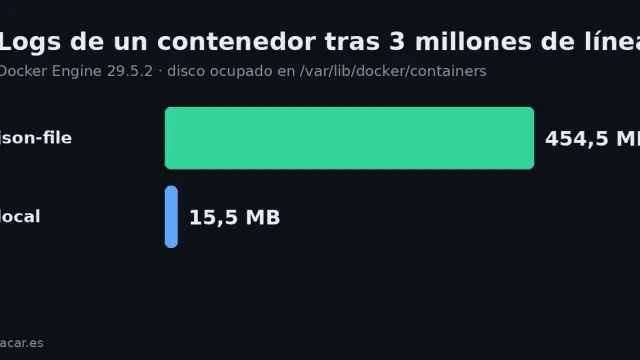
Here is the second failure that fills disks silently. The default logging driver is json-file, which stores each line of output as JSON on the host disk and performs no rotation: log files grow indefinitely until the disk fills. On a noisy service, that can be a matter of days.
You have two ways to fix it. The first is to cap json-file itself with the max-size and max-file options. The second, and the one Docker recommends, is to switch to the local driver. It rotates by default (at 20m per file and 5 files), compresses the rotated files and uses a more efficient binary format than JSON.
You can set it per service, as in the docker-compose.yml above, or change the daemon-wide default in /etc/docker/daemon.json:
{
  "log-driver": "local",
  "log-opts": {
    "max-size": "10m",
    "max-file": "5"
  }
}
After editing that file you have to reload the daemon for it to take effect:
sudo systemctl restart docker
docker info --format '{{.LoggingDriver}}'
The last command confirms the active driver. Note that changing the driver only affects containers you create afterwards; existing ones keep theirs until you recreate them with docker compose up -d --force-recreate.
How do you inspect a container’s logs and metrics?
With limits and rotation in place, day-to-day observation rests on two commands. For logs, docker logs (or docker compose logs) reads a container’s standard output; -f follows it live, --tail 100 shows only the last lines and --since 10m filters by time. For metrics, docker stats shows real-time CPU usage, memory consumed against its limit, network and disk I/O and the process count:
docker compose logs -f --tail 100 web
docker stats --no-stream
The MEM USAGE / LIMIT column in docker stats is the visual proof that your limits work: if a container approaches its ceiling, you will see it there before the OOM killer acts. To avoid depending on the terminal, a web log viewer like Dozzle gives you the same information in the browser. For historical CPU and memory graphs per container, you can export metrics with Node Exporter and cAdvisor. The local driver and those exporters complement each other: one keeps the rotated text, the others the time series.
Frequently asked questions
Does Docker Compose honour deploy.resources without Docker Swarm?
Yes. Although the deploy section was born for Swarm, docker compose up specifically applies deploy.resources.limits and deploy.resources.reservations on a normal host; it only ignores other deploy keys such as replicas or placement. That is why it is the recommended way to set limits in a single-node homelab.
What is the difference between a memory limit and a reservation?
The limit (memory under limits, or mem_limit) is a hard ceiling: if the container exceeds it, the kernel kills it by OOM. The reservation (reservations.memory or mem_reservation) is a soft minimum that Docker tries to guarantee under contention, but which does not stop the container using more if free RAM exists. Use the limit to protect yourself and the reservation to prioritise.
Why does my disk fill up with Docker logs?
Because the default json-file driver does not rotate logs: they grow without limit. The fix is to set max-size and max-file, or switch to the local driver, which rotates and compresses by default (20 MB per file, 5 files). The change only affects containers created after you apply it.
Conclusion
Setting resource limits and controlling logs is what turns a pile of containers into stable infrastructure. Each service has its CPU and RAM ceiling, the OOM killer knows who to sacrifice and logs rotate instead of filling the disk. Start by adding a memory value and a local driver to your noisiest services, verify it with docker stats and tune from there. The natural next step is watching all of it at a glance: set up Dozzle for logs and Node Exporter with cAdvisor for metrics.
Sources: [1] Docker Docs: Runtime options with Memory, CPUs, and GPUs[1], [2] Docker Docs: Configure logging drivers[2], [3] docker/compose, releases[3], [4] Kernel.org: Control Group v2 (memory and cpu)[4].