How to Install Duplicati with Docker
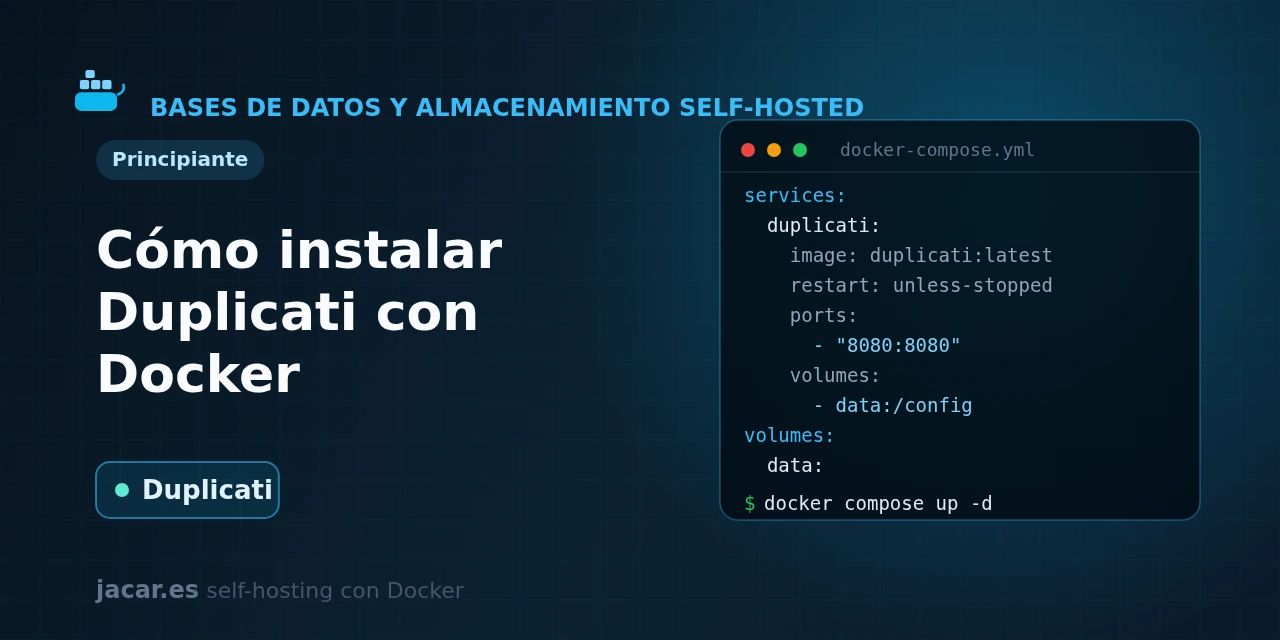
Table of contents
- Key takeaways
- What is Duplicati and encrypted incremental backups?
- The Duplicati docker-compose.yml
- How do you configure a backup to S3 or MinIO?
- Encryption, scheduling and retention
- How do you restore a backup?
- Frequently asked questions
- Is Duplicati really free and open source?
- Can I back up my containers' databases?
- What happens if I lose the encryption passphrase?
- Conclusion
- Sources
Duplicati is one of the most widely used free backup tools in the world, and with Docker you have it encrypting and uploading your data within minutes.
In this guide you bring up Duplicati from a single docker-compose.yml file and mount the folders you want to back up in read-only mode. You then configure a cloud destination (S3, MinIO, Backblaze B2 or SFTP) and schedule AES-256 encrypted backups. At the end you will learn the most important part of any backup system: how to restore. The same explanation is available in Spanish.
Key takeaways
- Duplicati is a free backup client (MIT license since March 2024) that encrypts data with AES-256 on your own server before sending it, so the storage provider never sees the content.
- It makes incremental backups with block-level deduplication: only the first backup is full; after that it uploads only the blocks that change, saving bandwidth and space.
- With Docker a single service in
docker-compose.ymlis enough; the configuration and local database persist in the volume mounted at/data, and the web interface listens on port 8200. - It stores backups almost anywhere: Amazon S3 and compatibles such as MinIO, Backblaze B2, SFTP, WebDAV, Google Drive or Storj.
- Pin a specific image version (for example
duplicati/duplicati:2.3.0.4) instead of:latest, so you decide when you move to a new version.
What is Duplicati and encrypted incremental backups?
Duplicati is an open-source backup program, written in C# on .NET 8, designed to move your data to remote storage securely. Its pitch boils down to three ideas worth understanding before you install it.
The first is encryption at source. Duplicati encrypts every file with AES-256 (a C# port of the open AESCrypt format) inside your own server, before anything leaves over the network. The storage provider, be it Amazon or someone else’s disk, only ever sees encrypted, unreadable blocks. If you prefer GPG, it is also supported.
The second is incremental backup with block-level deduplication. Duplicati splits your files into blocks (100 KB by default), hashes each one and uploads only the ones it has not seen before. That is why the first backup is full and slow, but the next ones are small and fast. If you change one line in a 50 MB document, only the affected block travels, not the whole file.
The third is the destination-agnostic format. Data is grouped into remote volumes (called dblock, 50 MB by default and zip-compressed) that can be stored on dozens of different backends. Switching provider does not change how you work.
Unlike sync tools such as Syncthing, which replicate a folder as-is, Duplicati keeps a version history. You can recover a file’s state from a week ago even if you deleted or corrupted it. Syncing is not backing up.
The Duplicati docker-compose.yml
Create a folder for the project and save this docker-compose.yml inside it. We use the official duplicati/duplicati image, mount the configuration on a named volume and add the folders we want to back up in read-only mode (:ro), so Duplicati can never write to your source data:
services:
  duplicati:
    image: duplicati/duplicati:2.3.0.4
    restart: unless-stopped
    environment:
      TZ: Europe/Madrid
      SETTINGS_ENCRYPTION_KEY: ${SETTINGS_ENCRYPTION_KEY}
      DUPLICATI__WEBSERVICE_PASSWORD: ${DUPLICATI_UI_PASSWORD}
      DUPLICATI__WEBSERVICE_ALLOWED_HOSTNAMES: "*"
    volumes:
      - duplicati_config:/data
      - /srv/appdata:/source/appdata:ro
      - /home/debian/documents:/source/documents:ro
    ports:
      - "127.0.0.1:8200:8200"

volumes:
  duplicati_config:
Next to the Compose file, create a .env file with the two secrets the container reads (Docker Compose loads it automatically). Generate long, random strings, not dictionary words:
SETTINGS_ENCRYPTION_KEY=change_this_very_long_random_key
DUPLICATI_UI_PASSWORD=another_different_key_for_the_web
Two important details in this Compose. The SETTINGS_ENCRYPTION_KEY encrypts Duplicati’s local database in /data, where the credentials for your destinations are stored; without it, anyone who reads that volume would see your S3 access keys. And the port publication is bound to 127.0.0.1, so the interface is only reachable from the server itself. To reach it from outside, put it behind a reverse proxy with HTTPS instead of opening 8200 to the world.
Start the stack and check the logs:
docker compose up -d
docker compose ps
docker compose logs -f duplicati
Open http://127.0.0.1:8200 (or an SSH tunnel to your server), enter the UI password and you are in. You will see the Duplicati home screen, ready to create your first backup.
How do you configure a backup to S3 or MinIO?
In the interface, click Add backup and choose Configure a new backup. The wizard has five steps; the ones that really matter are the destination and the source folders.
Under Destination, choose S3 Compatible if you use self-hosted MinIO or Amazon S3. Fill in the server, the bucket name, the path and the access keys. A typical example against a MinIO on your own Docker network would be:
Server:      http://minio:9000
Bucket:      duplicati-backups
Folder path: server1/
Access key:  <your-access-key>
Secret key:  <your-secret-key>
For Duplicati (in its container) to resolve the name minio, both services must share a Docker network; add your MinIO’s external network to the Compose above. If you prefer Backblaze B2, Storj or SFTP, the wizard offers a specific form for each.
Under Source data, tick the mounted folders you want to back up. Because you mounted them under /source, you will see your documents and appdata there. Choose what to back up while remembering the golden rule: copy your containers’ data (dumped databases, uploaded files), not images you can rebuild. If you are unsure what is data and what is ephemeral, review the Docker volumes and bind mounts guide.
Encryption, scheduling and retention
In the Encryption step, Duplicati asks for a backup passphrase. Write it down off the server: this key encrypts the data and is different from the UI password. If you lose it, your backups are unrecoverable, and that is precisely the point of encryption at source. AES-256 is used by default; leave it as is unless you have a reason to move to GPG.
In Schedule you set the interval between backups. A daily overnight cadence is common for a personal server. Duplicati runs the job inside the container, with no external cron.
In Options you adjust two key things. Retention decides how much history you keep. The Smart backup retention option keeps one backup per day for a week, one per week for a month and one per month for a year. It is a sensible balance between being able to go back and not hoarding forever.
The remote volume size (dblock) is 50 MB by default. Raise it to 200 MB or 500 MB if what you back up is measured in gigabytes and the destination is well connected, to reduce the number of files in the bucket.
Save and launch the first backup with Run now. The initial one will take a while depending on your data volume and upload speed; the following ones will be much faster thanks to deduplication.
How do you restore a backup?
A backup you cannot restore is not a backup. Duplicati makes it easy from the same interface: click Restore, choose the job, and you will see a date picker with every available version. Pick the one you want, select specific files or folders and decide whether to restore to the original location or a new folder (safer, so you do not overwrite anything).
The important case is total disaster: you have lost the whole server, including Duplicati’s configuration. This is where the agnostic design shines. You bring up a fresh Duplicati with this guide’s Compose, choose Restore from configuration or Direct restore from backup files, point it at the same S3/MinIO bucket and enter the encryption passphrase.
Duplicati reads the metadata from the destination and rebuilds the version tree without needing the original database. Practise this restore at least once: it is the only way to know that your backup strategy actually works.
Frequently asked questions
Is Duplicati really free and open source?
Yes. Duplicati is free software under the MIT license since March 2024, with no paid edition or crippled features. You can use it on as many servers as you like, review its code on GitHub and back up to any compatible destination without artificial limits. The project is funded by donations and optional support.
Can I back up my containers’ databases?
Yes, but carefully. Copying a database’s files "hot" can produce an inconsistent backup. The correct practice is to dump the database to a file with pg_dump or mariadb-dump via a scheduled task, and have Duplicati back up that dumps folder. That guarantees the backup represents a coherent state you can return to.
What happens if I lose the encryption passphrase?
Your backups become useless. There is no back door and no recovery: AES-256 encryption at source exists precisely so that nobody without the key can read the data, and that includes you. Store that passphrase in a manager like Vaultwarden or on paper in a safe place, and keep it separate from the container’s SETTINGS_ENCRYPTION_KEY.
Conclusion
With a single service in docker-compose.yml you have Duplicati encrypting your data with AES-256 and uploading it incrementally to S3, MinIO or whatever destination you prefer, with a clear interface to schedule and restore. Remember the three rules that separate a backup from an accident: mount the source read-only, keep the encryption passphrase off the server and test the restore before you need it. The logical next step is to set up the destination: if you do not have your own object storage yet, follow the how to install MinIO with Docker guide and point your backups there.
Sources: [1] Official Duplicati documentation[1], [2] Official duplicati image on Docker Hub[2], [3] Duplicati repository on GitHub[3].