The oMLX admin dashboard and its command line
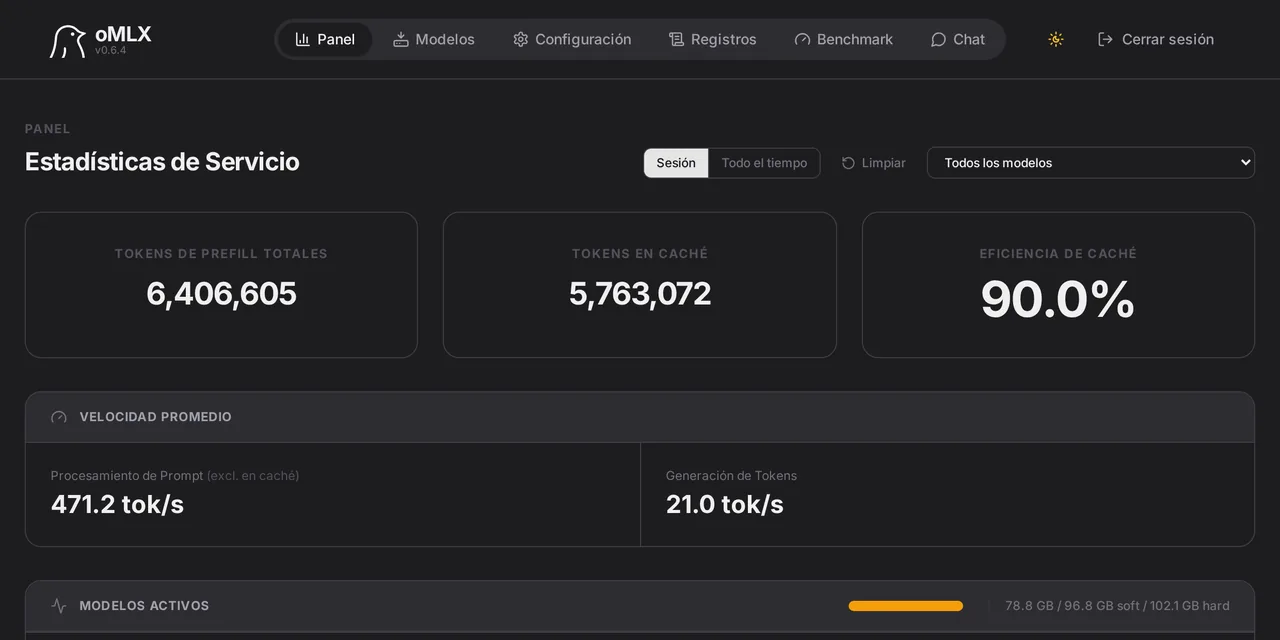
Table of contents
- Key takeaways
- How you get into the panel
- What is inside the panel
- The built-in chat
- The model downloader
- Aliases and profiles
- The four command line commands
- omlx launch, the command that wires up clients
- Frequently asked questions
- Can I use the oMLX admin dashboard without an internet connection?
- How do I change the settings of one model without affecting the others?
- Why can I not log into the panel with my key?
- Conclusion
- Sources
Almost everything configurable in oMLX can be done from a web page the server itself serves, and the changes apply without restarting it. This article walks through the admin dashboard’s sections, what each one does, and the four terminal commands that cover what the panel cannot reach.
Key takeaways
- The panel is at
http://localhost:8000/adminand the built-in chat at/admin/chat. - You log in with the main key; a sub-key will not do, because it only grants API access.
- Changes made in the panel apply live, without restarting the server.
- The interface is translated into eight languages, Spanish among them, and works offline because its dependencies are vendored.
- The command line adds four commands:
serve,start,stopandlaunch. The last one configures external clients for you.
How you get into the panel
The panel is served from the same process and the same port as the API, so if the server answers, the panel does too. Authentication differs from the inference endpoints: instead of a per-request header, there is a login that leaves a signed cookie.
You enter the main key, the server verifies it and generates a session token signed with itsdangerous.URLSafeTimedSerializer. That token lives in the omlx_admin_session cookie and lasts 24 hours, or 30 days if you tick remember me.
Two details that save confusion. First: a sub-key does not get in here. They exist so applications can call the API, and they explicitly cannot log in or change settings.
Second: if the menu bar app opens the panel without asking you for anything, that is not a security hole. There is an auto-login route reserved for the native app, which already knows the key.
If it throws you out every time you restart the server, the cause is OMLX_SECRET_KEY. When it is undefined a random value is generated at each startup, and that invalidates every cookie issued before. It is explained along with the rest of the configuration in the guide to the oMLX API and port.
What is inside the panel
Seven sections, each solving something that would otherwise mean editing files:
| Section | What it solves |
|---|---|
| Monitoring | Memory in use, throughput and request queue, in real time |
| Model management | Load, unload, pin in memory and set a per-model TTL |
| Chat | Conversation with history, reasoning output and image upload |
| Downloader | Search for and pull MLX models from Hugging Face |
| Integrations | One-click setup for OpenClaw, OpenCode, Copilot, Hermes and Pi |
| Benchmarks | Prefill and generation tokens per second, with prefix cache testing |
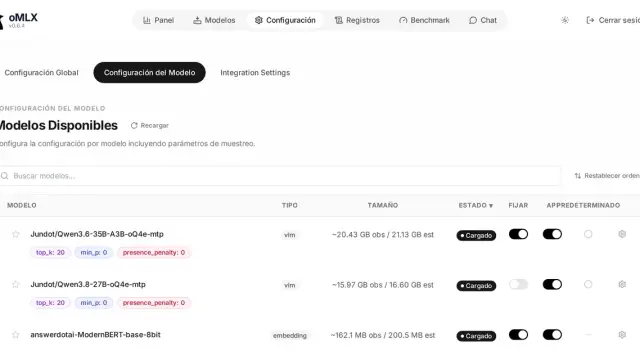
| Per-model settings | Sampling, chat template, alias, type, TTL and profiles |
The monitoring section gets the most daily use, for a specific reason. A Mac with unified memory has no graphics card with its own memory, so every loaded model comes out of the same budget as the rest of the system. Seeing how much is left before loading another model prevents half the unexpected shutdowns.
The built-in chat
It lives at /admin/chat and it is not decoration. It does what you need right after downloading a model: confirm it answers, that the chat template is right, and that reasoning separates from the answer the way it should.
It accepts image uploads, which makes it the fastest way to try a vision model or a text-recognition one without hand-writing a request. oMLX auto-detects the known OCR models, such as DeepSeek-OCR, DOTS-OCR and GLM-OCR, and applies optimised prompts to them.
The model downloader
It searches Hugging Face and pulls the weights without leaving the browser. Because oMLX consumes the MLX catalogue, what you download already comes in the format the engine understands, with no intermediate conversion step.
The supported types go beyond language models. There are vision models from the Qwen3.5 series, GLM-4V and Pixtral; embedding models such as BERT, BGE-M3 and ModernBERT; and rerankers based on ModernBERT and XLM-RoBERTa. With a language model, an embedding model and a reranker loaded at once you have a whole retrieval pipeline on the same machine.
Aliases and profiles
Two small features that change daily use quite a bit.
An alias renames the model as far as the API is concerned. The /v1/models endpoint returns the alias, and requests accept either the alias or the directory name. It lets a client asking for gpt-4o-mini receive whichever model you decide, without touching the client.
A profile is a named bundle of settings. It is exposed as <model>:<profile>, for example qwen3-8b:thinking, and the point is that it costs no extra memory: it is the same model loaded once, served with different sampling parameters. A conservative profile for code work and a looser one for writing, over the same weights.
The four command line commands
The panel does not cover startup or wiring up external clients. That is what the terminal is for:
omlx serve --model-dir ~/models     # foreground, dies when the session closes
omlx start                          # supervised background service
omlx stop
omlx restart
omlx serve takes a fair number of flags, and these are the ones actually used:
| Flag | Default | What it is for |
|---|---|---|
--model-dir |
~/.omlx/models |
Directory holding the models |
--port |
8000 |
Listening port |
--host |
127.0.0.1 |
Listening address |
--pin |
none | Models that must not be unloaded from memory |
--memory-guard |
balanced |
Memory ceiling tier: safe, balanced or aggressive |
--max-concurrent-requests |
8 |
Concurrent requests allowed |
--paged-ssd-cache-dir |
~/.omlx/cache |
Where the cold KV cache spills |
--no-cache |
off | Turns the tiered cache off |
--log-level |
info |
trace, debug, info, warning or error |
--api-key |
none | Main key |
--mcp-config |
none | Model Context Protocol configuration file |
--hf-endpoint |
Hugging Face | Alternative mirror for restricted regions |
There are more, mostly networking: --ms-endpoint for ModelScope, --http-proxy, --https-proxy, --ca-bundle and --sse-keepalive-mode, that last one useful when a proxy cuts streaming connections during a long prefill.
Remember that if you run oMLX as a Homebrew service, none of these flags reach it: the service runs a bare omlx serve and all configuration has to live in ~/.omlx/settings.json or in the panel. It is worked through in the Homebrew installation guide.
omlx launch, the command that wires up clients
This is the least known part and probably the most useful. omlx launch starts an external tool with the environment variables and configuration files already prepared to talk to your server.
omlx launch claude      # Claude Code
omlx launch codex       # Codex
omlx launch opencode    # OpenCode
omlx launch openclaw    # OpenClaw
omlx launch hermes      # Hermes Agent
omlx launch pi          # Pi Agent
Each does something different underneath:
| Tool | What it configures | Endpoint it uses |
|---|---|---|
| Claude Code | ANTHROPIC_BASE_URL and ANTHROPIC_AUTH_TOKEN |
/v1/messages |
| Codex | Process-scoped arguments | /v1/responses |
| OpenCode | ~/.config/opencode/opencode.json |
/v1/chat/completions |
| OpenClaw | ~/.openclaw/openclaw.json |
/v1/chat/completions |
| Hermes | ~/.hermes/config.yaml |
/v1/chat/completions |
| Pi | ~/.pi/agent/models.json |
/v1/chat/completions |
For Claude Code there are two details worth knowing. Model mapping happens through ANTHROPIC_DEFAULT_OPUS_MODEL, ANTHROPIC_DEFAULT_SONNET_MODEL and ANTHROPIC_DEFAULT_HAIKU_MODEL, so you decide which local model answers at each tier. And oMLX enforces a minimum context window of 48K tokens for that integration, because the client misbehaves below it. If your model does not reach that, the integration will not start.
For Copilot on the command line it sets COPILOT_PROVIDER_WIRE_API = "responses", which is what makes it speak the right dialect to a local server.
Frequently asked questions
Can I use the oMLX admin dashboard without an internet connection?
Yes. The dependencies that would normally come from a content delivery network are vendored into the package itself, so the panel loads in full with the machine offline. The only thing that needs internet is the model downloader.
How do I change the settings of one model without affecting the others?
In the panel’s per-model settings section. There you define sampling, chat template, alias, type and TTL for that specific model. If you want two behaviours over the same weights, save two profiles and call them as <model>:<profile>.
Why can I not log into the panel with my key?
Because it is probably a sub-key. Sub-keys only call the inference endpoints and cannot log in or modify settings. Use the main key, the one you set with --api-key or in the configuration.
Conclusion
The split between panel and terminal in oMLX is fairly clear: the terminal starts the process and wires up clients, the panel governs everything else live. It is worth spending ten minutes walking through the seven sections before you start hand-editing settings.json, because most of what you would go looking for is in the interface and applies without a restart.
What the panel makes visible is how much memory is left, and that turns out to be the real limit. How it is shared between models is covered in model management and memory in oMLX. The Spanish version of this article is at El panel de administración de oMLX y su línea de comandos.
Sources: [1] jundot/omlx, official repository and documentation[1], [2] DeepWiki: the oMLX CLI reference[2], [3] DeepWiki: oMLX integrations[3], [4] mlx-lm, the language models the engine loads[4], [5] MLX model catalogue on Hugging Face[5], [6] Model Context Protocol specification[6].
Sources
Source code
Access all the source code for this post on GitHub.
View on GitHub