How to Install BookStack with Docker
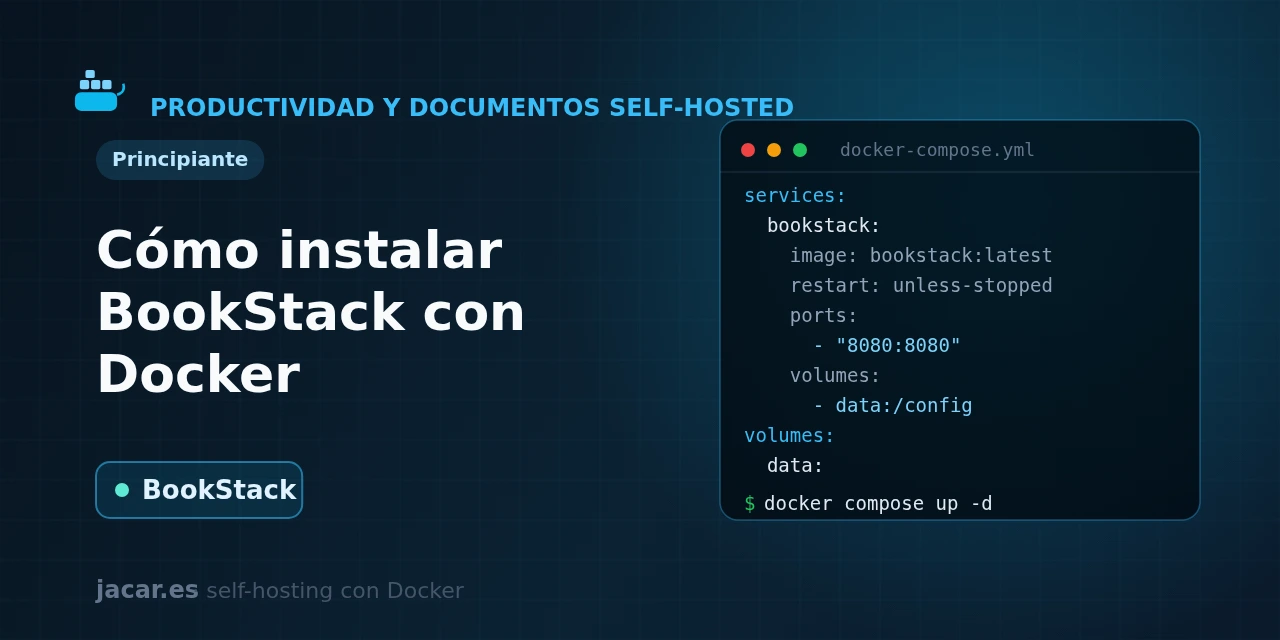
Table of contents
- Key takeaways
- What is BookStack and what is it for?
- How does BookStack organise documentation?
- The docker-compose.yml with the LinuxServer image
- Which environment variables are essential?
- How do you publish it with a reverse proxy?
- How do I take backups?
- Frequently asked questions
- Does BookStack need a separate database?
- Why does the interface look broken or why can't I log in?
- How does BookStack differ from Wiki.js?
- Conclusion
- Sources
BookStack is one of the tidiest ways to run your own documentation wiki, and with Docker it installs in a matter of minutes. In this guide you bring up the application alongside a MariaDB database (an open-source relational database engine compatible with MySQL, where BookStack stores all of its content) using a single docker-compose.yml file. You then generate the APP_KEY, configure the critical APP_URL variable, publish it over HTTPS behind a reverse proxy and take backups. The same explanation is available in Spanish.
Key takeaways
- BookStack is an open-source documentation platform written in PHP with the Laravel framework; its first release was in July 2015 and today it sits at the CalVer version v26.05.
- It organises content into four levels: shelves, books, chapters and pages, which keeps a knowledge base tidy without extra work.
- The recommended setup uses the
lscr.io/linuxserver/bookstackimage from LinuxServer alongside a MariaDB container; BookStack does not work with SQLite. - Two variables are mandatory:
APP_URL(the exact address you access it from) andAPP_KEY(abase64:key you must generate before starting). - Pin a specific image version (for example
version-v26.05.2) instead of:latest; that way you decide when you move up a version and avoid surprises on restart.
What is BookStack and what is it for?
BookStack is an open-source documentation wiki platform, designed to let teams and individuals maintain a clear, searchable knowledge base. It was born in July 2015 from Dan Brown and is built on the PHP Laravel framework, under an MIT licence. It is the natural self-hosted alternative to commercial tools like Confluence or Notion.
Its great strength is simplicity: instead of giving you a blank page, it imposes a structure that encourages coherent documentation. It includes a visual (WYSIWYG) editor as well as a Markdown editor, role-based permissions, per-page version history, full-text search, comments and diagrams via the built-in drawio. All the content stays on your server, with no dependency on someone else’s cloud.
How does BookStack organise documentation?
Here is the idea that sets BookStack apart from a traditional wiki: a fixed four-level hierarchy. From largest to smallest, they are shelves, books, chapters and pages.
- The page is the unit of content, where you actually write.
- The chapter groups related pages within a book (it is optional).
- The book is the main container for a topic; it gathers chapters and pages.
- The shelf groups the books of one subject area, like a themed collection.
The same book can appear on more than one shelf, so the organisation is flexible even though the levels are fixed. This structure is exactly what prevents the usual chaos of wikis that grow without order, and it makes search and permissions predictable.
The docker-compose.yml with the LinuxServer image
Before writing the Compose file you need a Linux machine with Docker and the Compose plugin installed. If you do not have them yet, follow the guide to install Docker on Ubuntu 24.04 first. The first BookStack-specific step is generating the APP_KEY, an encryption key Laravel uses for sessions and cookies. The LinuxServer image ships a utility to create it:
docker run -it --rm --entrypoint /bin/bash lscr.io/linuxserver/bookstack:version-v26.05.2 appkeyThe command prints a string in the base64:... format. Copy it whole, because you will paste it into the Compose file. Now create a folder for the project and save this docker-compose.yml inside it, replacing the sample keys and APP_URL with your real values:
services:
  bookstack_db:
    image: mariadb:11.4
    restart: unless-stopped
    environment:
      MYSQL_ROOT_PASSWORD: change_this_root_key
      MYSQL_DATABASE: bookstackapp
      MYSQL_USER: bookstack
      MYSQL_PASSWORD: change_this_key
      MYSQL_INITDB_SKIP_TZINFO: "yes"
    volumes:
      - bookstack_db_data:/var/lib/mysql
    healthcheck:
      test: ["CMD", "healthcheck.sh", "--connect", "--innodb_initialized"]
      interval: 30s
      timeout: 5s
      retries: 5

  bookstack:
    image: lscr.io/linuxserver/bookstack:version-v26.05.2
    restart: unless-stopped
    depends_on:
      bookstack_db:
        condition: service_healthy
    ports:
      - "6875:80"
    environment:
      PUID: 1000
      PGID: 1000
      TZ: Europe/Madrid
      APP_URL: http://192.168.1.10:6875
      APP_KEY: base64:paste_the_generated_key_here
      DB_HOST: bookstack_db
      DB_PORT: 3306
      DB_DATABASE: bookstackapp
      DB_USERNAME: bookstack
      DB_PASSWORD: change_this_key
    volumes:
      - bookstack_config:/config

volumes:
  bookstack_db_data:
  bookstack_config:
Notice a few details. BookStack does not start until the database passes its healthcheck, thanks to depends_on with the service_healthy condition. The container’s port 80 is published on the host’s port 6875 (the image’s convention), so the wiki will be at whatever address you set in APP_URL. And all the persistent configuration lives in the bookstack_config volume, mounted at /config.
With the file ready, start the stack in the background and watch the container log:
docker compose up -d
docker compose ps
docker compose logs -f bookstack
The first time, the image prepares the database and applies the Laravel migrations, so the boot takes a little longer. When the log stops, open the APP_URL in the browser. The initial user is admin@admin.com with the password password; change them as soon as you sign in, from Settings → Users.
Which environment variables are essential?
Of all the variables, two decide whether BookStack works or not. The first is APP_KEY, the encryption key you already generated: without it the application will not even start. The second, and the number-one source of trouble, is APP_URL.
APP_URL must be exactly the address you access BookStack from, with its protocol and port: for example http://192.168.1.10:6875 on the local network, or https://docs.mydomain.com if you publish it with a domain. If this variable does not match the real URL, you will see the interface without styles, links will break and login will fail, because Laravel generates every absolute route from it. It is the most common reason for a broken-looking BookStack.
If you later change address (for example, moving from an IP to a domain with HTTPS), editing the variable is not enough. You have to rewrite the URLs stored in the database with the maintenance command the application ships:
docker exec -it bookstack php /app/www/artisan bookstack:update-url http://192.168.1.10:6875 https://docs.mydomain.comHow do you publish it with a reverse proxy?
Serving BookStack over plain HTTP on the local network is fine for testing, but to expose it to the Internet you need encryption. The usual way is to place it behind a reverse proxy that handles the TLS certificate for you.
You have two options widely used in this series. The first is Nginx Proxy Manager (a reverse proxy with a web interface, no command line needed), which creates the proxy and requests the Let’s Encrypt certificate in a couple of clicks. The second is Traefik, configured through labels in the Compose file itself.
If you use Traefik, remove the ports section from the bookstack service, connect it to the proxy network and add these labels:
    labels:
      - "traefik.enable=true"
      - "traefik.http.routers.bookstack.rule=Host(`docs.mydomain.com`)"
      - "traefik.http.routers.bookstack.entrypoints=websecure"
      - "traefik.http.routers.bookstack.tls.certresolver=le"
      - "traefik.http.services.bookstack.loadbalancer.server.port=80"
Whichever proxy you pick, remember to update APP_URL to the final https:// address. If you had already started with a different URL, run the bookstack:update-url command from the previous section so every internal link points to the correct domain.
How do I take backups?
A full BookStack backup has two pieces: the database dump and the /config volume (which stores uploaded images, attachments and the APP_KEY itself). Start by exporting the database with mariadb-dump:
docker compose exec bookstack_db mariadb-dump -u bookstack -pchange_this_key bookstackapp > bookstack-db.sqlThen back up the bookstack_config volume with whatever tool you prefer; in this series we automate it later with Duplicati. To update BookStack to a new version, change the image tag and recreate the container:
docker compose pull
docker compose up -d
The image applies the necessary database migrations on boot. Since BookStack ships a feature release every two months, it is worth reading the release notes before jumping more than one version at once. And always keep the database dump handy in case you need to roll back.
Frequently asked questions
Does BookStack need a separate database?
Yes. Unlike other lightweight applications, BookStack does not bundle SQLite: it requires a MariaDB or MySQL database to work. That is why the docker-compose.yml defines two services, the application and bookstack_db. You can reuse an existing MariaDB instance, as long as you create a dedicated database and user and point the DB_HOST, DB_DATABASE, DB_USERNAME and DB_PASSWORD variables at it.
Why does the interface look broken or why can’t I log in?
It is almost always an APP_URL problem. If that variable does not match the exact address you open BookStack from (protocol, IP or domain and port included), Laravel generates links and assets towards the wrong URL. The page appears unstyled and login fails. Fix APP_URL, and if you had already saved content with a different address, run the bookstack:update-url command to rewrite the routes.
How does BookStack differ from Wiki.js?
BookStack imposes a fixed hierarchy of shelves, books, chapters and pages, ideal for structured documentation and teams that want order from the start. Wiki.js is more flexible and technical: it organises content in a free path tree, supports more than one storage engine and integrates with Git. If you want simplicity and structure, BookStack; if you need fine-grained control over organisation, Wiki.js.
Conclusion
With a single docker-compose.yml you have a complete documentation wiki: application, database and persistent storage, all on your server. The key is generating the APP_KEY properly and nailing the APP_URL; with those two variables correct, the rest flows. The logical next step is to take it to the Internet securely behind Nginx Proxy Manager or Traefik and to schedule regular backups of the database and the /config volume.
Sources: [1] Official BookStack documentation[1], [2] BookStack repository on GitHub[2], [3] BookStack Docker image on LinuxServer[3].
Sources
Source code
Access all the source code for this post on GitHub.
View on GitHub