Vaultwarden SSO with OpenID Connect and Pocket ID in Docker
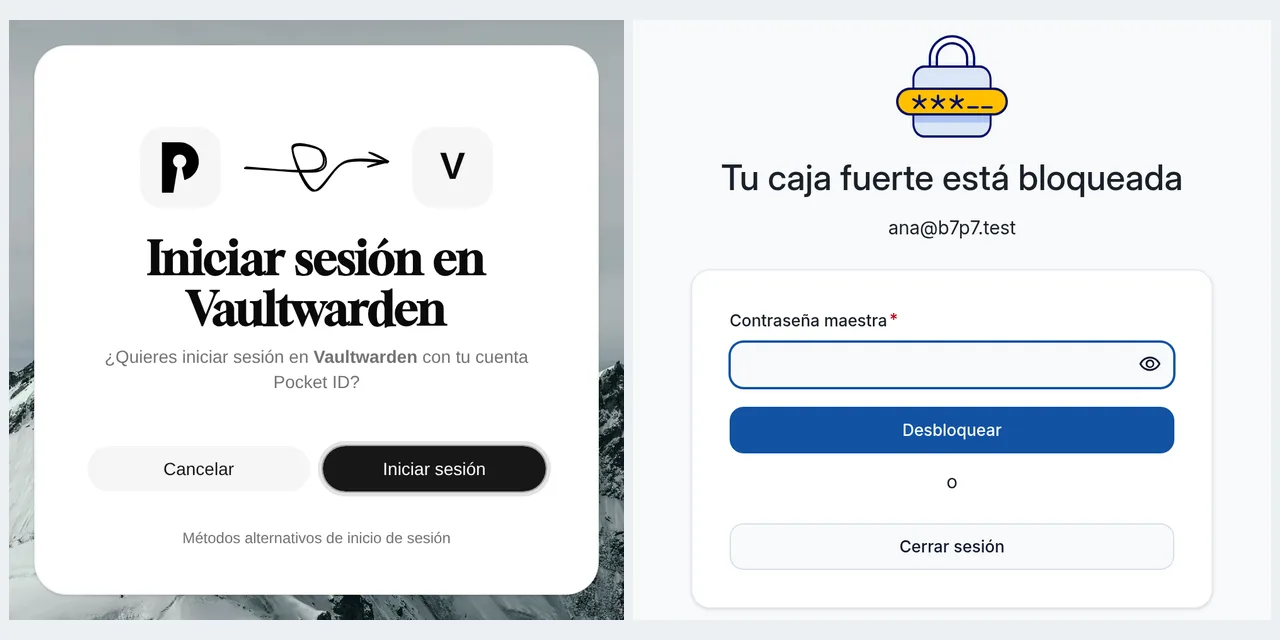
Table of contents
- Key takeaways
- What SSO changes in Vaultwarden and what it does not
- What I built and which versions
- Why SSO needs HTTPS and how I solved it with Caddy without a public domain
- How to run Vaultwarden, Pocket ID and Caddy with Docker Compose
- How to register Vaultwarden as an OIDC client in Pocket ID
- The Vaultwarden 1.37.3 SSO settings
- What the first passkey sign-in looks like
- Who can create an account with SSO_SIGNUPS_ALLOWED
- How to shut off password sign-in with SSO_ONLY
- Three errors I hit and how to fix them
- The MariaDB 12.2.2 migration that 1.37.3 fixes
- Keycloak, Authentik and other providers instead of Pocket ID
- What I could not test
- Frequently asked questions
- Does Vaultwarden SSO replace the master password?
- What happens if I lose my Pocket ID passkey?
- Can I enable SSO on a Vaultwarden install that already has users?
- Conclusion
- Sources
Vaultwarden 1.37.3 lets you into the vault through single sign-on (SSO) with OpenID Connect, and with Pocket ID as the provider the sign-in becomes a passkey. What does not change is the master password: Vaultwarden still asks for it after SSO, because it is the key that encrypts your data. I built the whole thing in Docker, with Caddy serving HTTPS from a local CA, and this guide covers the settings, the client registration, what SSO_SIGNUPS_ALLOWED and SSO_ONLY do, and the errors I ran into. There is also a Spanish version of this guide.
Key takeaways
- Vaultwarden SSO authenticates the person, but the vault is decrypted with the master password, which the OpenID Connect (OIDC) provider never sees.
- Vaultwarden 1.37.3, released on 13 September 2026, adds
SSO_SIGNUPS_ALLOWED: set tofalse, SSO only lets in accounts that already exist or hold an invitation. - Pocket ID 2.16.0 lets nobody into a new OIDC client until you assign it a group, and it flags the email of manually created users as unverified.
- That unverified email blocks the Vaultwarden signup, and the setting suggested by Pocket ID’s own example does not fix it.
SSO_ONLY=trueremoves password sign-in from the web vault, and the server rejects password logins with an HTTP 400.- On MariaDB 12.2.2, an install created with 1.37.2 keeps a duplicate foreign key even after upgrading to 1.37.3; an
ALTER TABLEfixes it.
What SSO changes in Vaultwarden and what it does not
SSO replaces the first step of the login, not the encryption. The Vaultwarden wiki page on SSO[1] says so in its second line: "A master password will still be required and not controlled by the SSO". Bitwarden encrypts the vault on the client with a key derived from that password, and neither Vaultwarden nor Pocket ID knows it.
In practice the flow looks like this:
- you type your email in the Vaultwarden web vault and click Use single sign-on
- the browser goes to Pocket ID, which asks for your passkey and your consent
- Pocket ID sends a code back to
https://your_domain/identity/connect/oidc-signin - Vaultwarden exchanges the code, identifies you and asks for the master password to unlock
Vaultwarden stores the link in the sso_users table as {iss}/{sub}, that is, the issuer plus the user’s identifier at the provider. In my lab it ended up as https://id.b7p7.test:26743/e7733fbe-197a-4777-8472-fadd44c2d114. What you gain is one place to add and remove people, and no more reused login passwords. The basic Vaultwarden install is in the guide to installing Vaultwarden with Docker, and this guide starts from there.
What I built and which versions
The lab ran on 30 September 2026 in Docker on an arm64 Linux machine with 18 cores. It is three containers on one Compose network, plus Playwright with Chromium on the host to drive the logins:
| Component | Image | Role |
|---|---|---|
| Vaultwarden | ghcr.io/dani-garcia/vaultwarden:1.37.3 |
Server, with web vault 2026.7.0 |
| Pocket ID | ghcr.io/pocket-id/pocket-id:v2.16.0 |
Passkey-only OIDC provider |
| Caddy | mirror.gcr.io/library/caddy:2.11.4-alpine |
Reverse proxy with TLS from a local CA |
| MariaDB | mirror.gcr.io/library/mariadb:12.2.2 |
Only for the migration test |
The names vault.b7p7.test and id.b7p7.test use .test, a top-level domain reserved for testing, and everything listens on port 26743. Pocket ID 2.16.0 came out on 20 September 2026, according to its release notes[2]. If you do not run Pocket ID yet, the guide to installing Pocket ID with passkeys covers the install and the first administrator.
Why SSO needs HTTPS and how I solved it with Caddy without a public domain
Both ends need valid certificates. The browser only allows WebAuthn, the passkey API, in a secure context, and the Pocket ID installation docs[3] list it as a requirement. On top of that, Vaultwarden talks to Pocket ID over HTTPS from inside its container, and that client validates the certificate too.
Without a public domain, I used Caddy’s internal CA. This is the full Caddyfile:
{
    https_port 26743
    auto_https disable_redirects
    local_certs
}

vault.b7p7.test {
    reverse_proxy vaultwarden:80
}

id.b7p7.test {
    reverse_proxy pocketid:1411
}
local_certs makes Caddy sign the certificates with its own root, which here was called Caddy Local Authority - 2026 ECC Root and expires in 2036. The Caddy automatic HTTPS docs[4] spell out the consequence: "Any client accessing the site without trusting Caddy’s root CA certificate will show security errors". That trust has to be granted in two places:
- Vaultwarden: mount
root.crtinto the container and pointSSL_CERT_FILEat it, as the wiki says for private CAs - Browser: import the same root into its certificate store; I built an NSS database with
certutilfor Playwright’s Chromium profile
Without the first one, the Vaultwarden log shows failed to verify TLS certificate: invalid peer certificate: UnknownIssuer followed by Failed to discover OpenID provider: Request failed. With a public domain and Let’s Encrypt you need none of this, because the root is already in the system store.
How to run Vaultwarden, Pocket ID and Caddy with Docker Compose
The compose.yml puts the three services on one network and gives Caddy both names as aliases, so Vaultwarden resolves id.b7p7.test to the proxy instead of going outside:
services:
  caddy:
    image: mirror.gcr.io/library/caddy:2.11.4-alpine
    ports: ["127.0.0.1:26743:26743"]
    volumes:
      - ./Caddyfile:/etc/caddy/Caddyfile:ro
      - ./caddy-data:/data
    networks:
      default:
        aliases: [vault.b7p7.test, id.b7p7.test]
  pocketid:
    image: ghcr.io/pocket-id/pocket-id:v2.16.0
    environment:
      APP_URL: https://id.b7p7.test:26743
      ENCRYPTION_KEY: ${POCKET_ID_ENCRYPTION_KEY}
      TRUST_PROXY: "true"
      ANALYTICS_DISABLED: "true"
    volumes:
      - ./pid-data:/app/data
APP_URL must match the URL the browser sees, port included, because Pocket ID uses it as the issuer. The encryption key comes from openssl rand -base64 32, as its docs recommend. The Vaultwarden service completes the file:
  vaultwarden:
    image: ghcr.io/dani-garcia/vaultwarden:1.37.3
    env_file: vaultwarden.env
    volumes:
      - ./vw-data:/data
      - ./caddy-data/caddy/pki/authorities/local/root.crt:/ca/root.crt:ro
Start Caddy and Pocket ID first with docker compose up -d caddy pocketid, so Caddy creates the root before Vaultwarden mounts it. Discovery answers at https://id.b7p7.test:26743/.well-known/openid-configuration, with issuer equal to APP_URL and RS256 signing.
How to register Vaultwarden as an OIDC client in Pocket ID
You create the client under Administration > OIDC Clients > Add OIDC Client, and it needs three things. These are the values I used:
- Callback URL:
https://vault.b7p7.test:26743/identity/connect/oidc-signin, which Vaultwarden builds fromDOMAIN - PKCE: enabled, matching
SSO_PKCE=truein Vaultwarden - Secret: Pocket ID 2.16.0 does not show one on save; you generate it in the Credentials tab with Add client secret
The client now exists, but nobody can use it. The Pocket ID allowed groups docs[5] explain why: "If you create a new OIDC Client, no user groups and therefore no users are allowed to access the client". My first attempt ended on a Pocket ID page with the error You are not allowed to access this service.
The fix I prefer is a vaultwarden-users group holding whoever should use the vault, with the Vaultwarden client ticked in its Allowed OIDC Clients tab. The client’s Unrestricted button opens access to every Pocket ID user instead.
The Vaultwarden 1.37.3 SSO settings
The configuration fits in one environment file. This is the lab’s final vaultwarden.env, with the client ID and secret replaced:
DOMAIN=https://vault.b7p7.test:26743
SIGNUPS_ALLOWED=false
SSO_ENABLED=true
SSO_ONLY=true
SSO_SIGNUPS_ALLOWED=false
SSO_AUTHORITY=https://id.b7p7.test:26743
SSO_CLIENT_ID=your_pocket_id_client_id
SSO_CLIENT_SECRET=your_client_secret
SSO_SCOPES=email profile offline_access
SSO_PKCE=true
SSL_CERT_FILE=/ca/root.crt
Each setting does one thing, according to the .env.template of Vaultwarden 1.37.3[6] and the wiki:
SSO_ENABLED: turns on the single sign-on buttonSSO_AUTHORITY: the provider’s base URL, without/.well-known/openid-configuration; it must match the discoveryissuerexactly, trailing slash included or excludedSSO_SCOPES: defaults toemail profile;openidis added automaticallySSO_PKCE: on by default since the option existsSSO_SIGNUPS_ALLOWED: new in 1.37.3, decides whether SSO may create accountsSSO_ONLY: disables email plus master password sign-inSSO_SIGNUPS_MATCH_EMAIL:trueby default, links an existing account with the same email on the first login
As for offline_access, in my test Pocket ID 2.16.0 returned a refresh token with and without that scope. I keep it because it costs nothing and the wiki requires it for Keycloak, Authentik and Authelia. The access token Vaultwarden issued expired after 3600 s.
What the first passkey sign-in looks like
The first time you come in through SSO, Vaultwarden creates the account and asks for a new master password of at least 12 characters. The screen is titled "Join organization" and the URL includes the identifier 00000000-01DC-01DC-01DC-000000000000, a placeholder organization the web vault uses for this step. It is cosmetic: no organization is created.
I automated the login with Playwright and a Chromium virtual authenticator, which exposes WebAuthn over the DevTools protocol. I registered the passkey in Pocket ID with that authenticator and reused it in every test, so the flow went through a real WebAuthn ceremony, not a shortcut. The account uses PBKDF2 with 600 000 iterations, which is what web vault 2026.7.0 picked.
On later logins, Pocket ID asks for the passkey, Vaultwarden accepts the token and the web vault stops at Your vault is locked until you type the master password. That screen is the practical proof that SSO does not touch the encryption. Only from there did I reach the vault.
Who can create an account with SSO_SIGNUPS_ALLOWED
Up to 1.37.2, anyone able to authenticate at your provider got a Vaultwarden account, unless you filtered by email domain. Version 1.37.3 splits that decision from SIGNUPS_ALLOWED with the new setting, and .env.template adds a warning: "You probably want to disable it when using a public provider". With Google or GitLab as the provider, that means any Google or GitLab account.
I tested it with a second Pocket ID user, beto, with its own passkey and inside the allowed group:
- with
SSO_SIGNUPS_ALLOWED=falseand no invitation, Vaultwarden refused the signup withSignups are disabled. You will need an invitation - after I invited it from the
/adminpanel, the same SSO login created the account and asked for the master password
With Pocket ID, which only admits people you add, leaving it at true is defensible. I prefer false plus invitations, so that joining the vault is an explicit decision and not a side effect of group membership.
How to shut off password sign-in with SSO_ONLY
SSO_ONLY=true leaves the web vault login with a single button. The master password option and the Create account link disappear, because Vaultwarden marks signups as disabled when SSO is mandatory.
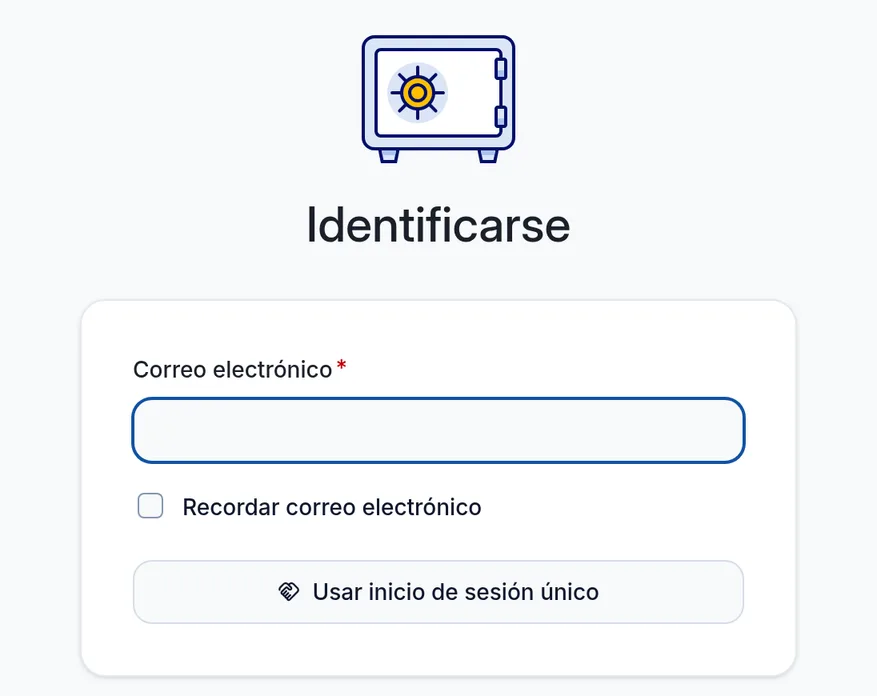
The lock is on the server too. I sent /identity/connect/token a request with grant_type=password and got an HTTP 400 with SSO sign-in is required. In the identity.rs code of 1.37.3[7] that check runs before the password is even looked at. Before you turn it on, make sure every account has already signed in once through SSO and has its link in sso_users.
Three errors I hit and how to fix them
All three showed up with the configuration from the previous sections, and each one leaves a clear message in some log:
| Message | Where it shows | Cause and fix |
|---|---|---|
You are not allowed to access this service. |
Pocket ID error page | The client has no allowed groups; assign a group or lift the restriction |
You need to verify your email with your provider before you can log in |
Vaultwarden log and a web vault toast | Pocket ID sends email_verified: false; mark the user’s email as verified |
Failed to discover OpenID provider: Request failed |
Vaultwarden log | The container does not trust the CA; check SSL_CERT_FILE |
The second one deserves detail. The users I created by hand in Pocket ID, the administrator included, had unverified emails, and Pocket ID sends the email_verified claim with that value. The Vaultwarden example in the Pocket ID docs[8] suggests SSO_ALLOW_UNKNOWN_EMAIL_VERIFICATION=true, but in the 1.37.3 code that setting only covers a missing claim. With an explicit false, Vaultwarden refuses the login anyway.
I fixed it with the Mark as verified button on the user’s page in Pocket ID. I did not enable that setting, which the wiki links to a possible account takeover when combined with SSO_SIGNUPS_MATCH_EMAIL.
The MariaDB 12.2.2 migration that 1.37.3 fixes
Version 1.37.3 includes the migration fix for MariaDB 12.2.2[9], and I reproduced the problem with a MariaDB 12.2.2 container. With Vaultwarden 1.37.2 on an empty database, startup shows no error, but the sso_users table ends up with two foreign keys: 1, without cascade, and 2, with cascade. The old migration looked for the key by the name sso_users_ibfk_1, MariaDB 12.2.2 named it 1, and the drop never happened.
The consequence shows when you delete a user linked through SSO: MariaDB answers ERROR 1451 (23000) because key 1 blocks the delete. With 1.37.3 on a fresh database there is a single key, with cascade. What the fix does not do is repair a database created earlier, because the migration is already recorded as applied among the 55 Vaultwarden tracks. If you installed on MariaDB 12.2.2 with an older version, upgrade and drop the extra key:
SHOW CREATE TABLE sso_users;
-- two FOREIGN KEYs on user_uuid: drop the one without CASCADE
ALTER TABLE sso_users DROP FOREIGN KEY `1`;
Check first with SHOW CREATE TABLE which of the two lacks ON DELETE CASCADE, because the number can differ. After dropping it, the same test delete worked and removed the sso_users row. If you plan to upgrade the database server, the article on MariaDB 13 in Docker goes through what changes.
Keycloak, Authentik and other providers instead of Pocket ID
Vaultwarden works with any provider that publishes OpenID Connect discovery and authenticates the client with an ID and a secret. The wiki lists specific settings for 12 providers, and the most common ones on a self-hosted server are these:
| Provider | SSO_AUTHORITY |
Setting the wiki asks for |
|---|---|---|
| Pocket ID | https://id.example.com |
Allowed group and verified email (in my test) |
| Keycloak | https://host/realms/your_realm_name |
Access token of at least 10 minutes and offline_access |
| Authentik | https://host/application/o/your_app_name/ |
Mandatory trailing slash, offline_access and RS256 signing |
| Authelia | The service URL | offline_access to get a refresh token |
In Keycloak and Authentik, the default access token lifetime can be 5 minutes. That is the same margin the Bitwarden web vault uses to decide when to refresh it, hence the warning.
If you already run Keycloak, the article on securing an MCP server with Keycloak sets up a realm with Docker that you can start from. The Authentik install for self-hosted SSO covers the other option, and the comparison of Pocket ID, Authelia and Authentik helps you choose. I only tested Pocket ID; the Keycloak, Authentik and Authelia rows summarise the wiki.
What I could not test
Everything above went through the web vault. I did not test the Bitwarden desktop or mobile apps, and the wiki records problems with the desktop redirect in Chrome and in Firefox on Linux. I did not test a public domain with Let’s Encrypt either, nor SSO combined with Vaultwarden’s second factor.
A note about the tooling: the Chromium 153 bundled with Playwright 1.63 died with Received signal 4 when unlocking the vault on arm64. Two other Chromium builds I had cached ran the same flow without failing, so it is a browser problem on this machine and not a Vaultwarden one.
Frequently asked questions
Does Vaultwarden SSO replace the master password?
No. The OIDC provider identifies you, but the vault is decrypted on the client with a key derived from the master password. Vaultwarden asks for it when SSO creates the account and on every later unlock.
What happens if I lose my Pocket ID passkey?
You lose the first step, not the data. A Pocket ID administrator can issue a one-time access code, for instance with pocket-id one-time-access-token user_name inside the container, and you register a new passkey. If you store that passkey inside Vaultwarden, the Pocket ID docs recommend keeping another one outside it.
Can I enable SSO on a Vaultwarden install that already has users?
Yes. With SSO_SIGNUPS_MATCH_EMAIL=true, the default, the first SSO login links the existing account with the same email, as long as the provider marks that email as verified. The account’s master password stays the same.
Conclusion
Connecting Vaultwarden 1.37.3 to Pocket ID takes eleven settings and one OIDC client, and the result is a passkey login in front of a vault that stays encrypted with your master password. What took time was not SSO itself but its edges: Pocket ID’s allowed groups, the unverified email and trust in the local CA. My advice is to start with SSO_SIGNUPS_ALLOWED=false and invitations, turn on SSO_ONLY once every account has its link in sso_users and, if you run MariaDB 12.2.2, check that table’s foreign keys.
Sources: [1] Vaultwarden 1.37.3 release notes[6], [2] Vaultwarden wiki on SSO with OpenID Connect[1], [3] identity.rs code in Vaultwarden 1.37.3[7], [4] Vaultwarden pull request 7265 on MariaDB 12.2.2[9], [5] Pocket ID 2.16.0 release notes[2], [6] Allowed groups in Pocket ID[5], [7] Pocket ID installation[3], [8] Vaultwarden example in the Pocket ID docs[8], [9] Caddy automatic HTTPS[4].
Sources
Source code
Access all the source code for this post on GitHub.
View on GitHub