How to upgrade Nextcloud to version 35 with Docker without losing data
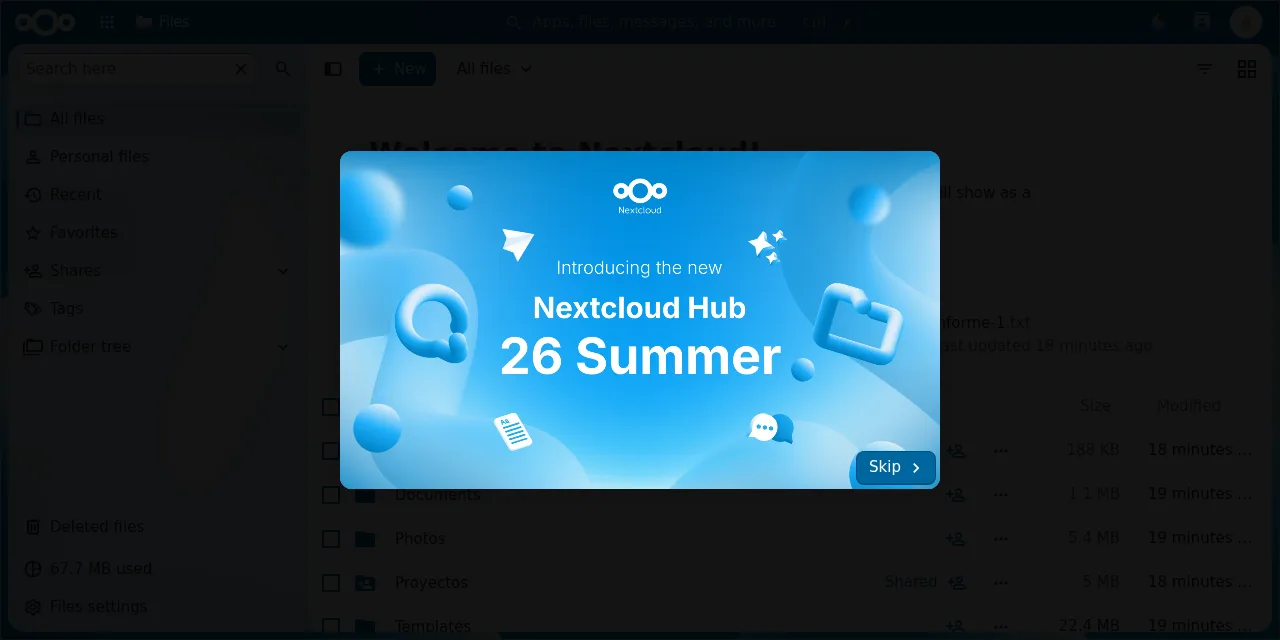
Table of contents
- Key takeaways
- What changes in Nextcloud 35 before you upgrade
- What 35 brings according to the official changelog
- What you need before you start
- The environment I tested it in
- Step 1: check which apps have a release for 35
- Step 2: back up the volume and the database
- Step 3: switch the image to Nextcloud 35
- Step 4: add indices, repair and leave maintenance mode
- The oc_federated_invites warning is not a problem
- What new warnings appear after the upgrade
- What happens to apps with no release for 35
- What happens if you are still on MariaDB 10.6
- How to go back to Nextcloud 34 if something fails
- Frequently asked questions
- Can I go from Nextcloud 33 straight to 35?
- Do I need to disable third-party apps before upgrading?
- Do I need to upgrade PHP for Nextcloud 35?
- Conclusion
- Sources
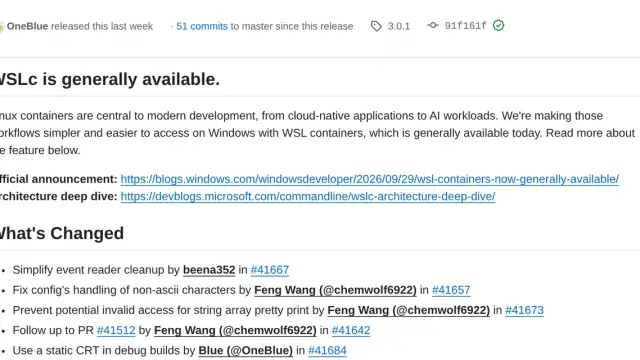
Upgrading Nextcloud 34 to 35 in Docker means backing up the database and the volume, changing the image tag and letting the container run occ upgrade when it starts. I tested it on 28 September 2026 with the official nextcloud:34.0.4 and nextcloud:35.0.1 images, MariaDB 11.8 and Redis 8, on an arm64 machine. The instance had users, shared files, a calendar, a Deck board and seven App Store apps. This guide lists every warning that came up, what it means and how I went back to 34 from the backup. There is also a Spanish version of this guide.
Key takeaways
- Nextcloud 35 (Hub 26 Summer) was released on 15 September 2026 and 35.0.1 on 24 September; the official image ships PHP 8.5.11.
- Version 35 drops PHP 8.2, MariaDB 10.6 and MySQL 8.0: the minimum becomes MariaDB 10.11 or MySQL 8.4.
- You can only move up one major version at a time; the image refuses to start if you try to skip one or go back.
- On 28 September the App Store listed 492 apps for 34.0.4 and 327 for 35.0.1; in my test two App Store apps with no release for 35 were disabled.
- After the upgrade you get the warning "missing table ‘oc_federated_invites’", which is harmless, and a new panel with four failing database checks, one of them false.
- Going back to 34 requires restoring the volume and database backup; anything written after the backup is lost.
What changes in Nextcloud 35 before you upgrade
Nextcloud 35 is the release the company markets as Hub 26 Summer, according to its changelog[1]. The v35.0.0 tag was published on 15 September 2026 and v35.0.1 on 24 September, according to the nextcloud/server releases[2]. The first login after the upgrade shows a wizard with the Hub 26 Summer name.
The "Upgrade to Nextcloud 35" note[3] in the admin manual sums up the requirement changes:
- PHP: 8.2 is no longer supported; the system requirements[4] list 8.3, 8.4 and 8.5 (recommended)
- MariaDB: 10.6 is out of support; the minimum is 10.11 LTS and 12.3 LTS is added
- MySQL: 8.0 is out of support; the minimum is 8.4 LTS and 9.7 LTS is added
- MySQL 9 or later: needs
INSTALL COMPONENT 'file://component_classic_hashing';because parts of the ecosystem still use MD5 - Operating systems: Debian 13, Ubuntu 24.04 and SUSE Linux Enterprise 15 SP7 as minimums
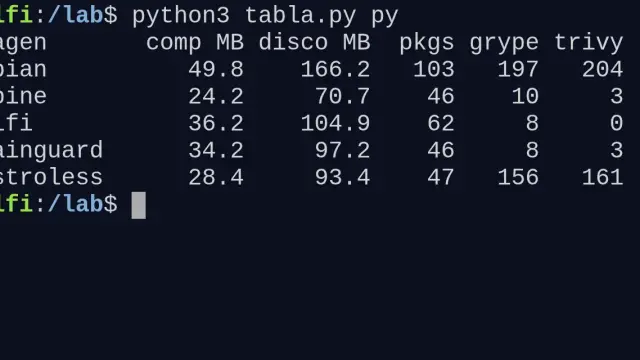
In Docker the PHP requirement does not affect you: the nextcloud:34.0.4 and nextcloud:35.0.1 images I tested both ship PHP 8.5.11 and Apache 2.4.68. The one that does affect you is the database requirement, because the database runs in its own container at the version you picked.
What 35 brings according to the official changelog
The 35.0.0 changelog is a list of hundreds of pull requests, with no product notes. These are the entries an administrator will notice:
- New
occ db:info,db:size,db:index-usageanddb:lockscommands (server#60840) - A database page with checks in the server info app (serverinfo#1130)
- The office suite becomes a shipped app (server#60776), and the settings replace OnlyOffice with Euro-Office (server#59933)
- A unified sharing dialog and sidebar (server#64114) and per-recipient permissions (server#63902)
- An in-app Teams page (circles#2561), inline comments in Text (text#8901) and map, search and trip memories in Photos (photos#3485)
What you need before you start
The rule with no exceptions is one major version at a time. The upgrade manual[5] says: "You cannot skip major releases". If you are on 33, move to the latest 34 first and then to 35. The Docker image enforces it: its entrypoint.sh compares the volume’s version with the image’s and aborts with "It is only possible to upgrade one major version at a time" if they are more than one apart.
Before you touch anything, check these four things:
- That you are on the latest patch of your major version (34.0.4 as I write)
- That the database is MariaDB 10.11 or later, or MySQL 8.4 or later
- That your third-party apps have a release for 35 (you will see it in step 1)
- That you have room for a full copy of the volume and a database dump
There is no way back without a backup either. The manual warns in a callout: "Downgrading is not supported and risks corrupting your data!". If you do not run Nextcloud in Docker yet, start with the guide on how to install Nextcloud with Docker.
The environment I tested it in
The test used the same pattern as the official image README[6]: an application container with Apache, another that runs cron.php every five minutes, MariaDB and Redis. The image tag comes from a variable so you can change it without editing the file. This is the compose.yaml, without the passwords:
services:
  db:
    image: mariadb:11.8
    command: --transaction-isolation=READ-COMMITTED
    environment:
      MARIADB_DATABASE: nextcloud
      MARIADB_USER: nextcloud
    volumes: [db:/var/lib/mysql]
  redis:
    image: redis:8
  app:
    image: nextcloud:${NC_TAG:-34.0.4}
    depends_on: [db, redis]
    ports: ["127.0.0.1:8080:80"]
    environment:
      MYSQL_HOST: db
      REDIS_HOST: redis
    volumes: [html:/var/www/html]
  cron:
    image: nextcloud:${NC_TAG:-34.0.4}
    entrypoint: /cron.sh
    volumes: [html:/var/www/html]
volumes:
  db:
  html:
The password variables (MARIADB_PASSWORD, MYSQL_PASSWORD and the admin ones) go in a .env file. The guide on MariaDB with Docker explains the full setup. On top of a clean 34.0.4 install I created two more users and a group. I also added a Proyectos folder with three text files and a 5 MiB random file whose SHA-256 I saved.
That folder was shared with another user and through a password-protected public link. I also added a CalDAV event, a Deck board and seven apps: Calendar, Contacts, Deck, Notes, Tasks, Duplicate Finder and Account retention. A verify.sh script checks all of that before and after each change: version, users, file checksum, share access, public link with and without password, event and boards. I ran the commands in this guide as shown, changing only the Compose project name and the volume name.
Step 1: check which apps have a release for 35
Apps are what breaks most in a major version, because each one declares which server versions it works with. The public App Store API returns the apps that have at least one release compatible with a given server version:
curl -s https://apps.nextcloud.com/api/v1/platform/35.0.1/apps.json \
  | python3 -c 'import json,sys; print(len(json.load(sys.stdin)))'
docker compose exec -u www-data app php occ app:list --shipped=false
On 28 September 2026 that query returned 327 apps for 35.0.1 and 492 for 34.0.4. Of those available for 34, 168 had no release for 35 yet. Two of mine were among them: Duplicate Finder 1.8.1 declares >=28.0.0 <35.0.0 and Account retention 1.17.0 declares <35.0.0. Deck 1.18.5 also stops at <35.0.0, but Deck 1.19.0 exists for 35.
The manual asks you to disable third-party apps before upgrading and re-enable them afterwards. Update the ones that have a new release first, then disable the ones that do not:
docker compose exec -u www-data app php occ app:update --all
docker compose exec -u www-data app php occ app:disable \
  duplicatefinder user_retention
Step 2: back up the volume and the database
The backup guide[7] lists five things to keep: config, custom apps, data, the theme and the database. In the Docker image the first four live in the volume mounted at /var/www/html, so the backup comes down to that volume and a dump:
docker compose exec -u www-data app php occ maintenance:mode --on
docker compose exec -T db sh -c 'mariadb-dump --single-transaction \
  --default-character-set=utf8mb4 -u nextcloud -p"$MARIADB_PASSWORD" \
  nextcloud' > backup/nextcloud-db.sql
docker run --rm -v nextcloud_html:/src:ro -v "$PWD/backup":/dst alpine \
  tar -C /src -czf /dst/nextcloud-html.tgz .
The first command puts the instance in maintenance mode so nobody writes during the backup. The second dumps the database with the options the manual gives, and the third packs the volume from a read-only Alpine container. Replace nextcloud_html with the real volume name, which Compose builds from the project name.
On my instance the dump took 1.35 MB and the volume archive 532 MB. The gap comes from the volume holding the Nextcloud code itself, which the image copies there at install time. If you already take encrypted backups with restic, these two files are what you add to the policy before upgrading.
Step 3: switch the image to Nextcloud 35
The upgrade itself is changing the tag and recreating the containers. The image README sums it up as docker compose pull and docker compose up -d: the start script sees that the volume holds an older version, syncs the new code and runs occ upgrade.
export NC_TAG=35.0.1
docker compose pull app cron
docker compose up -d
docker compose logs -f app
Pin the version tag (35.0.1 or 35) instead of latest. With latest, a routine pull or a tool like Watchtower can move you up a major version with no backup first. This is the relevant excerpt of the container log from my first upgrade:
Initializing nextcloud 35.0.1.1 ...
Upgrading nextcloud from 34.0.4.1 ...
Updating database schema
Updated database
Disabled incompatible app: deck
Disabled incompatible app: duplicatefinder
Disabled incompatible app: user_retention
Update app deck from App Store
Update successful
Maintenance mode is kept active
The database schema does not match what is expected for the
installed version:
  - missing table 'oc_federated_invites'
The following apps have been disabled:
duplicatefinder
user_retention
Initializing finished
Three lines need explaining. "Maintenance mode is kept active" appears because the instance was already in maintenance mode from the backup: the upgrader respects that state and does not lift it. On another instance I upgraded without enabling maintenance first, the log says "Turned on maintenance mode" and, at the end, "Turned off maintenance mode".
"Disabled incompatible app: deck" looks alarming, but two lines later the upgrader downloads Deck 1.19.0 from the store and leaves it enabled. That download needs the container to reach apps.nextcloud.com; I have not tested an instance with no internet access. The third line, the schema one, gets its own section below.
Step 4: add indices, repair and leave maintenance mode
The manual keeps out of the upgrader the operations that can take long on large instances and asks you to run them by hand afterwards. They are three db:add-missing-* commands and the repair with the MIME type migration:
occ() { docker compose exec -u www-data app php occ "$@"; }
occ db:add-missing-indices
occ db:add-missing-columns
occ db:add-missing-primary-keys
occ maintenance:repair --include-expensive
occ maintenance:mode --off
In my case db:add-missing-indices printed nothing and the other two answered Done.. The repair with --include-expensive cleared the "Mimetype migrations available" warning that 34 already showed. The last command hands the instance back to users, and you should run it only after reviewing the warnings in the next section.
The manual also asks you to run cron.php two or three times after a major version before chaining another one, so background migrations finish. If you have a cron container, let a couple of cycles pass. When I ran cron.php by hand while that container was also running it, I got a Duplicate entry 'OCA\Deck\Cron\CardDescriptionActivity' for key 'class_index' in the log.
The oc_federated_invites warning is not a problem
The warning "missing table ‘oc_federated_invites’" shows up on every 34 to 35.0.1 upgrade I ran, including one on a freshly installed instance. The cause is in the code itself: 35 ships a repair step, DropFederatedInvitesTable, that drops that table when it is empty. However, occ db:schema:check, a new command in 35, still expects it.
If the table had rows, the repair step keeps it. Either way your data is intact, and verify.sh passed every check with the warning present.
What new warnings appear after the upgrade
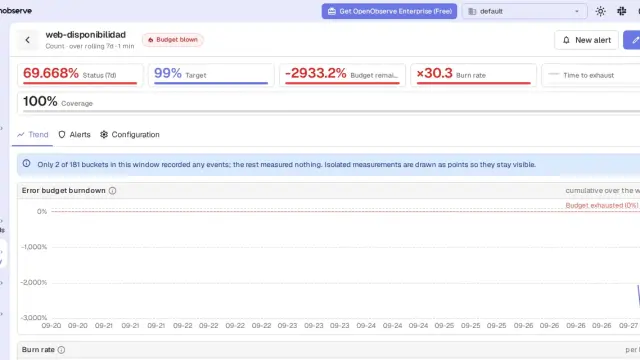
Version 35 adds a database page to the server info app, at /settings/admin/serverinfo, with 37 checks. On my instance 4 failed, and the occ setupchecks summary started to include "Database configuration: 4 database checks are failing":
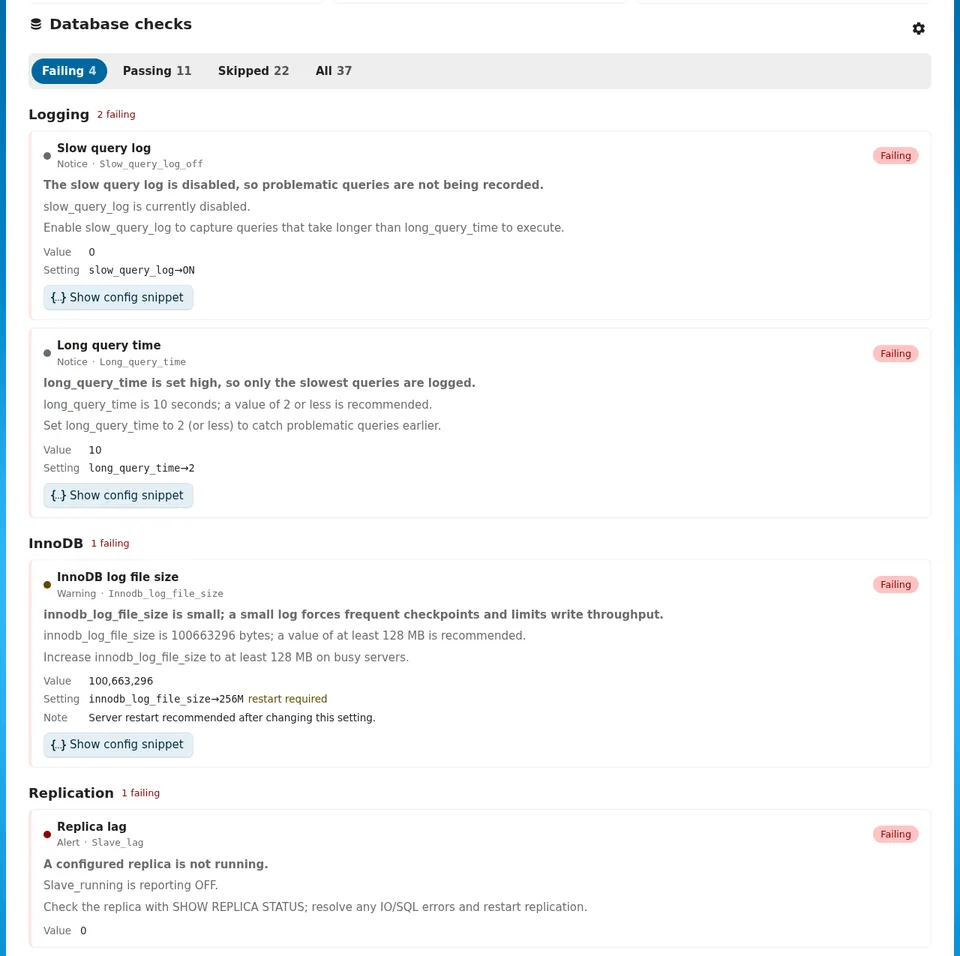
- Slow query log: MariaDB’s slow query log is off (
slow_query_logat 0) - Long query time:
long_query_timeis 10 and it recommends 2 or less - InnoDB log file size:
innodb_log_file_sizeis 100663296 bytes and it recommends at least 128 MB - Replica lag: Alert level, "A configured replica is not running", on a single-node MariaDB with no replication configured
The first three are defaults of the MariaDB image, and the fourth is a false alarm: there is no replica configured. None of them stops you using Nextcloud. If you want the panel green, the three settings go in a MariaDB configuration file mounted into the db container.
The new occ commands had surprises too. occ db:info flags CHECK on the InnoDB buffer pool (0.13 GB against "≥ 1 GB"). occ db:locks answers that the database user needs the PROCESS privilege. occ db:index-usage fails on MariaDB 11.8 with SQL syntax error 1064: its query uses reads as a column alias, and READS is a reserved word in MariaDB and MySQL.
What happens to apps with no release for 35
The upgrader disables incompatible apps and logs which ones. If you try to enable them afterwards, Nextcloud refuses:
$ occ app:enable duplicatefinder
App "Duplicate Finder" cannot be installed because it is not compatible
with this version of the server.
The Nextcloud log gives the exact reason: "Server version 34 or lower is required". occ app:enable --force user_retention enables the app anyway, and in my test files kept being served. I do not recommend it in production: the app has not been tested with 35 and a bug in it can break whole pages. The safe option is to wait for the author to publish a release or to replace the app.
What happens if you are still on MariaDB 10.6
Version 35 does not refuse to upgrade on MariaDB 10.6, even though it no longer supports it. I set up a second 34.0.4 instance on mariadb:10.6 and upgraded it to 35.0.1: the log ended in "Update successful" with no error. The only trace is in the configuration checks, at info level rather than warning:
ℹ Database version: MariaDB version 10.6 detected, this version is
end-of-life and only supported as part of Ubuntu 22.04. MariaDB
>=10.11 and <=12.3 is suggested for best performance, stability and
functionality with this version of Nextcloud.
Working is not the same as supported, so upgrade MariaDB anyway. With the official image, change the tag to mariadb:11.8 and add MARIADB_AUTO_UPGRADE: "1". According to the MariaDB image documentation[8], that variable runs mariadb-upgrade at start-up and first saves a copy of the system database. In my test the check turned green with "11.8.9-MariaDB".
How to go back to Nextcloud 34 if something fails
Going back to the previous image without restoring does not work. When I started nextcloud:34.0.4 on the upgraded volume, the container exited with code 1 and this message:
Can't start Nextcloud because the version of the data (35.0.1.1) is
higher than the docker image version (34.0.4.1) and downgrading is not
supported. Are you sure you have pulled the newest image version?
The rollback means emptying the volume, restoring the archive, recreating the database from the dump and starting with the previous tag. The restore guide[9] asks you to drop and recreate the database before importing the dump. These commands restore the two backup files:
docker compose stop app cron
docker run --rm -v nextcloud_html:/dst -v "$PWD/backup":/src:ro alpine \
  sh -c 'find /dst -mindepth 1 -delete &&
  tar -C /dst -xzf /src/nextcloud-html.tgz'
docker compose exec -T db sh -c 'mariadb -u root -p"$MARIADB_ROOT_PASSWORD" \
  -e "DROP DATABASE nextcloud; CREATE DATABASE nextcloud
  CHARACTER SET utf8mb4 COLLATE utf8mb4_general_ci;"'
docker compose exec -T db sh -c 'mariadb -u nextcloud \
  -p"$MARIADB_PASSWORD" nextcloud' < backup/nextcloud-db.sql
Then flush Redis, which holds sessions and locks from version 35, and start with the previous tag:
docker compose exec redis redis-cli FLUSHALL
NC_TAG=34.0.4 docker compose up -d app cron
occ maintenance:mode --off
occ maintenance:data-fingerprint
The instance starts in maintenance mode because the backup’s config.php was saved with maintenance on, so you have to lift it by hand. maintenance:data-fingerprint tells desktop clients that the server went back to an earlier state, so they recover files instead of deleting them. After the restore, verify.sh passed every check: version 34.0.4, users, file checksum, shares, public link, event and boards. The apps came back as they were in the backup: Deck 1.18.5 enabled and the two incompatible ones disabled, because I disabled them before the backup.
What does not come back is whatever users wrote between the backup and the restore. That is why the backup runs with maintenance on and the window between backup and verification should be short.
Frequently asked questions
Can I go from Nextcloud 33 straight to 35?
No. The Docker image compares the volume’s version with its own and refuses to start if they are more than one major version apart. Upgrade to the latest 34 first, let a few cron cycles pass and repeat the process towards 35.
Do I need to disable third-party apps before upgrading?
The manual asks for it, and the upgrader disables the ones that do not declare compatibility anyway. Disabling them yourself first gives you control: you know which ones they are and you review them one by one. The ones with a new release in the store, like Deck, update themselves during the process if the container has internet access.
Do I need to upgrade PHP for Nextcloud 35?
Not in Docker, because PHP ships inside the image: both nextcloud:34.0.4 and nextcloud:35.0.1 ship PHP 8.5.11. The requirement you do need to check is the MariaDB or MySQL version, which runs in its own container.
Conclusion
Upgrading Nextcloud 34 to 35 in Docker is changing one tag, but the preparation is what decides whether it goes well. Check in the store which apps have a release for 35, take the backup with maintenance on and pin the major version in compose.yaml. Then run the db:add-missing-* commands and the repair, and review the warnings before opening the instance. The oc_federated_invites warning and the replica alarm are noise; a disabled app is not.
Rehearse the rollback at least once before you need it. In my test, restoring the volume and the database brought the instance back to 34.0.4 with all its data. It is the only way back, because the image refuses to start an older version on newer data. If you have done a similar upgrade before, the one for Jellyfin 12 with Docker follows the same backup, tag and verify pattern.
Sources: [1] Nextcloud 35: upgrade notes for 35[3], [2] Nextcloud 35: how to upgrade[5], [3] Nextcloud 35: backup[7], [4] Nextcloud 35: restoring a backup[9], [5] nextcloud/docker image README[6], [6] Nextcloud server changelog[1], [7] nextcloud/server releases[2], [8] Nextcloud 35 system requirements[4], [9] Nextcloud App Store API for 35.0.1[10], [10] MariaDB image environment variables[8].
Sources
Source code
Access all the source code for this post on GitHub.
View on GitHub