
Learning path Advanced
Networking and secure remote access with Docker
Connect and protect your services: ad-blocking DNS (Pi-hole, AdGuard Home), a WireGuard VPN with wg-easy, a reverse proxy with a UI (Nginx Proxy Manager), a password manager (Vaultwarden), home automation (Home Assistant), your own Git (Gitea), a mesh network (Headscale) and a private metasearch engine (SearXNG).
- 12 resources
- 13 views
- ~133 min
- 11 guides + 1 lab
What you’ll learn
This advanced Docker self-hosting path teaches you to build the network layer behind a serious homelab: DNS filtering, a reverse proxy, an encrypted VPN and secure credential management, all under your own control. It’s built for people who already know their way around docker-compose and want to stop depending on third parties for the essentials.
By the end you’ll be able to build a home network that blocks ads and trackers at the DNS level, expose your containers with valid certificates without opening ports at random, and connect from anywhere as if you were on your home LAN. Prior comfort with Docker, basic networking (IP, DNS, ports) and the command line is assumed; this is not a starting point for anyone who has never touched a container.
The sequence opens with control over outbound traffic using Pi-hole and AdGuard Home, two DNS solutions that act as the cornerstone for everything that follows. With the network filtered, Nginx Proxy Manager steps in to expose internal services with automatic TLS, and wg-easy sets up a WireGuard VPN that hands you remote access without trusting a third party. From there the path adds a layer of credential hygiene with Vaultwarden and closes with more advanced pieces like Headscale, a Tailscale-style mesh network that removes the single point of failure of a classic VPN. By common estimates, a well-tuned DNS filter blocks somewhere between 10% and 30% of requests on an average home network.
How to Install Pi-hole with Docker
Pi-hole is a DNS server that blocks ads and trackers across your whole network. With Docker you install it from a single docker-compose.yml: version 6 embeds the web panel into the pihole-FTL binary, exposes DNS on port 53 and the admin UI on port 80, and is configured with FTLCONF_-prefixed variables.

Pihole in Docker (DNS Sinkhole)
Pi-hole is a DNS resolver that acts as a sinkhole: it filters every query on your network before it reaches the internet and blocks ad and tracking domains from its lists, answering 0.0.0.0 instead of forwarding them. In this lab you run it in Docker and prove it live with dig.
How to Install AdGuard Home with Docker
AdGuard Home is a free, open-source DNS server that blocks ads and trackers across your whole network from a single container. This guide brings it up with Docker Compose, fixes the port 53 conflict, walks through the setup wizard and turns on encrypted DNS and DNS rewrites.
How to Install Nginx Proxy Manager with Docker
Nginx Proxy Manager is an open-source reverse proxy that puts a web interface over Nginx and Certbot, so you create proxy hosts and request Let's Encrypt certificates with a few clicks. With Docker it installs as a container next to its database, exposes ports 80, 443 and 81, and spares you from editing Nginx config files by hand.
How to Set Up a WireGuard VPN with wg-easy in Docker
wg-easy is the simplest way to self-host a WireGuard VPN: a single container that bundles the server and a web panel to create clients in one click. This guide brings it up with Docker Compose in its version 15, completes the first-run setup wizard on port 51821 and connects your first device with a QR code.
How to Install Vaultwarden with Docker
Vaultwarden is a Bitwarden-compatible password server written in Rust and released under the AGPL-3.0 license that barely uses any RAM. This guide brings it up with Docker Compose, publishes it behind a reverse proxy with HTTPS (mandatory for the browser encryption to work), protects the /admin panel with an ADMIN_TOKEN and closes off registration.
How to Install Gitea with Docker
Gitea is a self-hosted Git service written in Go, lightweight and a single binary, an alternative to GitHub and GitLab. With Docker you install it from a docker-compose.yml alongside PostgreSQL: it publishes the web interface on port 3000 and Git over SSH on port 22, and is configured with GITEA__ variables. It ships Actions for CI and webhooks.

How to install Forgejo with Docker, Caddy and Forgejo Runner
To install Forgejo with Docker, use the codeberg.org/forgejo/forgejo:16.0 image, which since 10 September 2026 is 16.0.4 and fixes a critical remote code execution flaw. Put it behind Caddy with REVERSE_PROXY_TRUSTED_PROXIES set to the proxy's IP, and register Forgejo Runner 13 against the instance's public URL.
How to Install Home Assistant with Docker
Home Assistant Container is the local home-automation platform installed as a Docker container: an official image, port 8123 and host-mode networking to discover devices. This guide brings it up with docker-compose, covers the first boot and backups, and makes clear it does not include the Supervisor add-on store.
How to Run Headscale with Docker
Headscale is a free, self-hosted implementation of the Tailscale control server: it gives you a private WireGuard mesh network without depending on Tailscale's cloud or its plan limits. This guide brings it up with Docker Compose in its version 0.29.2, prepares the config.yaml file, registers the first node and adds a web panel with headscale-ui.

How to install Pangolin and expose your services without Cloudflare Tunnel
Pangolin is an identity-aware tunneled reverse proxy you install on a VPS with Docker Compose. The Newt connector opens the connection outward from your network to the server, so nothing at home listens for inbound traffic, and Traefik issues the Let's Encrypt certificates at the other end.
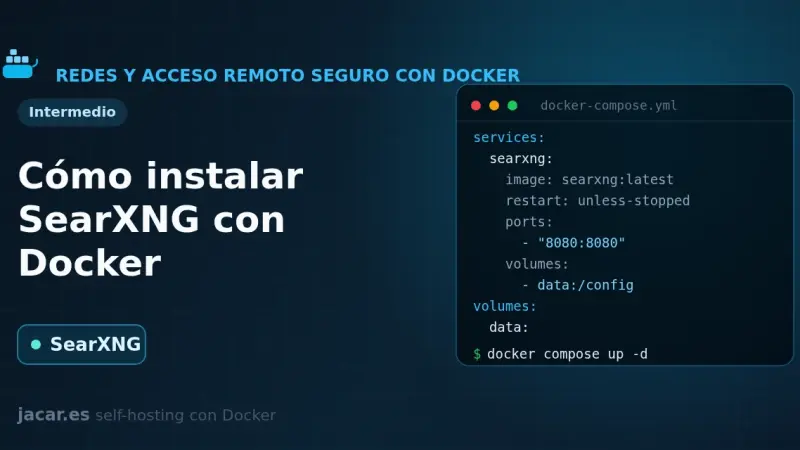
How to Install SearXNG with Docker
SearXNG is a free, privacy-respecting metasearch engine that aggregates results from more than 70 services without tracking or profiling you. With Docker you bring it up in a container alongside Valkey, set a secret_key in settings.yml and in minutes you have your own private search engine listening on port 8080.